Title here
Summary here

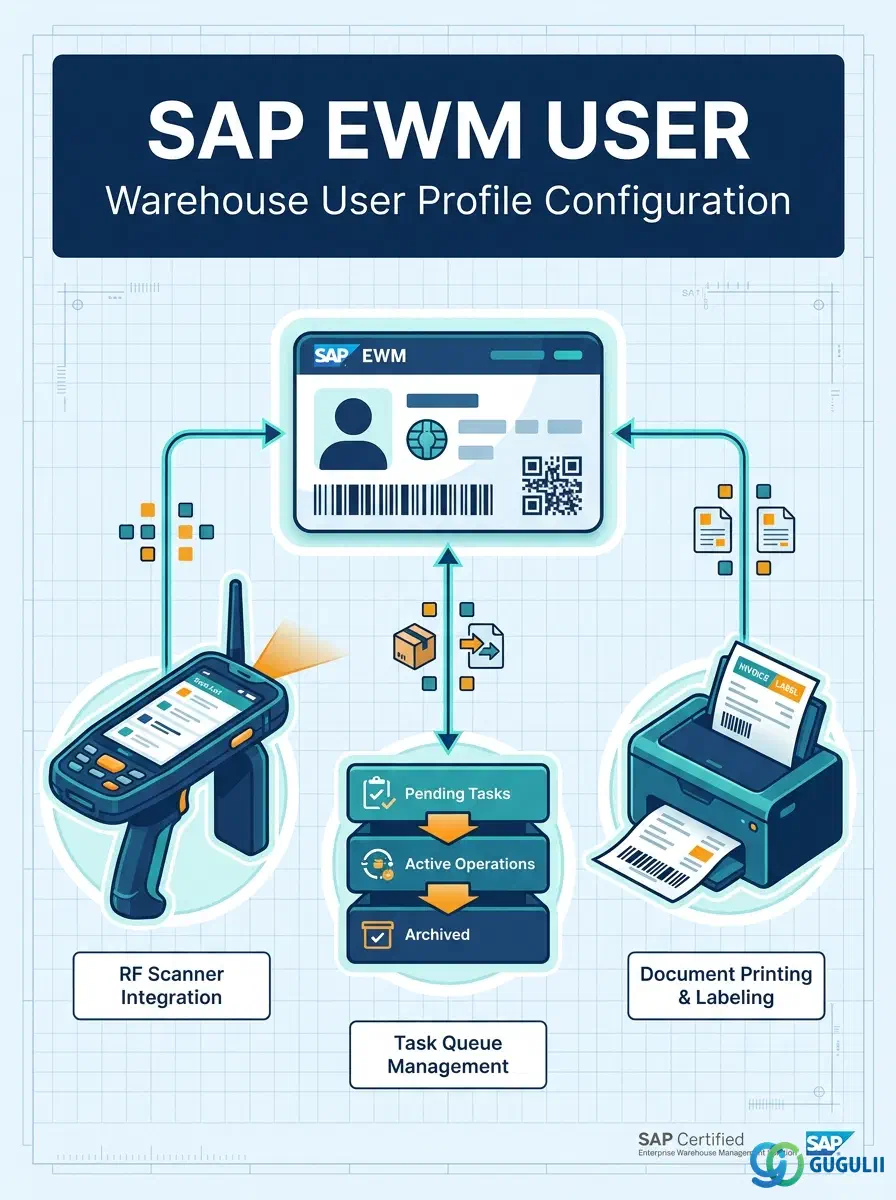
The EWM User master data object is not a generic SAP Basis user account — it is the warehouse-specific profile that determines how a user (SU01 account) operates inside the Extended Warehouse Management system. For each user who works in a warehouse, EWM maintains a separate profile record that maps the user to a Warehouse Number, assigns default RF queue and process types, controls RF device behavior, and designates label and document printers. This article covers the full field-level detail of the EWM User profile, from the basic user-warehouse assignment through RF settings and printer defaults.
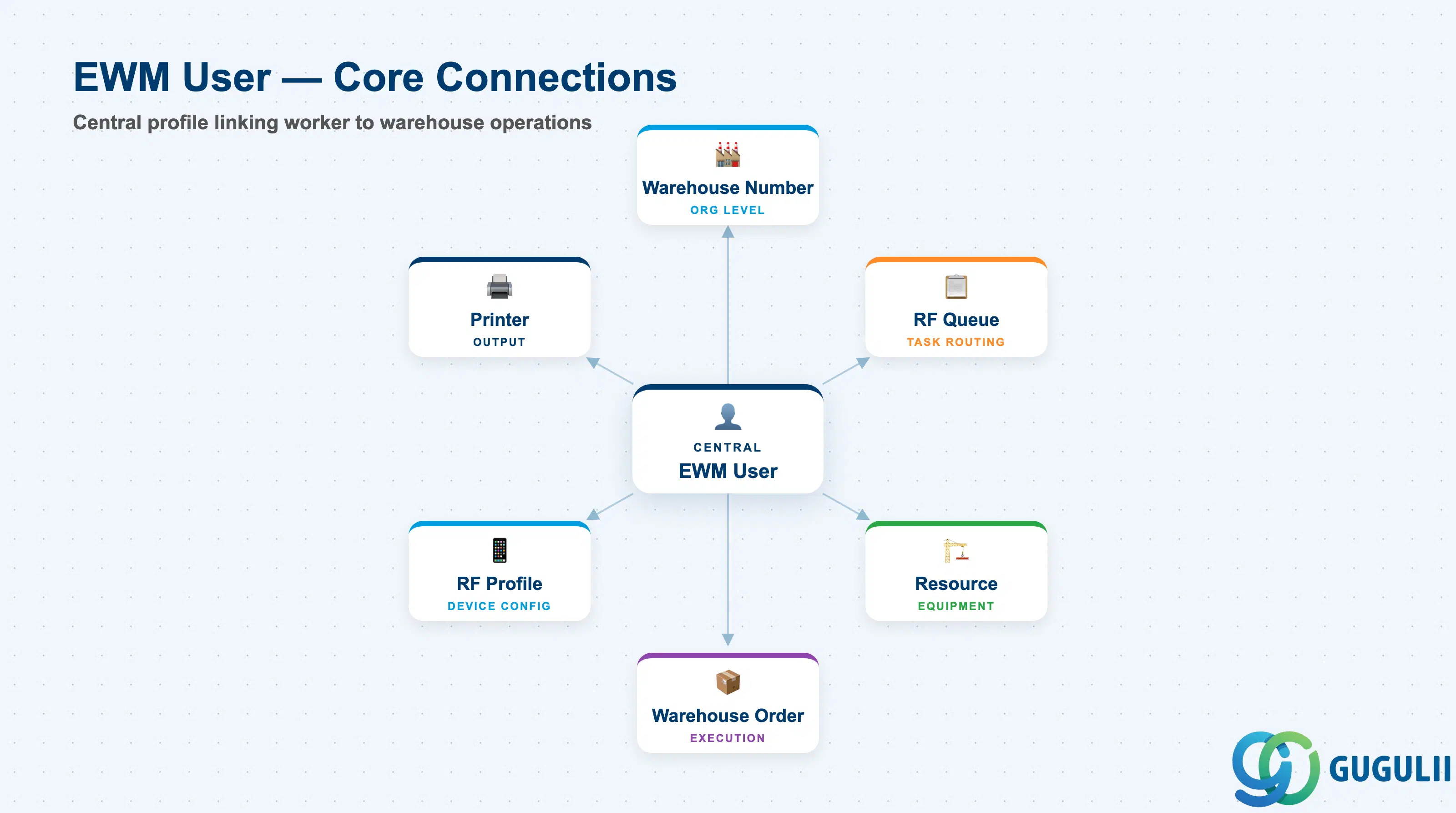
The EWM User profile is the master data record that personalizes the warehouse environment for each individual worker. Unlike the SU01 user account — which controls system access, roles, and authorizations at the SAP Basis level — the EWM User record controls operational defaults: which warehouse the user belongs to, which RF queue they draw tasks from, what process type they execute by default, and which printers they use for labels and documents. Without an EWM User record, a user with the correct SU01 authorizations can log into SAP but will not be able to perform warehouse tasks on an RF device or have consistent work routing applied.
| Aspect | Details |
|---|---|
| Role | Maps an SU01 user account to a Warehouse Number and defines operational defaults for warehouse task execution |
| Modules using it | EWM (primary owner — all warehouse task routing and RF operations), Basis (SU01 user account is prerequisite, but Basis does not manage EWM User settings) |
| Transactions | /SCWM/USER (Create / Change / Display warehouse user); Fiori: “Manage Warehouse Users” |
| Key Tables | /SCWM/TUSR (warehouse user settings per Warehouse Number) |
| S/4HANA note | EWM User management is fully available in both Embedded EWM and Decentralized EWM. In Embedded EWM, the SU01 user resides in the same system. In Decentralized EWM, user IDs must exist in both the ERP system and the EWM system. Fiori “Manage Warehouse Users” provides a simplified tile-based maintenance UI. |
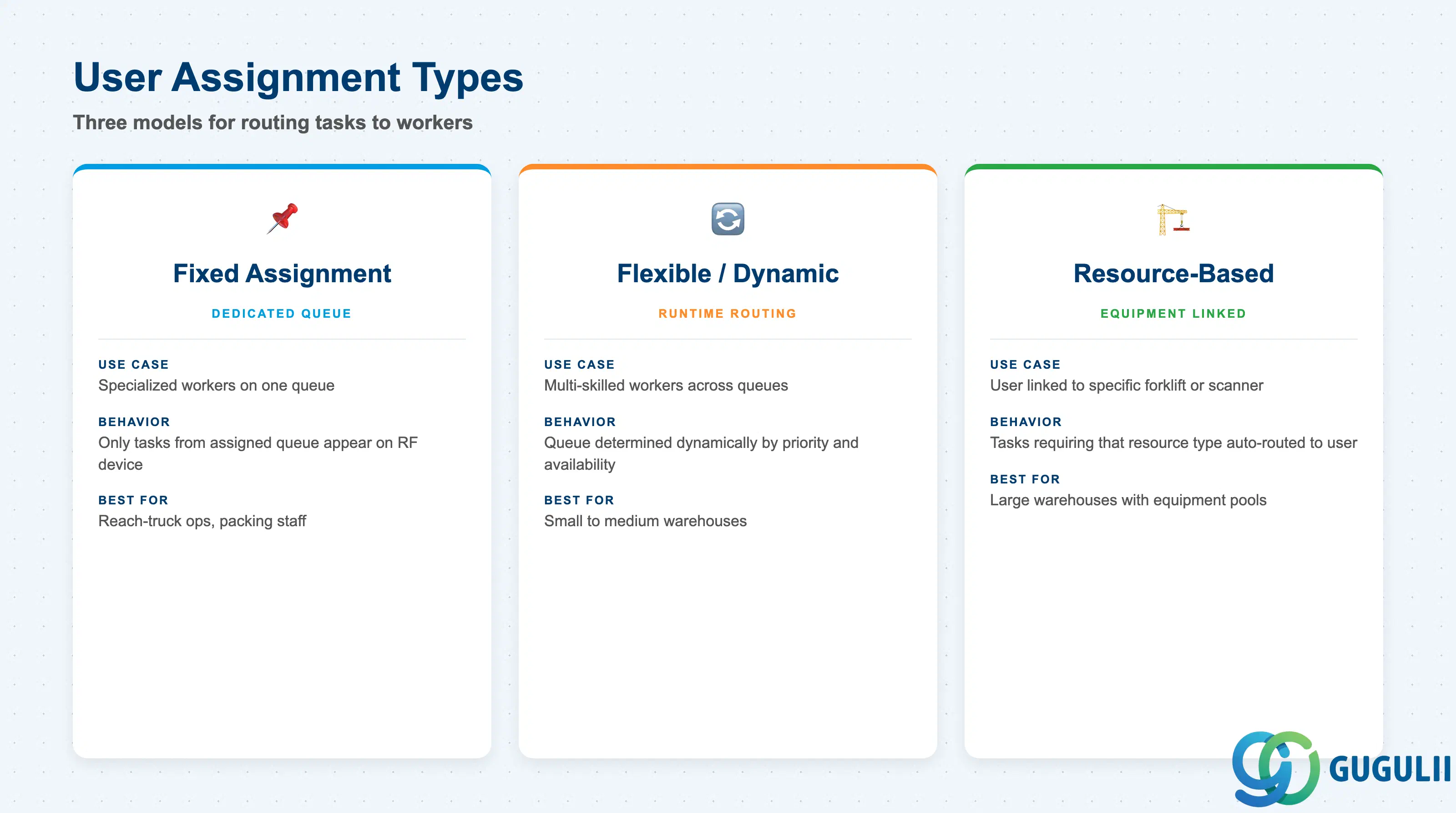
EWM supports two fundamental models for routing warehouse tasks to users. Choosing the wrong assignment model leads to either task starvation (workers idle while queues back up) or task flooding (workers overwhelmed with mismatched tasks). The assignment model is determined by the RF Queue and process type defaults set in the EWM User profile.
| Assignment Type | Code | Use Case | Key Behavior |
|---|---|---|---|
| Fixed Assignment | Queue assigned in /SCWM/USER | User always draws tasks from one specific RF queue (e.g., Putaway Queue 01). Typical for specialized workers (reach-truck operators, packing staff). | User’s default RF queue is fixed. Only tasks in that queue are presented to the RF device at login. Provides predictable workload per worker role. |
| Flexible / Dynamic Assignment | No fixed queue; queue determined at runtime | User can execute tasks across multiple queues depending on priority and availability. Typical for multi-skilled workers in small to medium warehouses. | Queue assignment is determined dynamically by EWM resource management. Higher operational flexibility but requires robust queue priority configuration. |
| Resource-Based Assignment | User linked to a Resource in /SCWM/RSRC | User is associated with a specific physical resource (e.g., Forklift FL-01). Tasks requiring that resource type are routed to the user automatically. | Combines with RF Queue assignment. Resource assignment is set in the Resource master (/SCWM/RSRC), while the EWM User profile controls the RF and default settings. |
Design principle: Define the assignment model during blueprint. Fixed-queue assignment is simpler to operate but requires role segmentation. Dynamic assignment requires careful queue priority setup to avoid task starvation on critical queues.
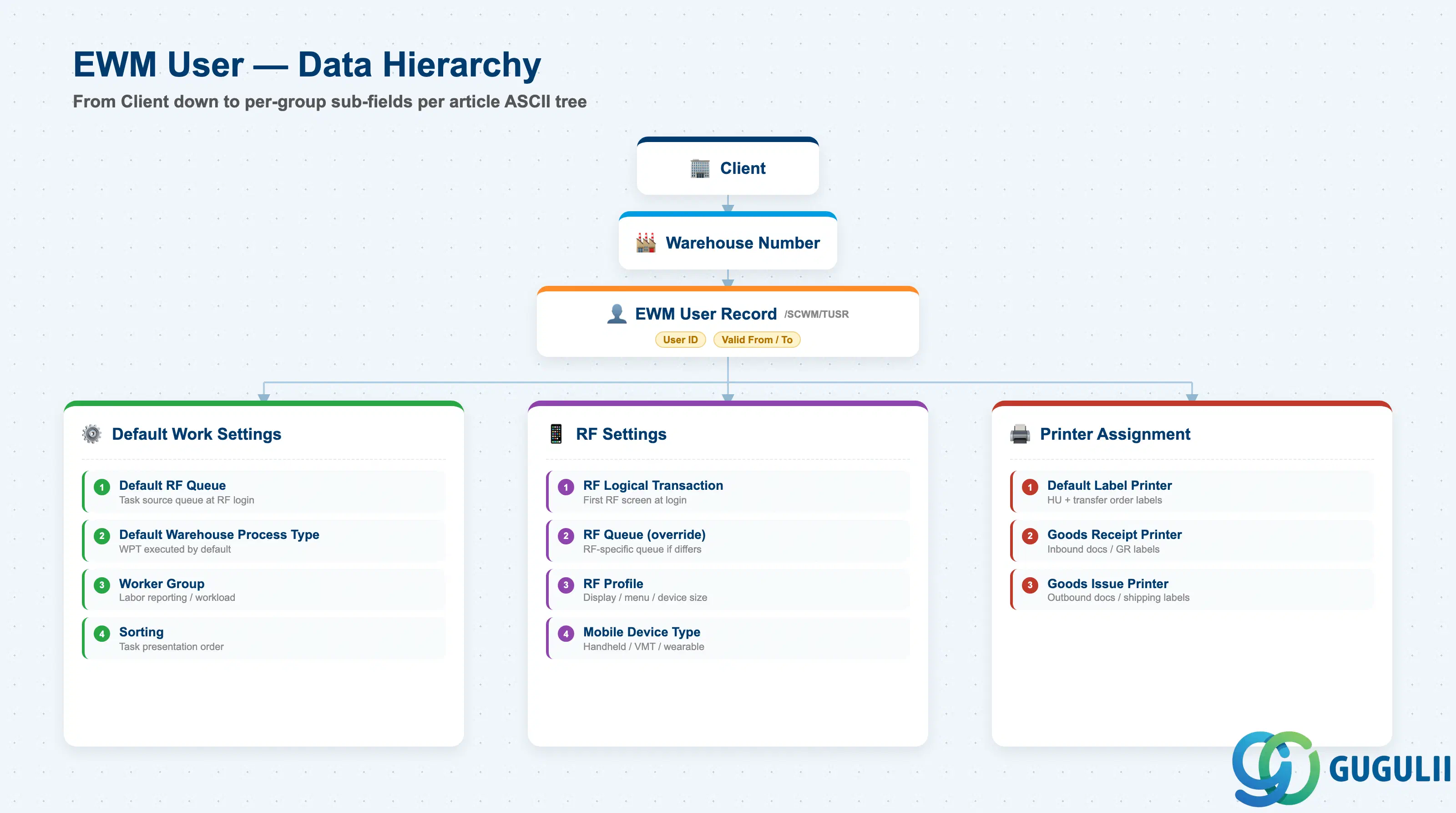
The EWM User profile exists at the intersection of the Warehouse Number and the individual User ID. There is one EWM User record per User-per-Warehouse combination, meaning a user who works across two warehouses will have two separate /SCWM/TUSR records. This design allows each warehouse to have independent default settings for the same physical person.
Client
  │
  └── Warehouse Number (e.g., WH01)
         │
         └── EWM User Record (/SCWM/TUSR)
                │   User ID (SU01 account)
                │   Validity: Valid From / Valid To
                │
                ├── Default Work Settings
                │       Default RF Queue
                │       Default Warehouse Process Type
                │       Worker Group / Sorting
                │
                ├── RF Settings
                │       RF Logical Transaction
                │       RF Queue (RF-specific override)
                │       RF Profile
                │       Mobile Device Type
                │
                └── Printer Assignment
                        Default Label Printer
                        Goods Receipt Printer
Goods Issue Printer| Org Level | Table | Primary Fields | Notes |
|---|---|---|---|
| Client | SU01 (Basis) | User ID, Roles, Authorizations | Prerequisite — must exist before EWM User profile can be created |
| Warehouse Number | /SCWM/TUSR | Warehouse Number, User ID, Validity | One record per User × Warehouse combination |
| EWM User Profile | /SCWM/TUSR | RF Queue, Process Type, Printer, RF Profile | All operational defaults live at this level |
Key design decision: Because the record is per-Warehouse, users working in multiple warehouses require separate configuration in each warehouse. Bulk-copying user settings via Fiori “Manage Warehouse Users” is recommended for large rollouts.
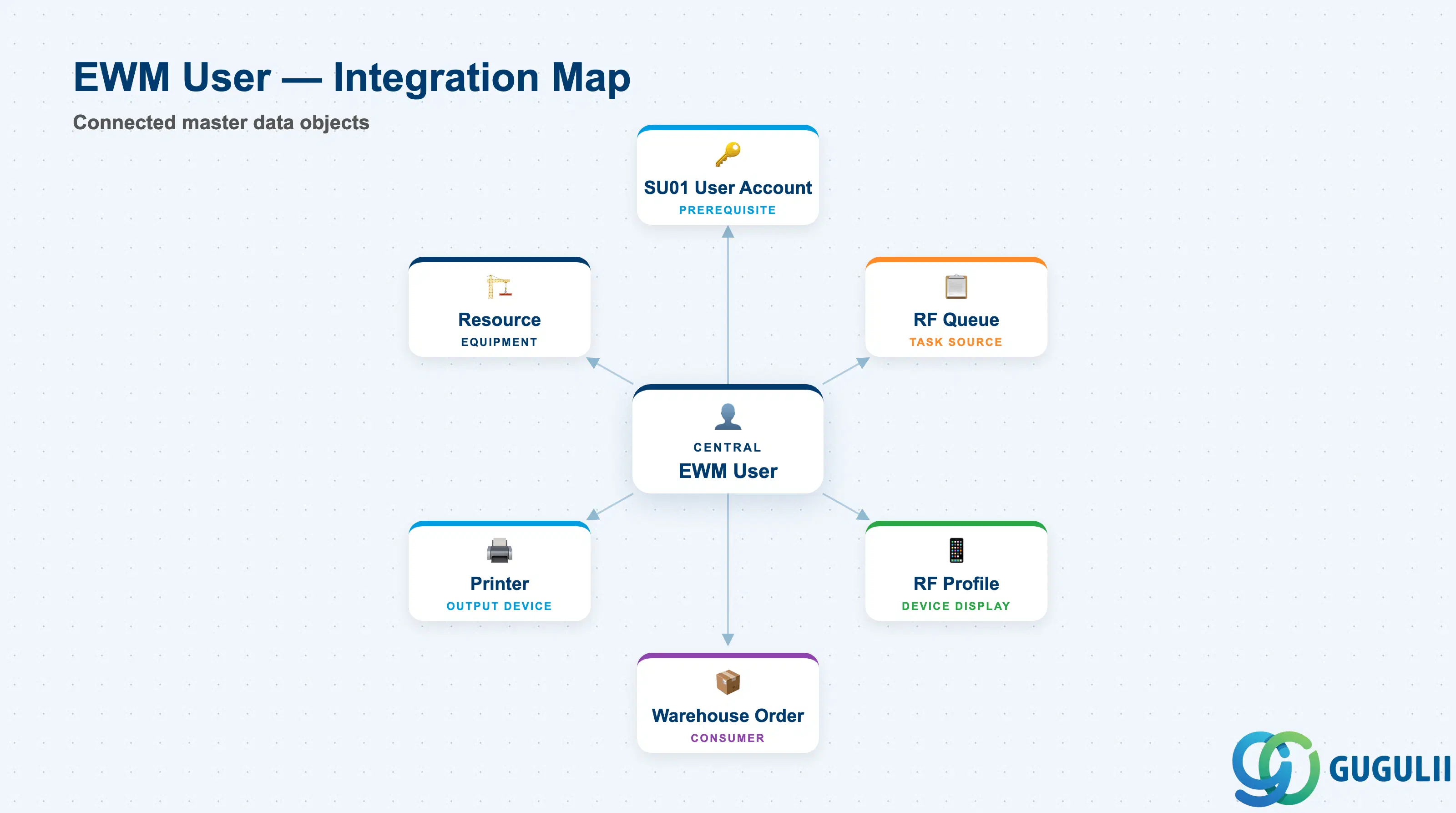
The EWM User profile does not stand alone — it connects to multiple master data objects that together define the full warehouse work environment. Gaps in any of these dependent objects prevent the user from operating correctly on the warehouse floor.
| Object | Relationship | Practical Notes |
|---|---|---|
| SU01 User Account (Basis) | Prerequisite — the User ID in /SCWM/USER must match a valid SU01 account | EWM authorization objects (e.g., /SCWM/TCODE) must also be granted via roles in SU01. The EWM User profile controls operational defaults; SU01 controls access. |
| RF Queue (/SCWM/RFQUEUE) | Referenced by EWM User as the default task queue | The RF Queue must exist in Phase 7 (RF Framework) before it can be assigned to a user. Incorrect queue assignment causes the RF device to show no tasks at login. |
| RF Profile (/SCWM/RFPROF) | Referenced by EWM User to control RF device display and behavior | RF Profile governs which menu items appear on the RF device and in what order. If not assigned, the system uses the default RF Profile for the warehouse. |
| Resource (/SCWM/RSRC) | Optional — links the user to a physical warehouse resource (forklift, scanner) | When assigned, task routing considers the resource’s capabilities and location. Resource assignment is maintained in /SCWM/RSRC, not in the EWM User profile itself. |
| Warehouse Order | Consumer — warehouse orders are routed to the user via the assigned RF Queue | The user’s queue and process type default determine which warehouse orders are presented for execution. Misconfigured defaults cause workers to receive the wrong task types. |
| Printer (Spool / Output Management) | Referenced for label and document printing | EWM User stores printer names that must exist in the SAP spool system (transaction SPAD). Label printers must be configured for the correct output device type (e.g., ZPL for Zebra printers). |
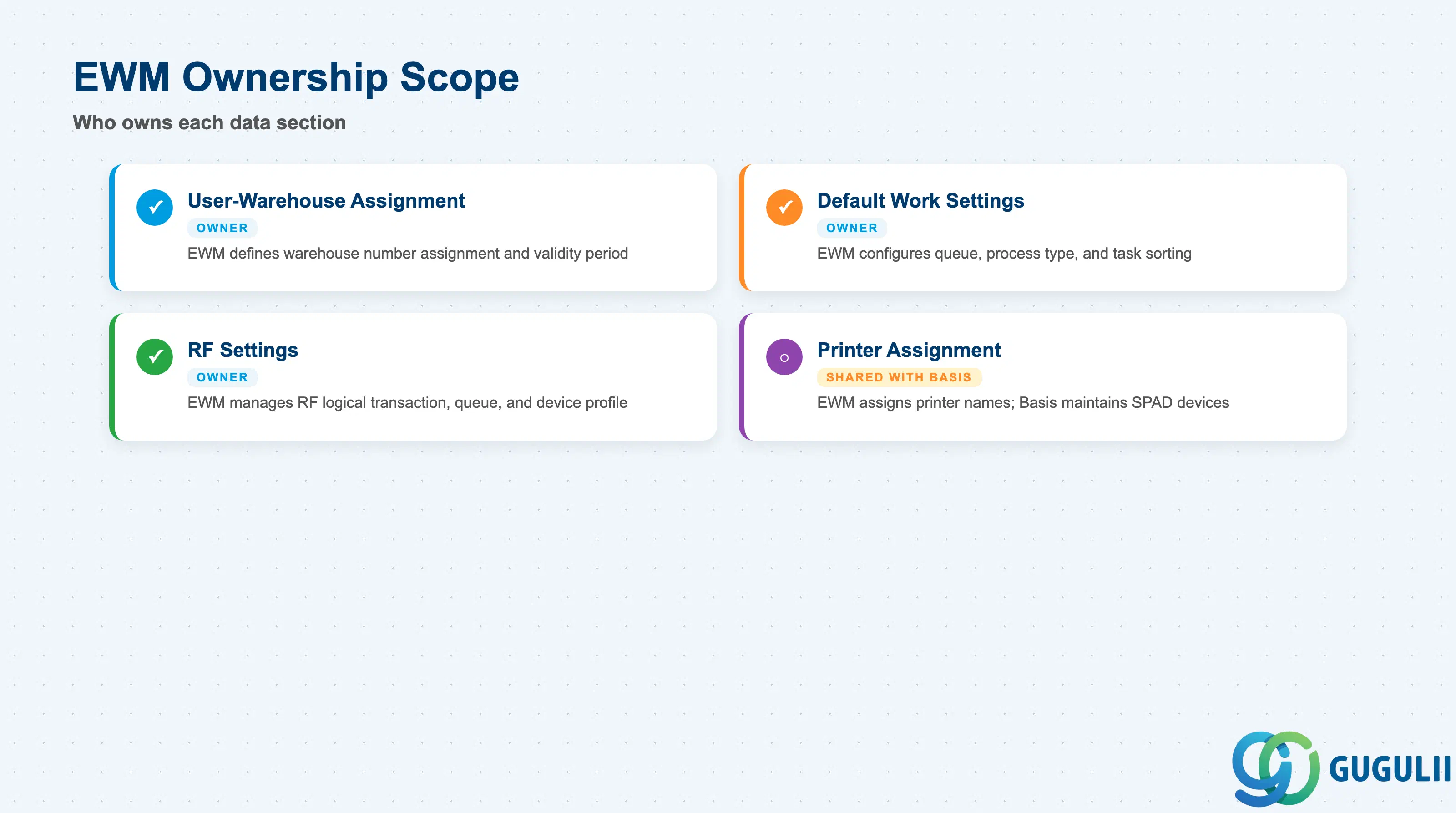
| Data Section | EWM Involvement | Notes |
|---|---|---|
| User-Warehouse Assignment | ◎ Owner | EWM consultant defines the warehouse number assignment and validity period. SU01 user must be pre-created by Basis. |
| Default Work Settings | ◎ Owner | EWM consultant defines queue, process type, worker group, and task sorting. Critical for task routing design. |
| RF Settings | ◎ Owner | EWM consultant defines RF logical transaction, RF queue override, RF profile, and device type. Requires RF Framework (Phase 7) to be configured first. |
| Printer Assignment | ○ Shared with Basis | EWM consultant defines which printer name to assign. Basis / system administrator must ensure the printer device exists in SPAD and is correctly configured for label output. |
Legend: ◎ = Owner / Critical, ○ = Direct involvement
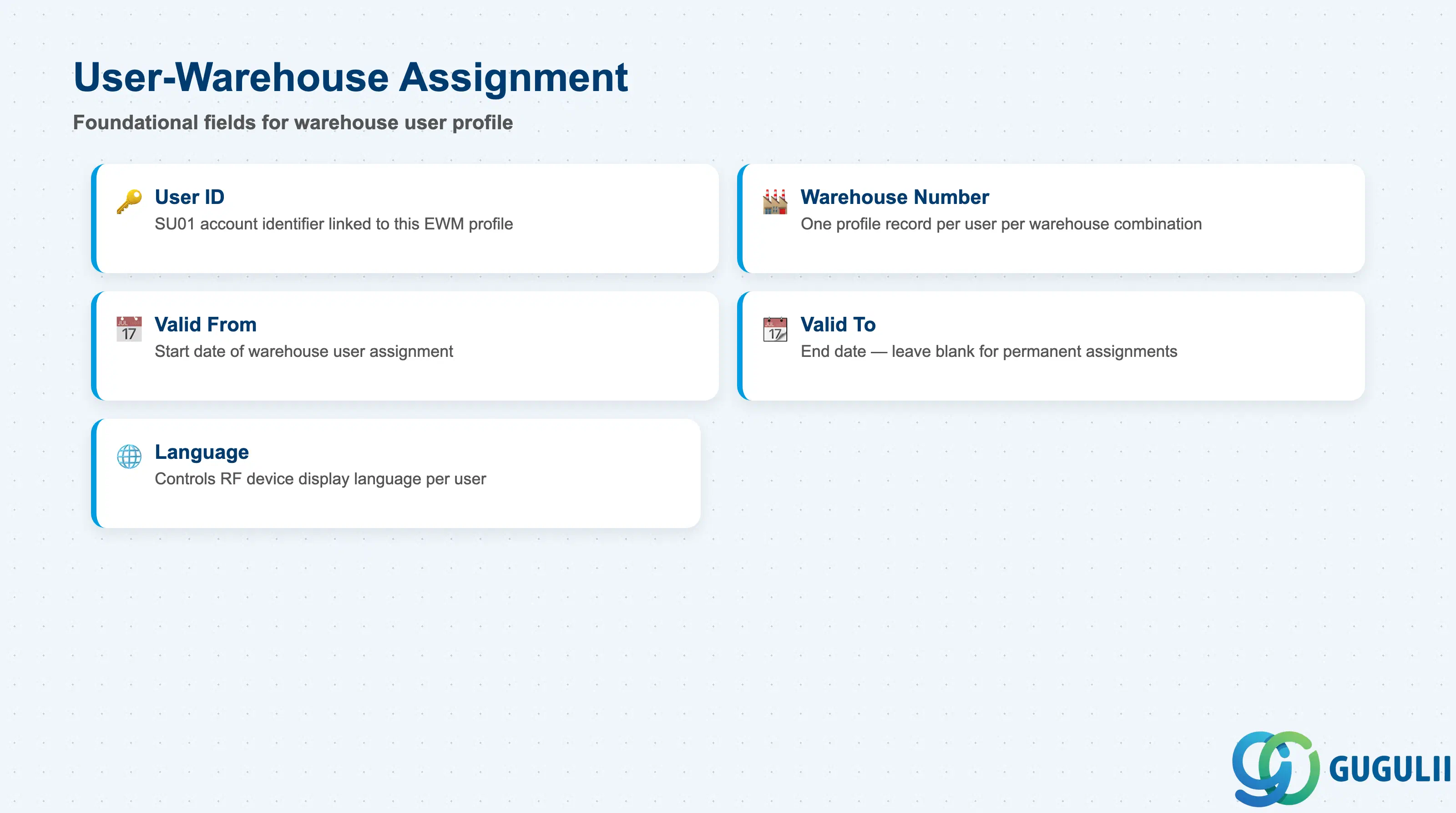
The User-Warehouse Assignment section establishes the existence of the EWM User profile for a given user in a given warehouse. Every subsequent field in the profile depends on this foundational assignment being correct and active. Validity dates are particularly important in project environments where warehouse access needs to be time-bounded for contractors or temporary staff.
| Field | Description | Practical Usage |
|---|---|---|
| User ID | The SU01 user account identifier linked to this EWM profile | Must exactly match an existing SU01 user ID. Case sensitivity applies. When integrating with HR-driven user provisioning, coordinate with Basis to ensure the naming convention aligns. |
| Warehouse Number | The EWM warehouse this profile applies to | One profile record per user per warehouse. For multi-site rollouts, create separate profiles for each warehouse number. Users without a profile for a warehouse cannot execute RF tasks in that warehouse. |
| Valid From | Start date of the warehouse user assignment | Defaults to current date. Set a future date for pre-onboarding setup. For go-live scenarios, align Valid From with the cutover date to prevent accidental early activation. |
| Valid To | End date of the warehouse user assignment | Leave blank for permanent assignments. Set an end date for contractors or temporary staff to automatically deactivate access without manual intervention. |
| Language | Language for RF device display for this user | Controls the language shown on the RF terminal screen. In multilingual warehouses (e.g., Japanese and English workers sharing the same warehouse), each user has their own language setting independent of the system language. |
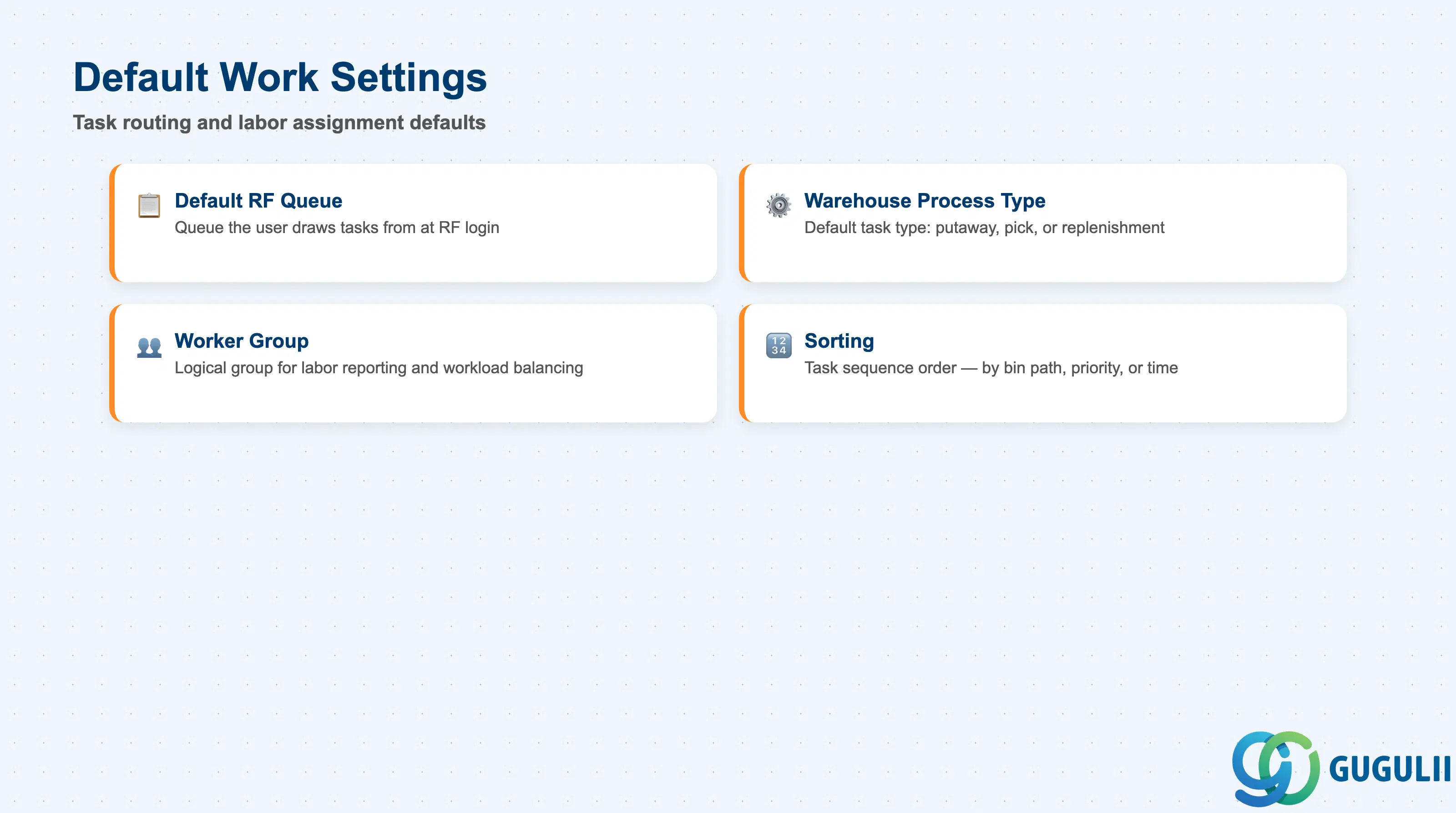
Default Work Settings determine what kind of warehouse work the user performs and how tasks are sequenced for them. These settings are the primary lever for directing labor in the warehouse — getting them wrong means the right tasks do not reach the right workers. They should be designed in parallel with the Queue and Process Type architecture during the blueprint phase.
| Field | Description | Practical Usage |
|---|---|---|
| Default RF Queue | The queue from which this user draws warehouse tasks by default at RF login | Maps to an RF Queue defined in /SCWM/RFQUEUE. If left blank, the system may not present tasks automatically. For fixed-role workers (e.g., putaway operators), set this to their dedicated queue. For flexible workers, leave blank and rely on dynamic queue assignment. |
| Default Warehouse Process Type | The warehouse process type (WPT) the user executes by default | WPT controls which type of warehouse task (putaway, pick, replenishment, etc.) the user performs. If a user can perform multiple process types, the default is used when no explicit selection is made at login. Must align with the Queue’s configured process types. |
| Worker Group | Assigns the user to a logical group for labor reporting and workload balancing | Worker groups enable supervisors to monitor team-level performance in EWM labor management reports. Optional for basic deployments; important for advanced labor management scenarios. |
| Sorting | Determines the sequence in which tasks are presented to the user | Controls task presentation order within a queue — for example, sort by bin sequence for pick-path optimization, or by priority for time-sensitive orders. Incorrect sorting causes non-optimal travel paths on the warehouse floor. |
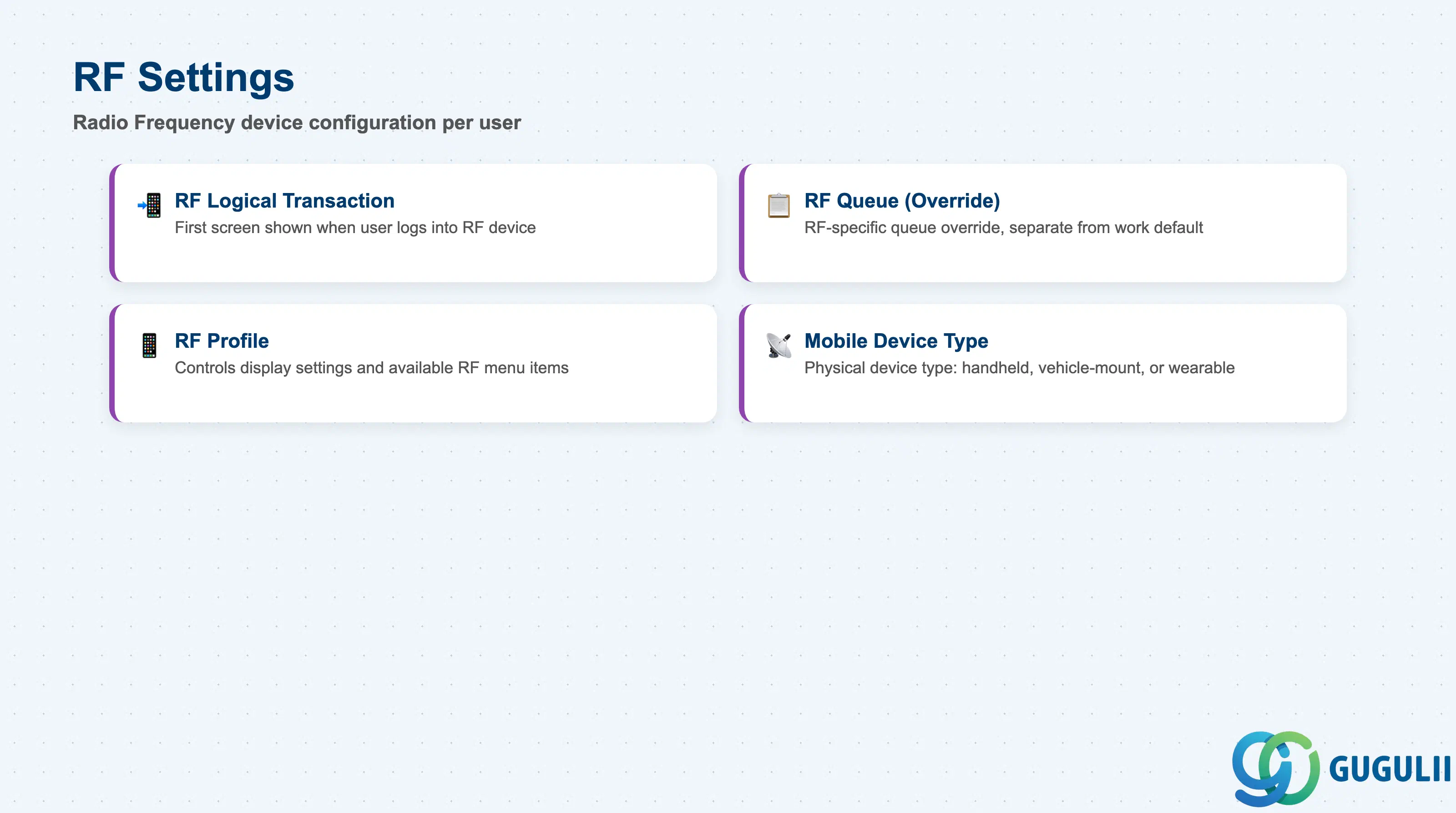
RF Settings control the user’s experience on the RF (Radio Frequency) mobile device. These fields link the EWM User profile to the RF Framework master data objects configured in Phase 7. RF Settings must be configured after the RF Framework objects (RF Environment, RF Logical Transaction, RF Menu, RF Profile, RF Queue) are in place. Incomplete RF Settings are the most common cause of “blank screen” or “no tasks” issues at go-live.
| Field | Description | Practical Usage |
|---|---|---|
| RF Logical Transaction | The first RF screen displayed when the user logs into the RF device | Defined in /SCWM/RFLTRANS. Typically set to the user’s most frequently executed function (e.g., Goods Receipt Putaway, Pick confirmation). If not set, the user is presented with the full RF menu, which can confuse non-technical workers. |
| RF Queue (RF-specific) | An RF-specific queue override, separate from the Default RF Queue in work settings | Allows the RF device queue to differ from the user’s default work queue. Useful when a user’s RF device is dedicated to a specific task type that differs from their general queue assignment. In most implementations, this matches the Default RF Queue. |
| RF Profile | The RF profile controlling display settings and available functions on the RF device | Defined in /SCWM/RFPROF. Controls font size, screen layout, and which menu items are visible. Assign a profile appropriate to the device type (small-screen handheld vs. vehicle-mounted terminal). A mismatch between profile and device type causes display truncation or missing menu items. |
| Mobile Device Type | Identifies the physical type of RF device the user operates | Examples: handheld scanner, vehicle-mounted terminal (VMT), wearable. Used by EWM to apply appropriate screen size templates. Must match the device physically used — assigning a VMT profile to a handheld user renders screens unreadable. |
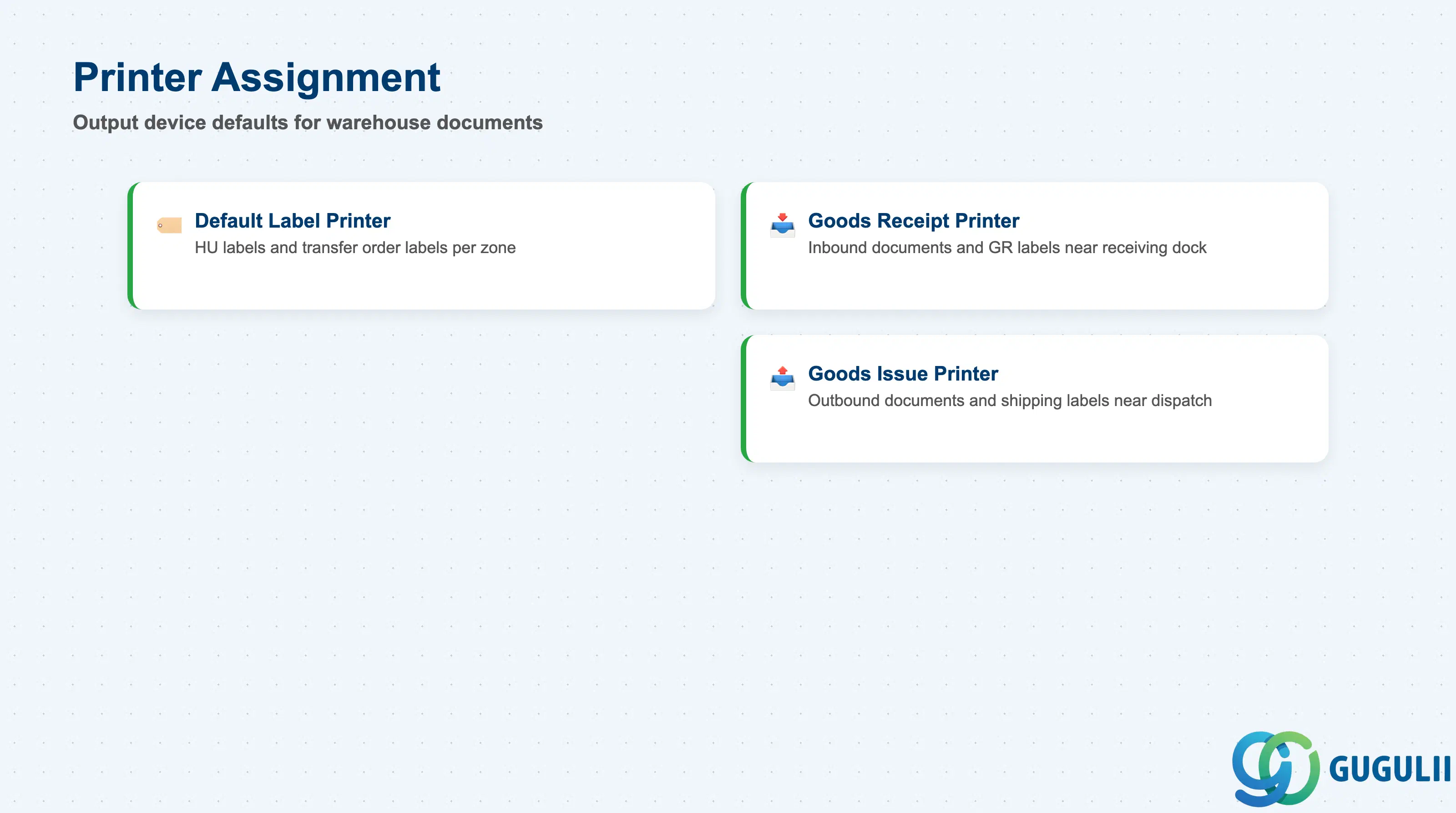
Printer Assignment fields determine which physical printers are used for warehouse output documents and labels generated during this user’s task execution. These are stored as SAP spool device names and must correspond to printers configured in transaction SPAD. Printer assignment in EWM is user-specific — different workers in the same warehouse area can print to different printers, enabling zone-based printing without routing labels to the wrong location.
| Field | Description | Practical Usage |
|---|---|---|
| Default Label Printer | The default printer for HU (Handling Unit) labels and transfer order labels | Must be configured in SPAD as a label-capable device (e.g., ZPL for Zebra printers). Assign zone-specific printers to reduce walking distance for workers collecting printed labels. If blank, the system uses the warehouse-level default printer, which may not be physically accessible to the user. |
| Goods Receipt Printer | The printer used for goods receipt documents and GR labels generated during inbound processing | Typically a printer near the goods receiving dock. Separating GR and GI printers prevents inbound and outbound documents from being mixed at the same printer. Coordinate with the warehouse layout design to position printers optimally. |
| Goods Issue Printer | The printer used for goods issue documents and shipping labels generated during outbound processing | Typically a printer near the packing or dispatch area. In multi-shift operations, ensure the printer is accessible during all shifts — a printer behind a locked office door on the night shift is a common go-live issue. |
| ID | Category | Title |
|---|---|---|
| ewm-001 | Overview | What is SAP EWM? |
| ID | Category | Title |
|---|---|---|
| ewm-b01 | Overview | SAP EWM Transactions: Process Flow, Hierarchy & Relationships |