Title here
Summary here

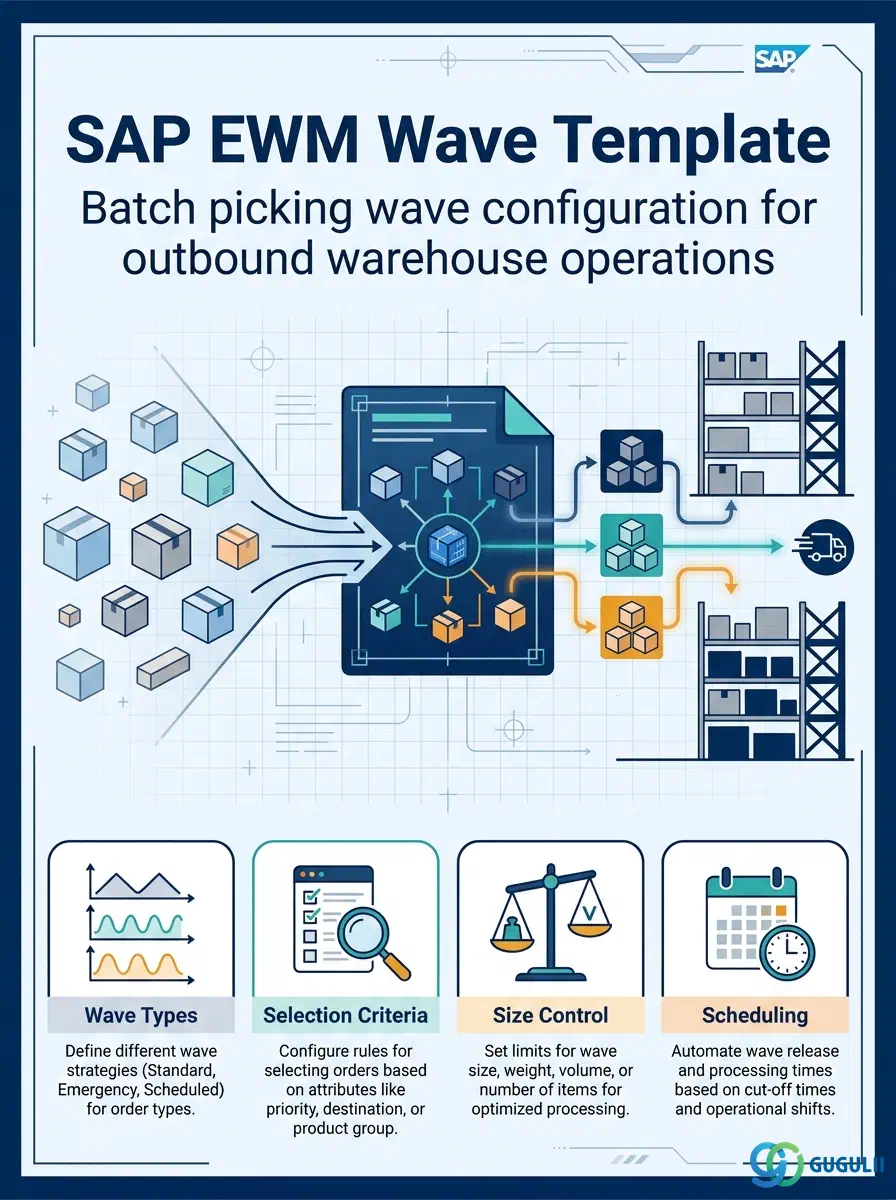
The Wave Template is the master configuration object in SAP EWM that defines how open outbound warehouse orders are selected, grouped, and scheduled into waves for batch picking. It sits at the intersection of delivery scheduling, warehouse order management, and resource planning — acting as the rule set that converts individual pick demands into organized, route-optimized waves. This article covers wave types, organizational hierarchy, integration with surrounding EWM objects, and the full set of configuration fields that govern wave creation and release.
A Wave Template is a reusable configuration record that encapsulates all the rules needed to create a wave: which warehouse orders to include, how large the wave can grow, when it starts, and how orders should be sorted for optimized picking. Without a Wave Template, the system has no criteria to group and batch pick requests — each outbound delivery would need to trigger picking individually.
| Aspect | Details |
|---|---|
| Role | Defines selection criteria, size limits, scheduling, and sort sequence for grouping warehouse orders into picking waves |
| Modules using it | EWM (primary — Embedded Advanced or Decentralized); not available in Embedded Basic |
| Transactions | /SCWM/WAVETMP (Wave Template config, SPRO-equivalent), /SCWM/WAVE (Wave Management monitor) |
| Key Tables | /SCWM/TWAVETP (Wave Template header), /SCWM/TWAVESEL (Wave selection criteria), /SCWM/TWAVEOPT (Wave optimization settings) |
| S/4HANA note | Wave Management is an Embedded Advanced (A) or Decentralized (D) feature — it requires the additional EWM Advanced license. Not available in Embedded Basic (B). In S/4HANA 2020+, wave creation can be triggered automatically via background jobs or directly from the EWM Outbound Delivery Monitor. |
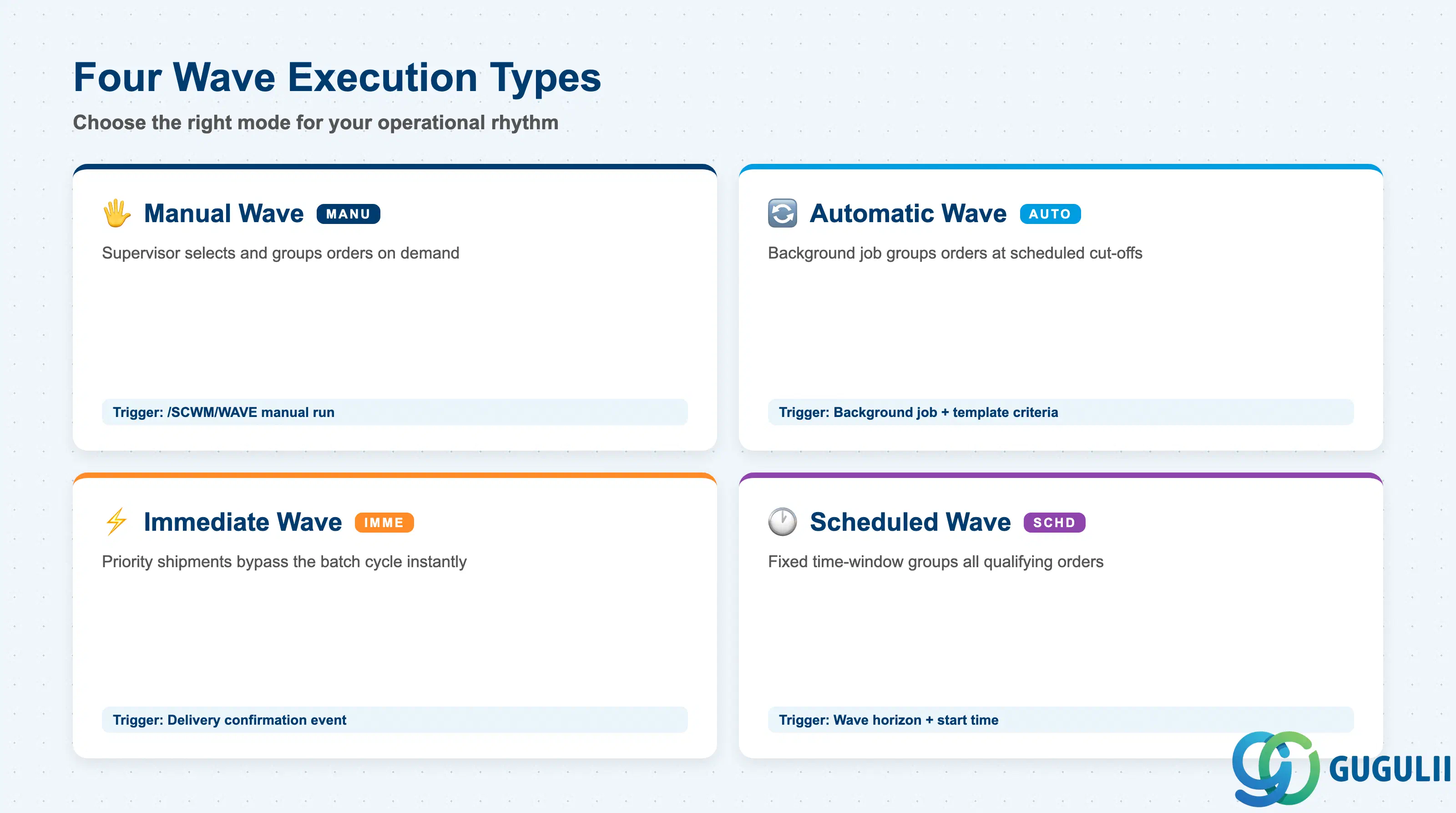
EWM supports four wave execution modes, each suited to a different operational rhythm. Choosing the wrong mode forces pickers into either idle waiting (scheduled too infrequently) or constant interruption (triggered too often).
| Wave Type | Code | Use Case | Key Behavior |
|---|---|---|---|
| Manual Wave | MANU | Ad-hoc operations where the warehouse supervisor manually decides when to group and release | Supervisor runs /SCWM/WAVE, selects warehouse orders manually, and creates the wave. Full control, low automation. |
| Automatic Wave | AUTO | Regular cut-off times (e.g., twice daily) where the system selects and groups orders without manual intervention | Background job triggers wave creation based on the template’s selection criteria and scheduling settings. Most common in high-volume outbound. |
| Immediate Wave | IMME | Urgent or priority shipments that cannot wait for the next scheduled wave | Wave is created and released as soon as the outbound delivery is confirmed, bypassing the batch cycle. Used for express or VIP orders. |
| Scheduled Wave | SCHD | Fixed time-window operations (e.g., cut-off at 14:00 for same-day dispatch) | Template defines a wave horizon and start time; system groups all qualifying orders that arrive within the window and releases at the defined time. |
Design principle: In most implementations, one warehouse will run two or three Wave Templates — Automatic for standard volume, Immediate for priority, and Manual as a fallback. Mixing modes within the same Activity Area requires careful priority settings to avoid double-assignment of warehouse orders.
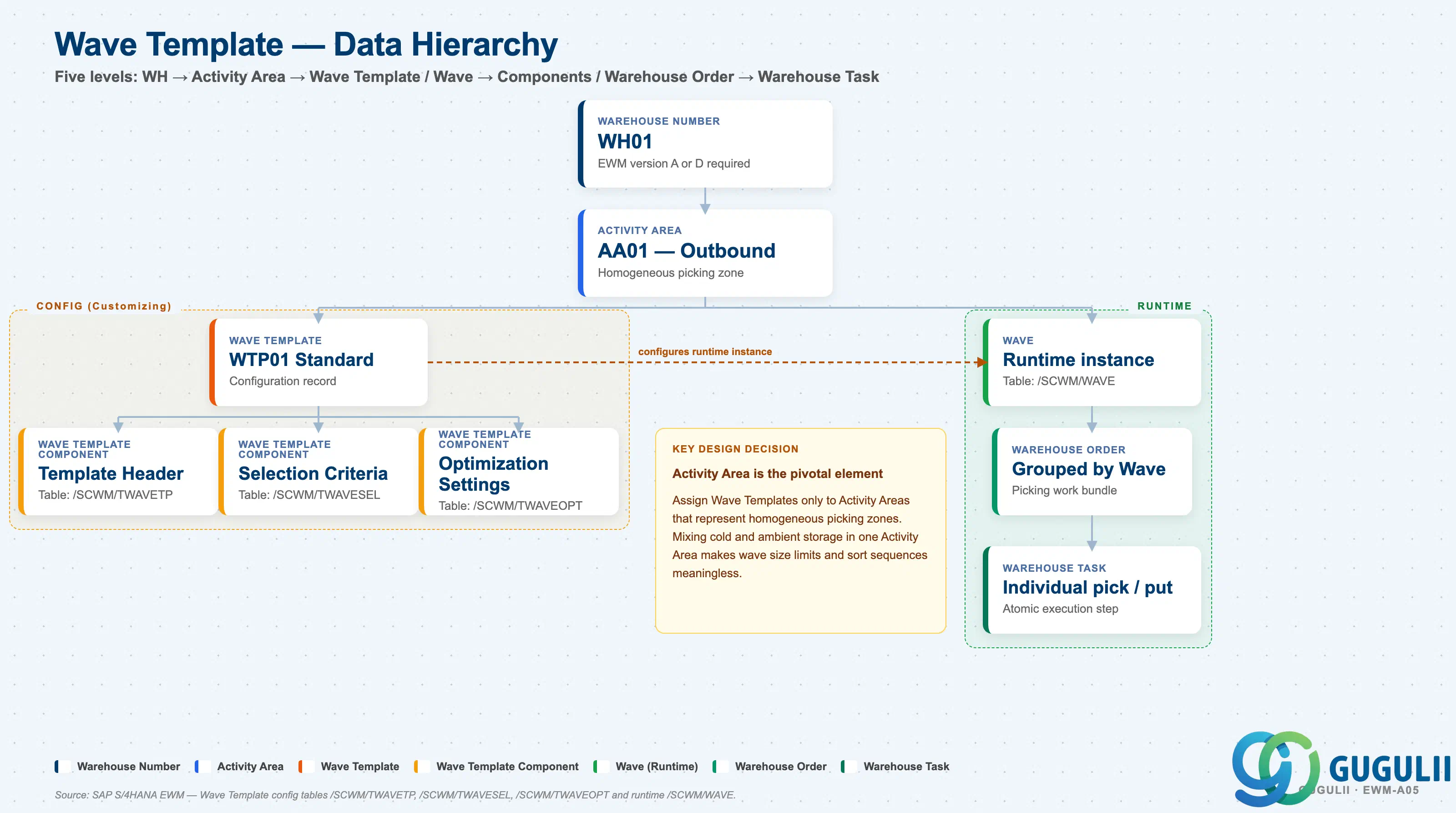
The Wave Template exists at the Activity Area level within a Warehouse Number. This positioning means a single warehouse can run different wave rules for different physical zones (e.g., dry goods vs. cold storage), each governed by its own Wave Template.
Warehouse Number (e.g., WH01)
   │
   └── Activity Area (e.g., AA01 — Outbound picking zone)
          │
          ├── Wave Template (e.g., WTP01 — Standard Daily Wave)
          │      │
          │      ├── /SCWM/TWAVETP  — Template header: type, size limits, scheduling
          │      ├── /SCWM/TWAVESEL — Selection criteria: delivery type, route, shipping point
          │      └── /SCWM/TWAVEOPT — Optimization: sort sequence, route grouping flag
          │
          └── Wave (runtime object — created when template is executed)
                 │
                 └── Warehouse Order (grouped by wave)
                        │
└── Warehouse Task (individual pick/put instruction)| Org Level | Table | Primary Fields | Notes |
|---|---|---|---|
| Warehouse Number | SPRO config | Warehouse Number, EWM system type (B/A/D) | Wave Management only available in A and D versions |
| Activity Area | SPRO config | Activity Area ID, warehouse area assignment | One Wave Template references one Activity Area; multiple templates can share one area |
| Wave Template (header) | /SCWM/TWAVETP | Wave Template ID, wave type, max WO count, max items, wave horizon, auto-release flag | Configuration record — not a transactional document |
| Wave Template (selection) | /SCWM/TWAVESEL | Delivery type, shipping point, route, priority range, time window | Multiple selection rows per template; logical OR across rows |
| Wave Template (optimization) | /SCWM/TWAVEOPT | Sort field 1–3, route optimization flag | Controls the sequence in which picked WOs are assigned to pickers |
| Wave (runtime) | /SCWM/WAVE | Wave ID, status, created timestamp | Created by executing the Wave Template; ties warehouse orders to a wave batch |
Key design decision: The Activity Area is the pivotal organizational element. Assign Wave Templates to Activity Areas that represent homogeneous picking zones — mixing cold and ambient storage in one Activity Area makes wave size limits and sort sequences meaningless.
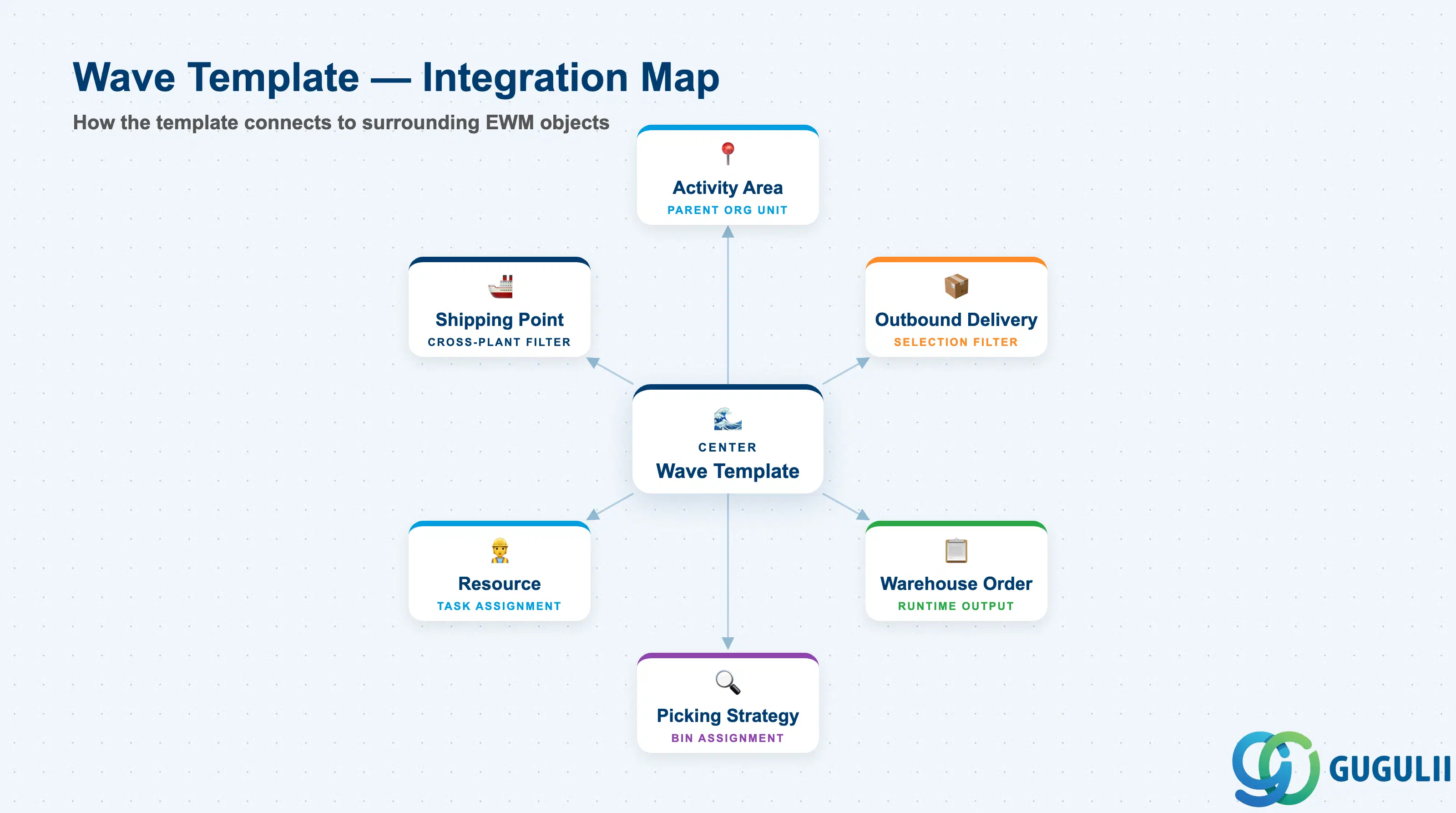
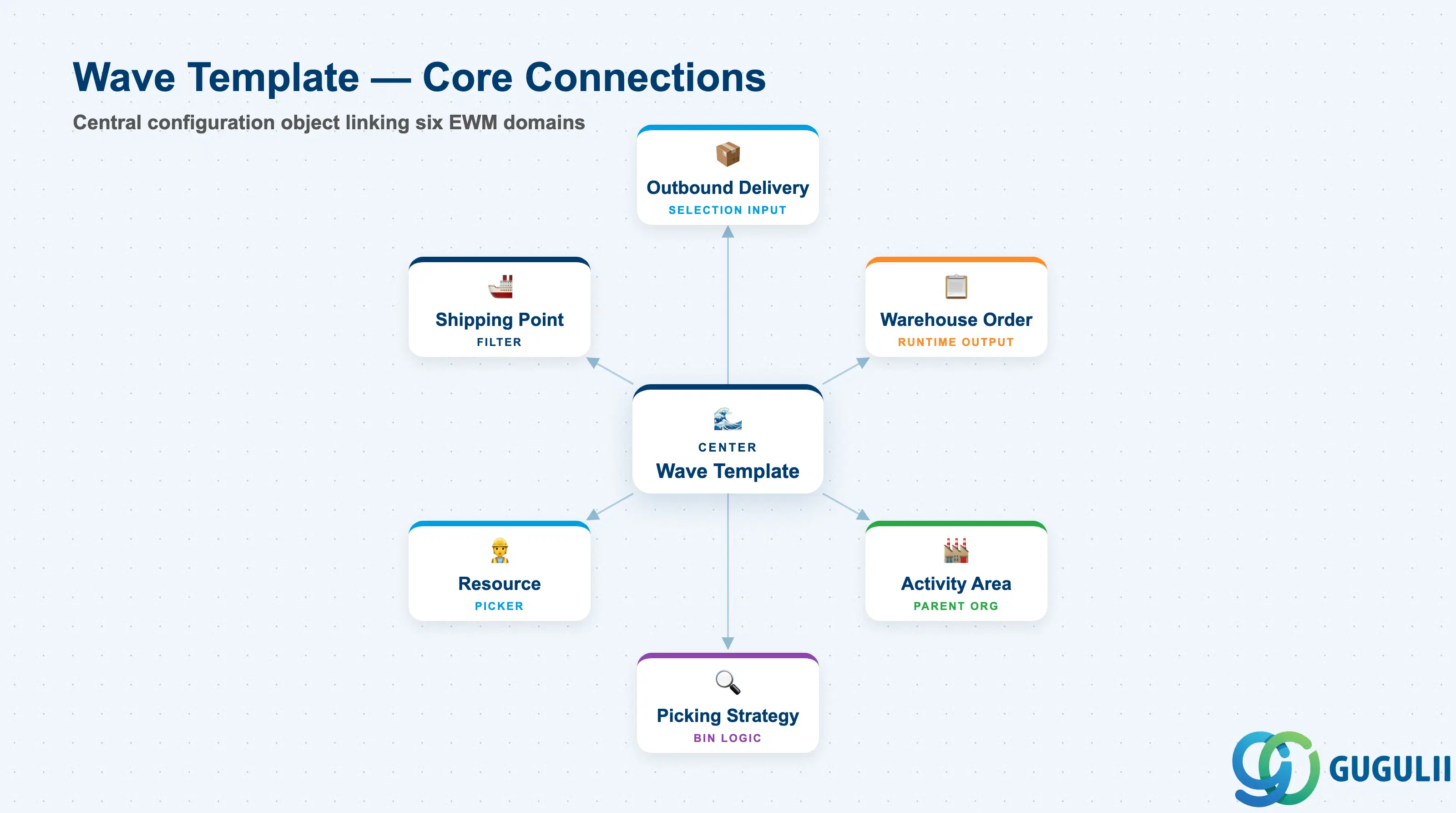
The Wave Template does not operate in isolation. It reads from delivery and order master data to evaluate selection criteria, and it feeds the wave execution engine that ultimately drives warehouse task assignment to pickers.
| Object | Relationship | Practical Notes |
|---|---|---|
| Activity Area | Parent org unit — Wave Template references exactly one Activity Area | Activity Area defines the physical picking zone; the template inherits its storage type context from this link. Design Activity Areas before designing Wave Templates. |
| Outbound Delivery | Selection criterion input — the template filters outbound deliveries by type, shipping point, and route | The delivery must have open warehouse orders before it can be selected into a wave. Deliveries not yet confirmed in EWM are invisible to wave selection. |
| Warehouse Order | Runtime output — wave groups existing warehouse orders, not individual delivery lines | Warehouse Orders must already exist (created by EWM processing of the outbound delivery) before wave creation. The Wave Template does not create Warehouse Orders; it collects and groups them. |
| Picking Strategy | Governs how warehouse tasks within a wave are assigned to storage bins | The Picking Strategy (SPRO) determines FIFO/FEFO/Fixed Bin logic; the Wave Template controls grouping scope. Both operate independently but are coordinated at execution time. |
| Resource (Picker) | Wave release triggers assignment of warehouse tasks to pickers defined as Resources | The Resource master (/SCWM/RSRC) holds picker capacity data. Wave size limits in the template should be calibrated against typical resource throughput to avoid overloading one picker. |
| Shipping Point | Selection criterion — Wave Template can restrict to one or more shipping points | In multi-plant warehouses with shared physical space, the Shipping Point filter prevents cross-plant picking contamination. |
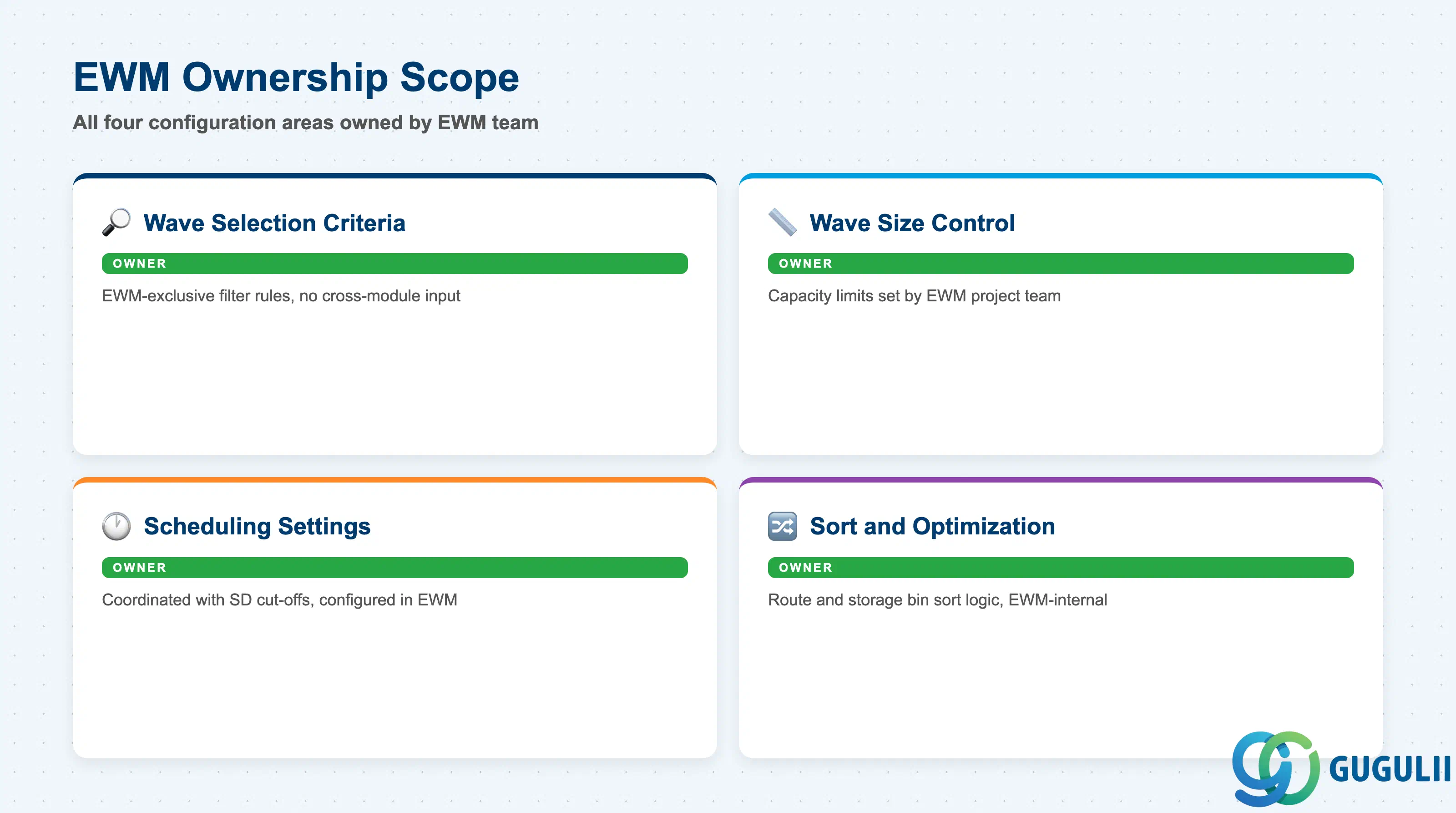
| Data Section | EWM Involvement | Notes |
|---|---|---|
| Wave Selection Criteria | ◎ Owner | EWM-exclusive configuration; no cross-module input required |
| Wave Size Control | ◎ Owner | Warehouse capacity planning inputs come from the EWM project team |
| Scheduling Settings | ◎ Owner | Coordinated with outbound delivery cut-off times (SD/LE), but configured in EWM |
| Sort and Optimization | ◎ Owner | Route and storage bin sort logic is purely EWM-internal |
Legend: ◎ = Owner / Critical
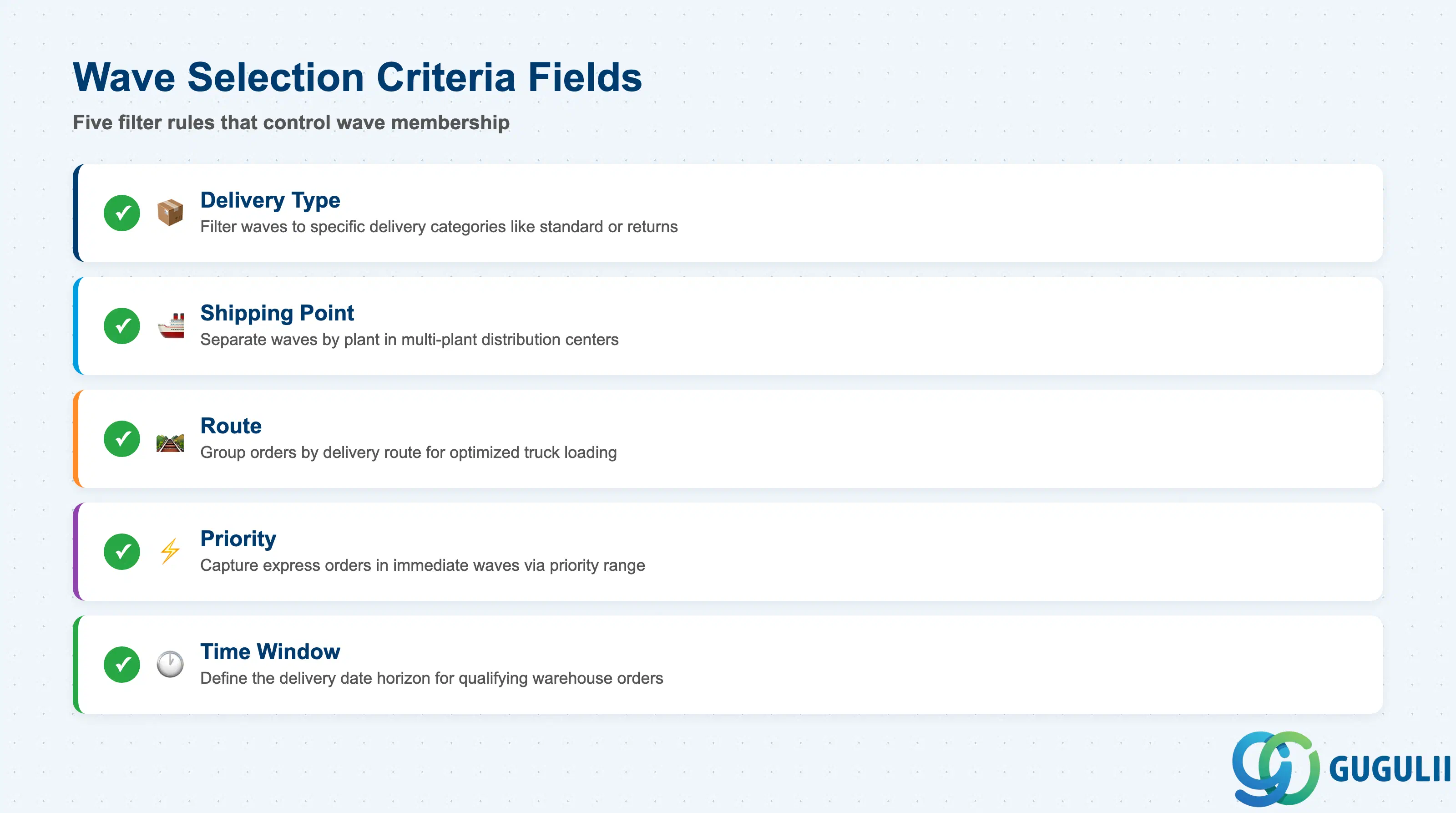
Wave Selection Criteria are the filter rules embedded in the Wave Template that determine which outbound warehouse orders qualify for inclusion in a wave. Each template can hold multiple selection rows; the system applies logical OR across rows, so a warehouse order matching any single row is selected.
| Field | Description | Practical Usage |
|---|---|---|
| Delivery Type | EWM delivery type code (e.g., ODL for standard outbound) | Filter waves to specific delivery categories. A dedicated Wave Template for returns (REOD) prevents return warehouse orders from mixing with standard outbound picks, which would confuse pickers on a combined wave. |
| Shipping Point | SD Shipping Point linked to the outbound delivery | In a multi-plant distribution center, this filter ensures each plant’s outbound orders are waved separately even when sharing the same physical picking area. Misconfiguration here causes cross-plant picking errors that are difficult to detect until goods issue. |
| Route | SD Route code (e.g., R001 for Tokyo metropolitan delivery) | Grouping by route allows the warehouse to optimize truck loading — all orders going on the same truck are picked together, reducing re-handling at the dock. This is the single highest-value selection criterion in most outbound operations. |
| Priority | Delivery priority range (low–high numeric value) | Used to ensure express orders are captured in Immediate Wave Templates rather than waiting for the next Automatic Wave cycle. Define priority ranges carefully: if the priority threshold is too broad, standard orders get promoted to express waves, inflating picker workload. |
| Time Window (Delivery Date/Time) | Planned goods issue date + time range | Defines the delivery horizon the template looks back across when selecting warehouse orders. A 4-hour time window captures orders due within the next 4 hours. Setting this too wide creates oversized waves; too narrow means under-utilized waves that waste batch setup time. |
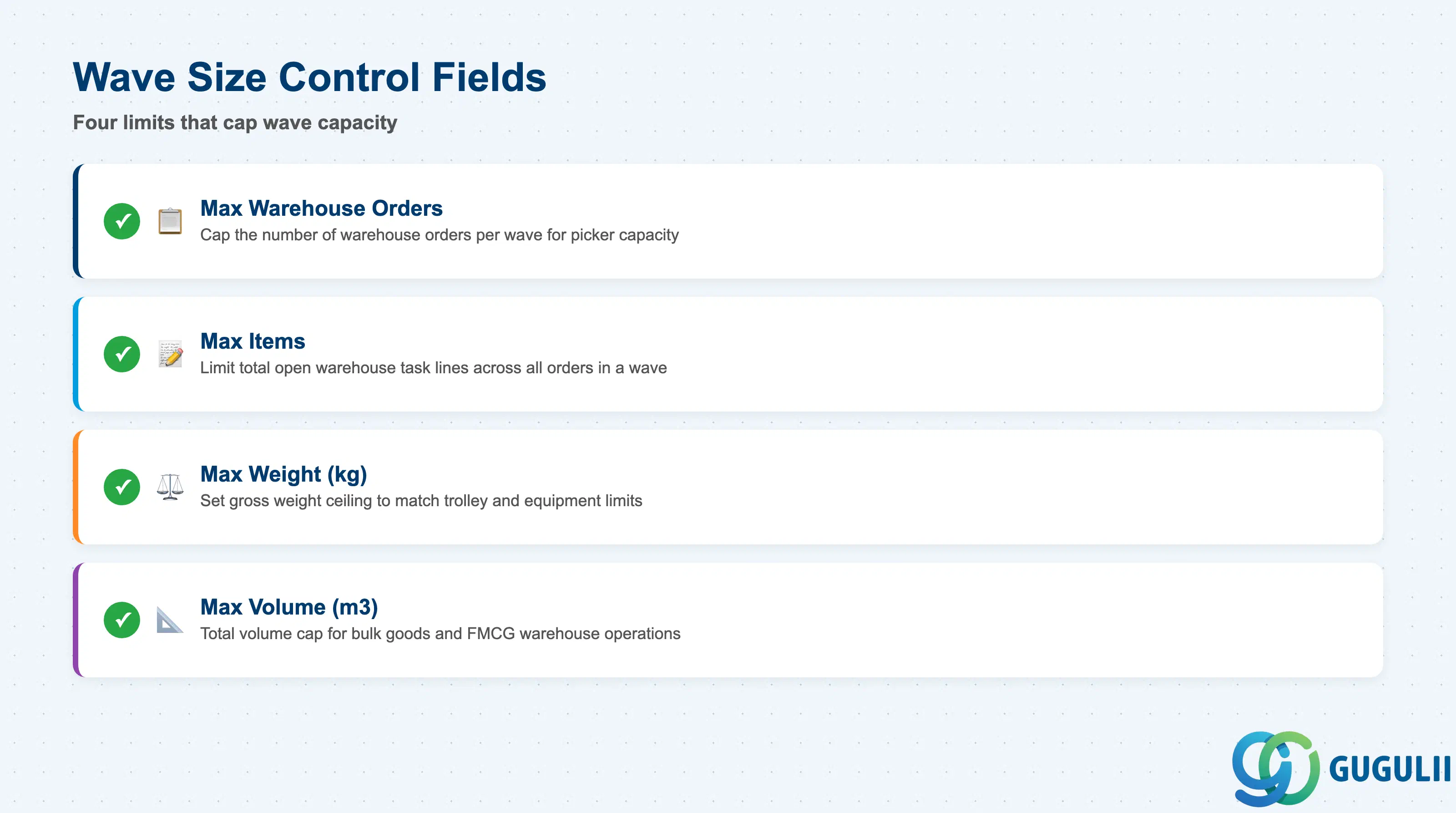
Wave Size Control fields cap the number of warehouse orders, line items, weight, and volume that a single wave may contain. These limits prevent a wave from becoming too large for the available picking resources to complete within the required time window.
| Field | Description | Practical Usage |
|---|---|---|
| Max Warehouse Orders per Wave | Maximum number of warehouse orders the wave may contain | The primary sizing lever in most implementations. Calibrate against the number of pickers assigned to the Activity Area and the average time per warehouse order. A common starting point is 50–100 WOs per wave for a team of 5 pickers on a 2-hour wave cycle. |
| Max Items (Open Warehouse Tasks) | Maximum total open warehouse task line count across all warehouse orders in the wave | Use this field when pick density varies significantly by product type (e.g., slow-moving SKUs with 1 line per WO vs. fast-moving with 20 lines). Items-based limits are more meaningful than order counts in high-SKU environments. |
| Max Weight (kg) | Total gross weight limit across all warehouse orders in the wave | Critical when picker equipment (trolleys, conveyors) has a physical weight limit. Set slightly below the equipment maximum to leave buffer for packaging materials added at packing stations. |
| Max Volume (m³) | Total volume limit across all warehouse orders in the wave | Relevant for bulk goods. In practice, weight and order count limits are hit before volume limits in most discrete manufacturing environments; volume limits are more important in FMCG or building materials warehouses. |
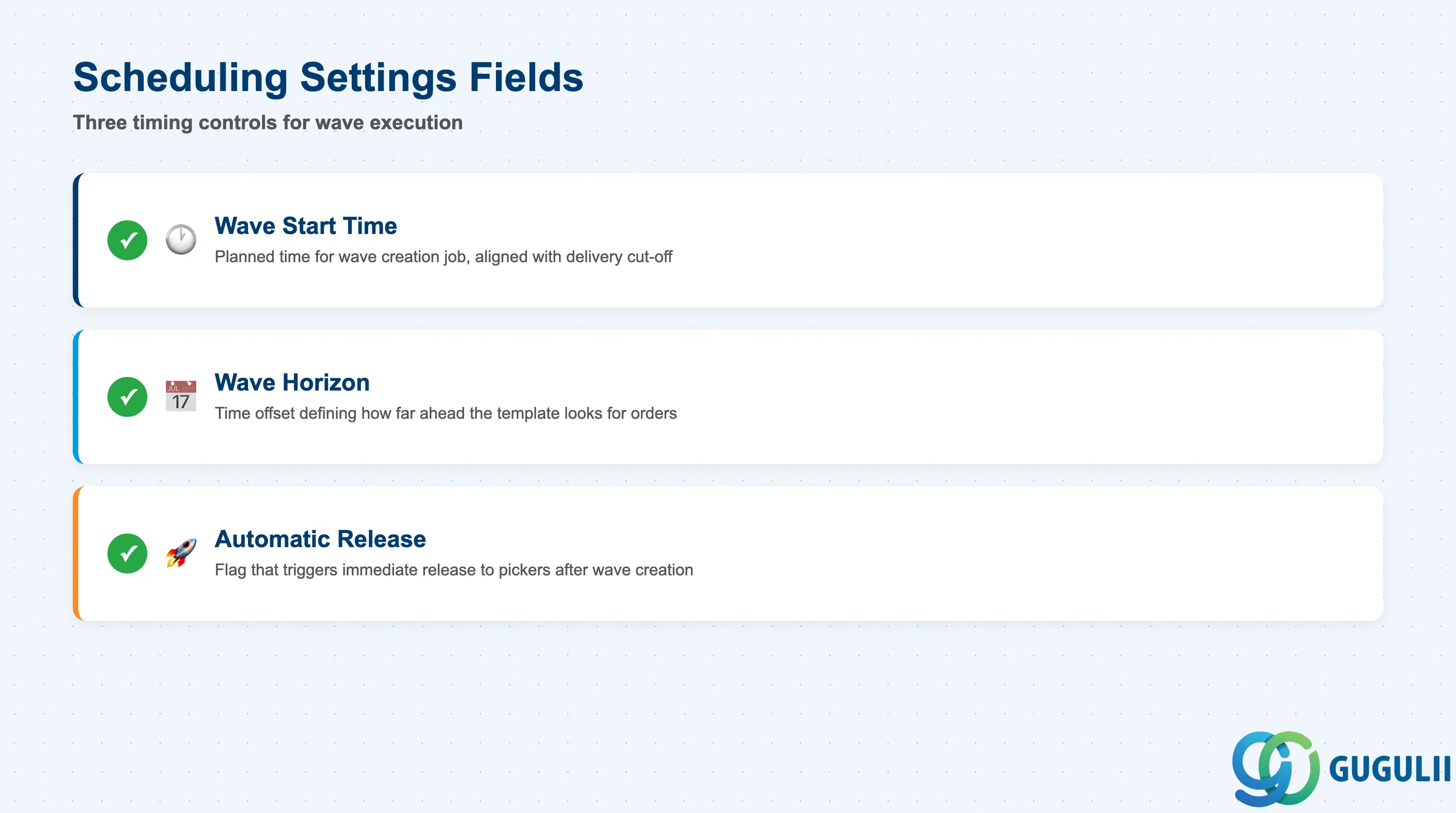
Scheduling Settings control when the wave is created, how far into the future it looks for qualifying orders, and whether it releases automatically to pickers or requires a manual release step.
| Field | Description | Practical Usage |
|---|---|---|
| Wave Start Time | Planned time at which the wave creation job should execute | For Automatic Waves, the background job (typically scheduled via SM36) should trigger 15–30 minutes before the wave start time defined in the template, leaving time for exception handling before the wave is released to pickers. Coordinate this with the outbound delivery cut-off time agreed with the SD/LE team. |
| Wave Horizon | Time offset (in hours/minutes) defining how far ahead the template looks for qualifying warehouse orders | A 4-hour horizon captures all orders due for goods issue in the next 4 hours. A horizon that is too short misses orders that arrive shortly after wave creation; too long creates waves that are cancelled because orders are not yet confirmed. In Japan, same-day delivery operations typically use a 2-hour horizon with 3–4 wave cycles per day. |
| Automatic Release Indicator | Flag that triggers automatic wave release to pickers immediately after wave creation | When activated, the wave transitions from “Created” to “Released” without manual supervisor confirmation. Use this only when the selection criteria and size limits are mature and tested — premature release of an oversized or misconfigured wave is difficult to reverse once pickers have started scanning tasks. |
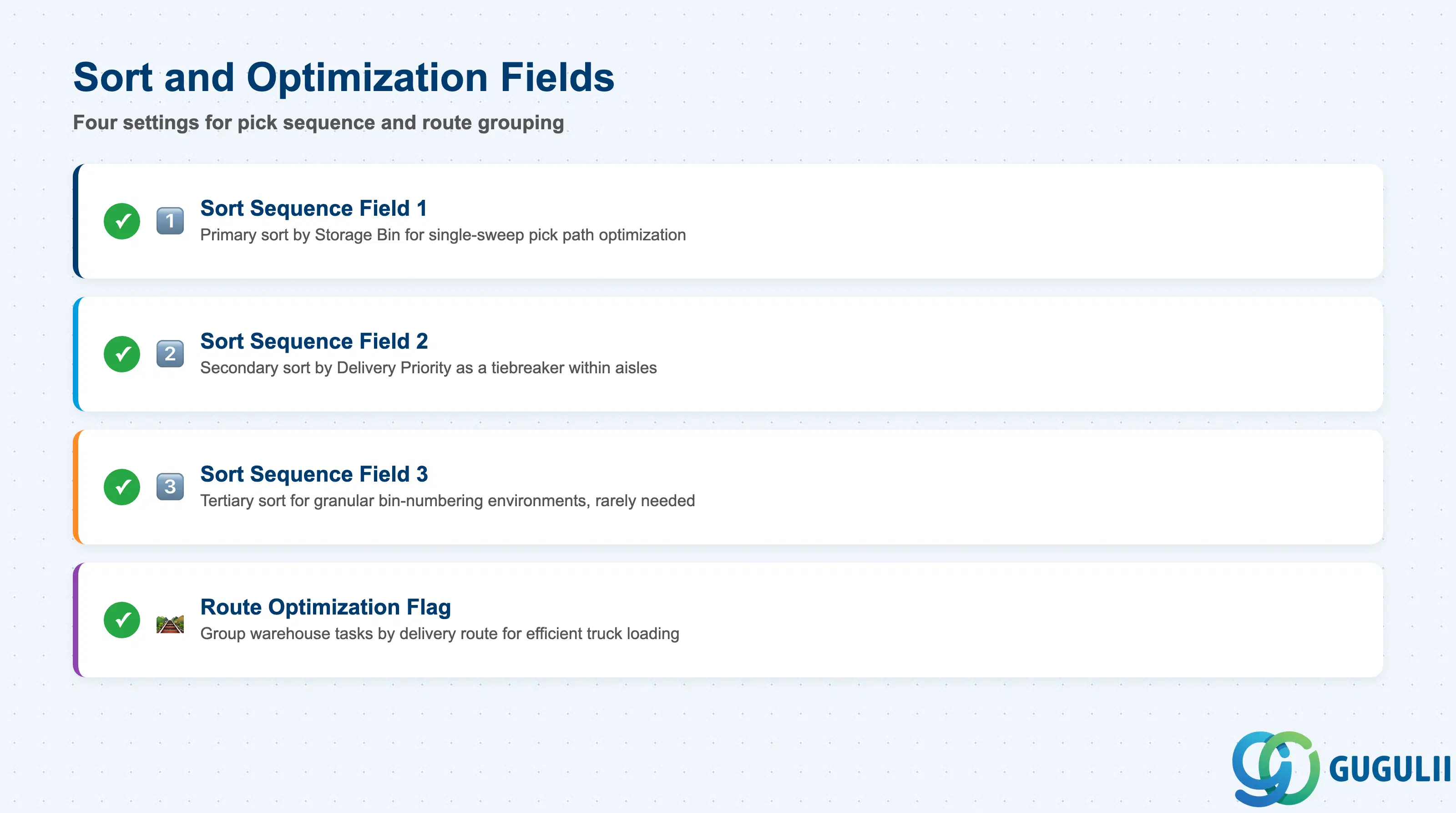
Sort and Optimization settings control the sequence in which warehouse orders within a wave are presented to pickers and whether the system attempts to group orders by physical travel route through the warehouse.
| Field | Description | Practical Usage |
|---|---|---|
| Sort Sequence Field 1 | First sort criterion for warehouse orders within the wave (e.g., Storage Bin, Route, Delivery Priority) | Sorting by Storage Bin (aisle-row-column) creates a single-sweep pick path through the warehouse, minimizing picker travel distance. This is the most impactful optimization setting in conventional shelf-based warehouses. |
| Sort Sequence Field 2 | Secondary sort criterion applied when Sort Field 1 ties | Typically set to Delivery Priority as a tiebreaker — ensures that within the same aisle segment, express orders are positioned first on the picker’s task list. |
| Sort Sequence Field 3 | Tertiary sort criterion | In practice, Sort Field 3 is rarely needed; it serves as a final tiebreaker for environments with extremely granular bin-numbering schemes. Leave blank unless testing reveals picker sequence conflicts. |
| Route Optimization Flag | Enables grouping of warehouse tasks by delivery route (SD Route) within the wave | When activated, the system attempts to cluster picks that will ultimately load onto the same truck. This reduces packing station re-sorting effort significantly for multi-stop delivery routes. Requires that SD Routes are consistently populated on outbound deliveries — missing route data causes the flag to behave as if it is inactive. |
| ID | Category | Title |
|---|---|---|
| ewm-001 | Overview | What is SAP EWM? |
| ID | Category | Title |
|---|---|---|
| ewm-b01 | Overview | SAP EWM Transactions: Process Flow, Hierarchy & Relationships |