Title here
Summary here

A Planning Area is the SAP IBP object that functions as the top-level, activatable planning model — the container that bundles the Time Profile (temporal grain, IBP-A02-03), one or more Planning Levels (dimensional grain, IBP-A03-02), one or more Key Figures (the measures, IBP-A03-01), and the relevant Master Data Types/Attributes into a single, internally-consistent structure. If Key Figure is “what is measured” and Planning Level is “at what granularity,” Planning Area is “the whole model these live inside.” It is also the pipeline’s central hub: it is the sole prerequisite feeding four distinct downstream objects — Version, Planning View, Integration Model, and Planning Operator — more than any other object in the model. This article covers what a Planning Area is, standard vs. custom template choice, its position in the org/data hierarchy, activation mechanics, realignment, and the data-integration boundary a consultant configures around it.
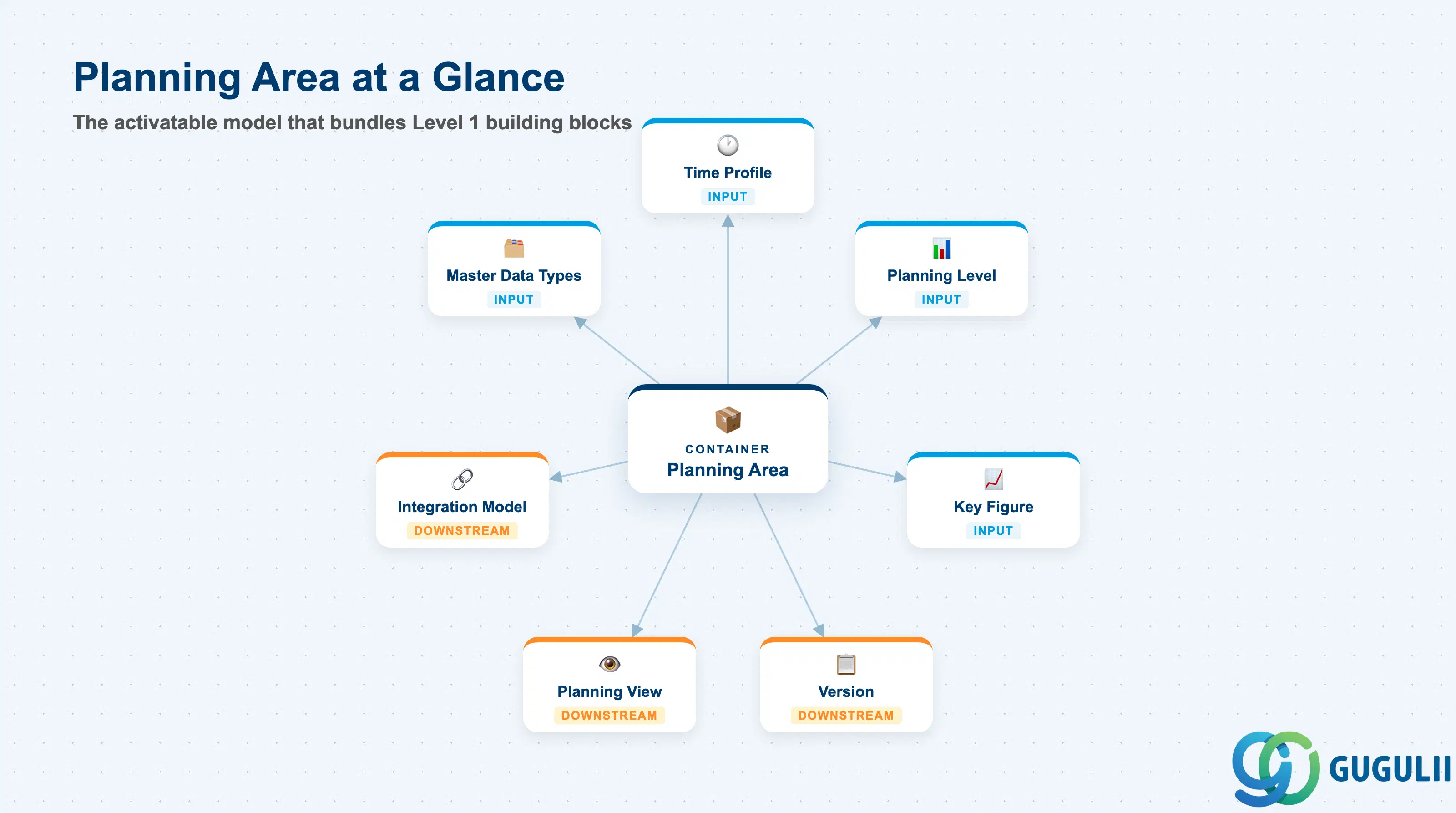
A Planning Area holds no data of its own until it is defined and activated — it is the structural envelope that combines Level 1 building blocks (Time Profile, Planning Level, Key Figure, Master Data Types/Attributes) into a coherent, usable model. Once active, it becomes the addressable object that Versions, Planning Views, Integration Models, and Planning Operators are all built against.
| Aspect | Details |
|---|---|
| Role | The top-level container that bundles Time Profile + Planning Level(s) + Key Figure(s) + Master Data Types into one activatable planning model |
| Built from | Time Profile (IBP-A02-03), Planning Level (IBP-A03-02), Key Figure (IBP-A03-01), and Master Data Types/Attributes (IBP-A02-01/A02-02) — see each sibling article for the mechanics of the individual building block |
| Where it’s configured | The Planning Areas app, reached via the Planning Areas Model Configuration tile in the Fiori launchpad’s Model Configuration group (the “Configure Planning Area” label some sources use maps to this same screen) |
| Downstream dependents | Version (IBP-A03-04), Planning View (IBP-A03-05), Integration Model, and Planning Operator (IBP-A05-01) — a Planning Area is a prerequisite for all four, more than any other single object in the model |
| Classification | A Required master, alongside Master Data Types, Attribute, Time Profile, Key Figure, and Planning Level |
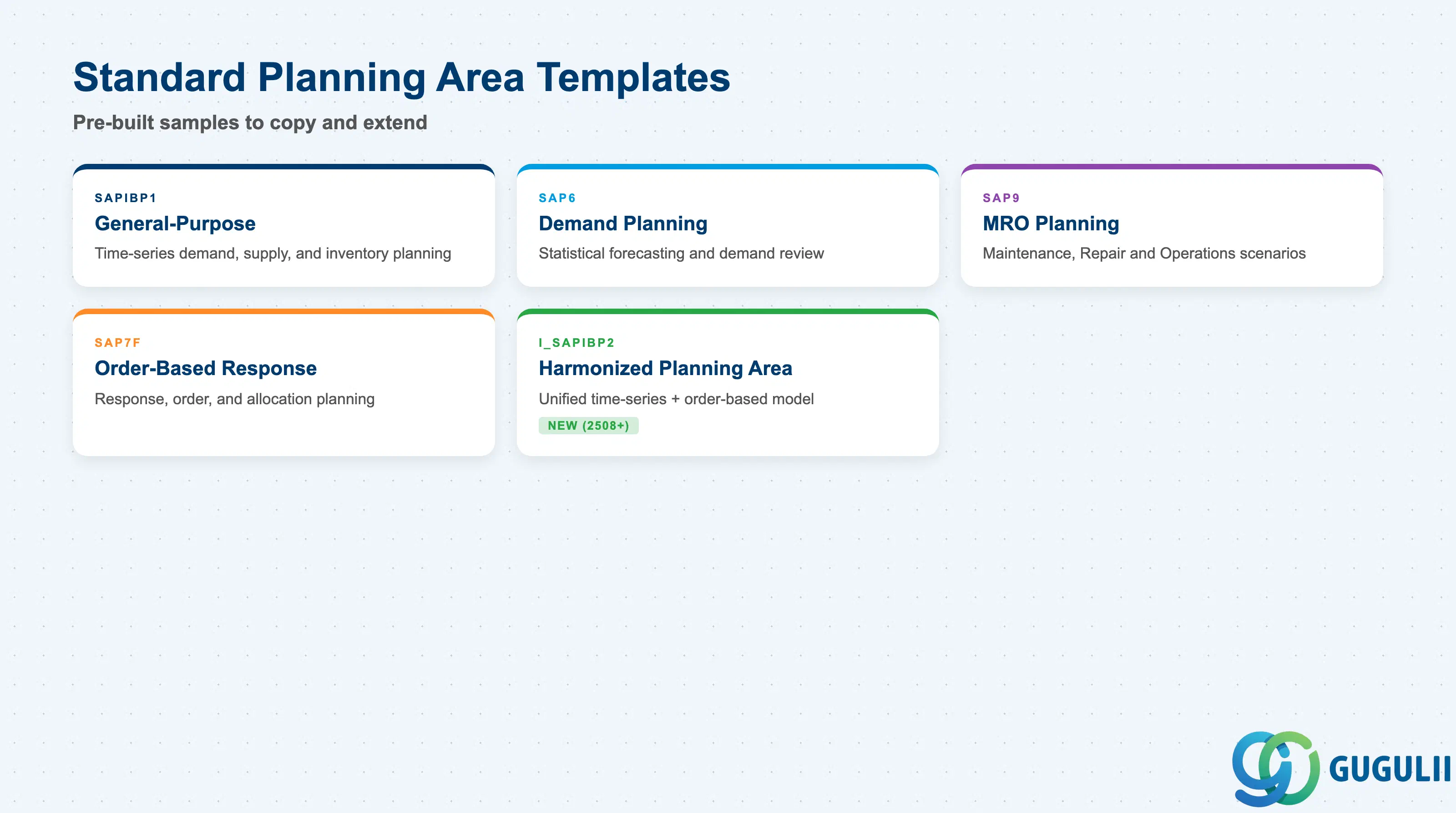
SAP does not expect most implementations to build a Planning Area entirely from a blank canvas. It ships a set of pre-built sample Planning Areas as working reference implementations — each bundling a working set of Attributes, Master Data Types, Time Profile, Planning Levels, Key Figures, Versions, and Planning Operators, plus supporting Alerts, Analytics Stories, and dashboard content. The documented, SAP-recommended practice is to copy one of these samples and then extend or trim it to fit the customer’s process, rather than starting activation-and-configuration from zero.
| Template | Focus | Use Case | Key Behavior |
|---|---|---|---|
| SAPIBP1 | General-purpose | Time-series demand, supply, and inventory planning spanning several IBP process areas | The broadest general-purpose sample; commonly used as a starting copy for time-series-oriented implementations |
| SAP6 | Demand planning | Statistical forecasting and demand review processes | Narrower scope than SAPIBP1, focused specifically on the demand planning process |
| SAP9 | Maintenance, Repair & Operations (MRO) | MRO-specific planning scenarios | Purpose-built sample for MRO planning rather than standard sales-and-operations demand/supply |
| SAP7F | Order-based response planning | Response, order, and allocation planning built on a flexible master data model | Successor to the plain “SAP7” sample, which was removed as of release 2305 — treat “SAP7” as legacy naming in older documentation |
| I_SAPIBP2 (Harmonized Planning Area / HPA) | Unified time-series + order-based planning | Combines what SAPIBP1 (time-series) and SAP7F (order-based) previously modeled separately into one shared data model | Introduced around the 2508 release (August 2025) — a current, actively-rolling-out direction rather than a legacy footnote as of this article’s publication date. Eliminates the reconciliation work between two separate Planning Areas by giving time-series and order-based planning one shared set of Key Figures and results |
Design principle: Most real production “custom” Planning Areas are, technically, modified copies of a standard sample — not either an untouched template or a from-scratch build. When scoping a new implementation, the first design question is which sample to copy (or whether the newer Harmonized Planning Area fits better than maintaining two separate time-series and order-based models), not whether to build from a blank slate. As of this article’s publication date, no source confirms I_SAPIBP2 as the mandatory default for all new builds — treat it as an available, actively-promoted option alongside the older samples rather than a full replacement for them.
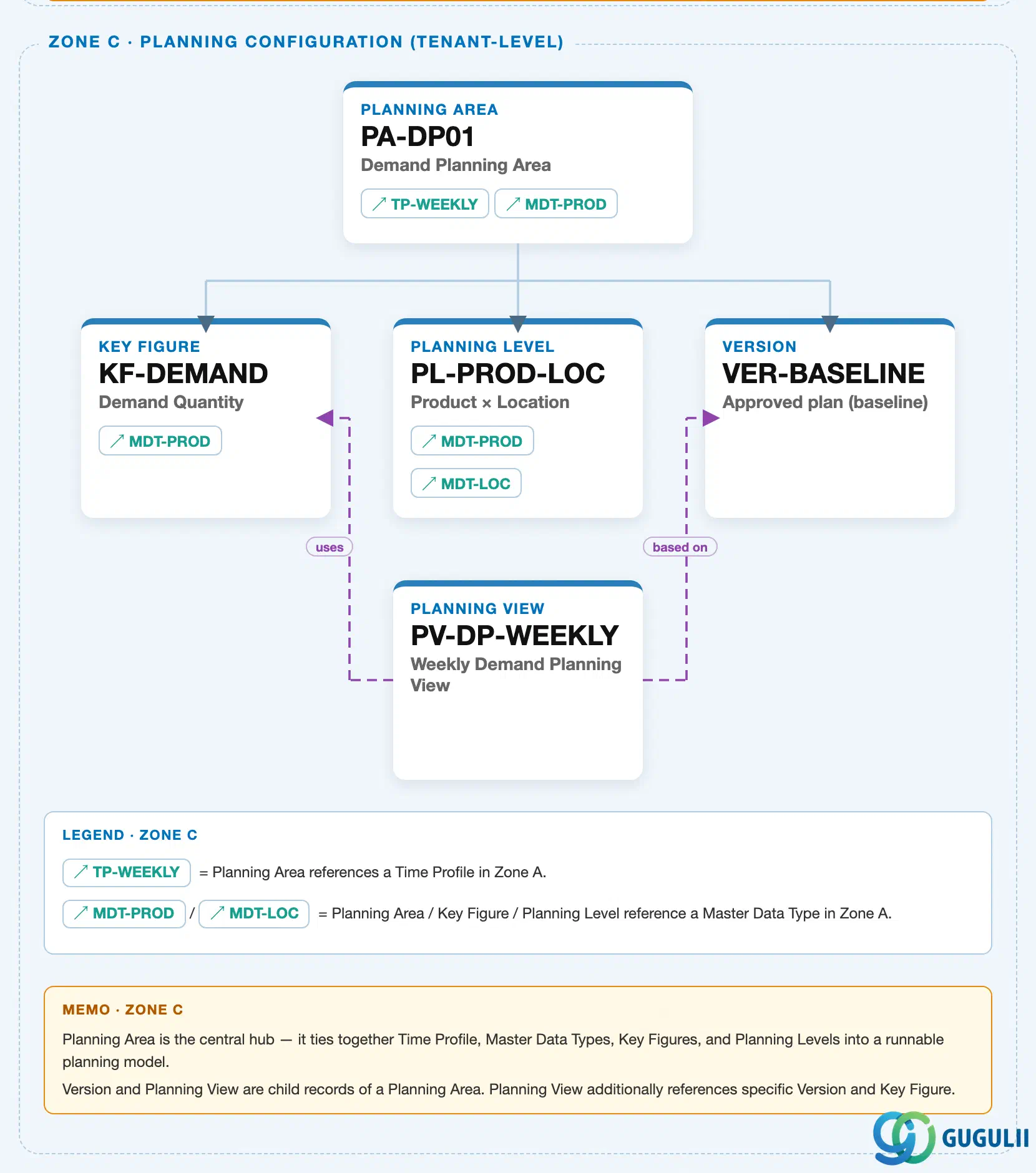
Data hierarchy with a concrete example
Client (SAP IBP Tenant)
   │
   └── Planning Area "PA-DP01" — Demand Planning Planning Area          [this article's object]
          │
          ├── Key Figure "KF-DEMAND" — Demand Quantity                    (IBP-A03-01)
          │
          ├── Planning Level "PL-PROD-LOC" — Product x Location            (IBP-A03-02)
          │
          ├── Version "VER-BASELINE" — Approved plan (baseline)            (IBP-A03-04)
          │
          └── Planning View "PV-DP-WEEKLY" — Weekly Demand Planning View   (IBP-A03-05)
Design principle: Planning Area is the hub that bundles Key Figure, Planning Level, and Version as structurally parallel children — none nests inside another — and Planning View is a genuine downstream child of an active Planning Area (1:N). The cross-reference chips on the PA-DP01 card (TP-WEEKLY, MDT-PROD) indicate that the Planning Area also references a Time Profile and Master Data Types from Zone A, but those are inputs drawn in, not children owned by the Planning Area in this zone’s hierarchy. Version and Planning View’s own field-level mechanics are covered in the next two sibling articles (IBP-A03-04, IBP-A03-05).
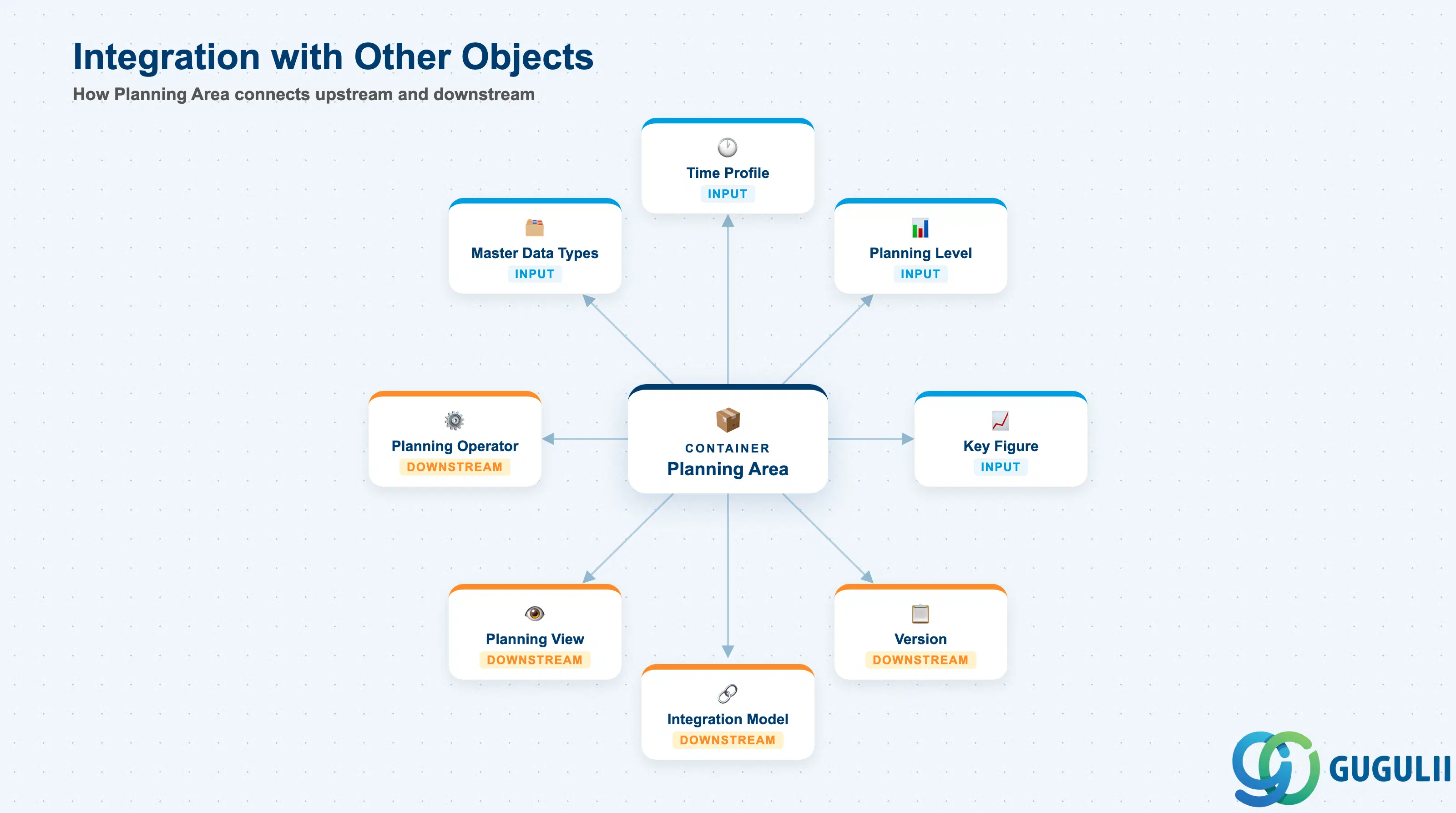
A Planning Area does not stand alone — it is built from the Level 1 objects covered in prior sibling articles, and it is in turn the object every downstream planning artifact is built against.
| Object | Relationship | Practical Notes |
|---|---|---|
| Time Profile | Supplies the time-bucket dimension the Planning Area’s Key Figures store values against | Full mechanics already covered in IBP-A02-03 (deployed) — this article treats Time Profile only as one of the three inputs that combine into the model. |
| Planning Level | Supplies the non-time dimensional grain (built from Master Data Types/Attributes) each Key Figure is anchored to | Full mechanics in IBP-A03-02 — Planning Level is structurally composed into the Planning Area rather than listed as a standalone field. |
| Key Figure | Supplies the measured values that flow through the model, each anchored to a base Planning Level | Full mechanics in IBP-A03-01 — Storage Type, Aggregation Mode, and Disaggregation Mode are Key Figure’s own settings, not Planning Area’s. |
| Master Data Types / Attribute | Supplies the dimensions (Product, Location, Customer, etc.) the Planning Area’s Master Data Types field selects | Full mechanics in IBP-A02-01/A02-02 — a Planning Area does not define new master data of its own, it selects which types to activate against. |
| Version | Holds Baseline, Working, Simulation, or Consensus copies of the same Planning Area’s data | A Planning Area has a one-to-many relationship into Version; full mechanics covered in the next article, IBP-A03-04. |
| Planning View | The display/workbook layer built against a Planning Area, a Version, and a set of Key Figures | Full mechanics covered in IBP-A03-05 — this article treats Planning View only as a downstream consumer. |
| Integration Model | Explicitly configured against a named “Target Planning Area” — the pipe that moves S/4HANA data into the model the Planning Area defines | The Planning Area determines the shape (Master Data Types, Attributes, Key Figures, Planning Levels) any inbound Integration Model must conform to — see Section 2.4 for the RTI/SDI mechanics of that data flow. |
| Planning Operator | Algorithms (statistical forecast, supply heuristic, inventory optimizer) that run against a Planning Area’s Key Figures | Full mechanics covered in a later Phase 4 article, IBP-A05-01 — this article treats it only as a downstream consumer. |
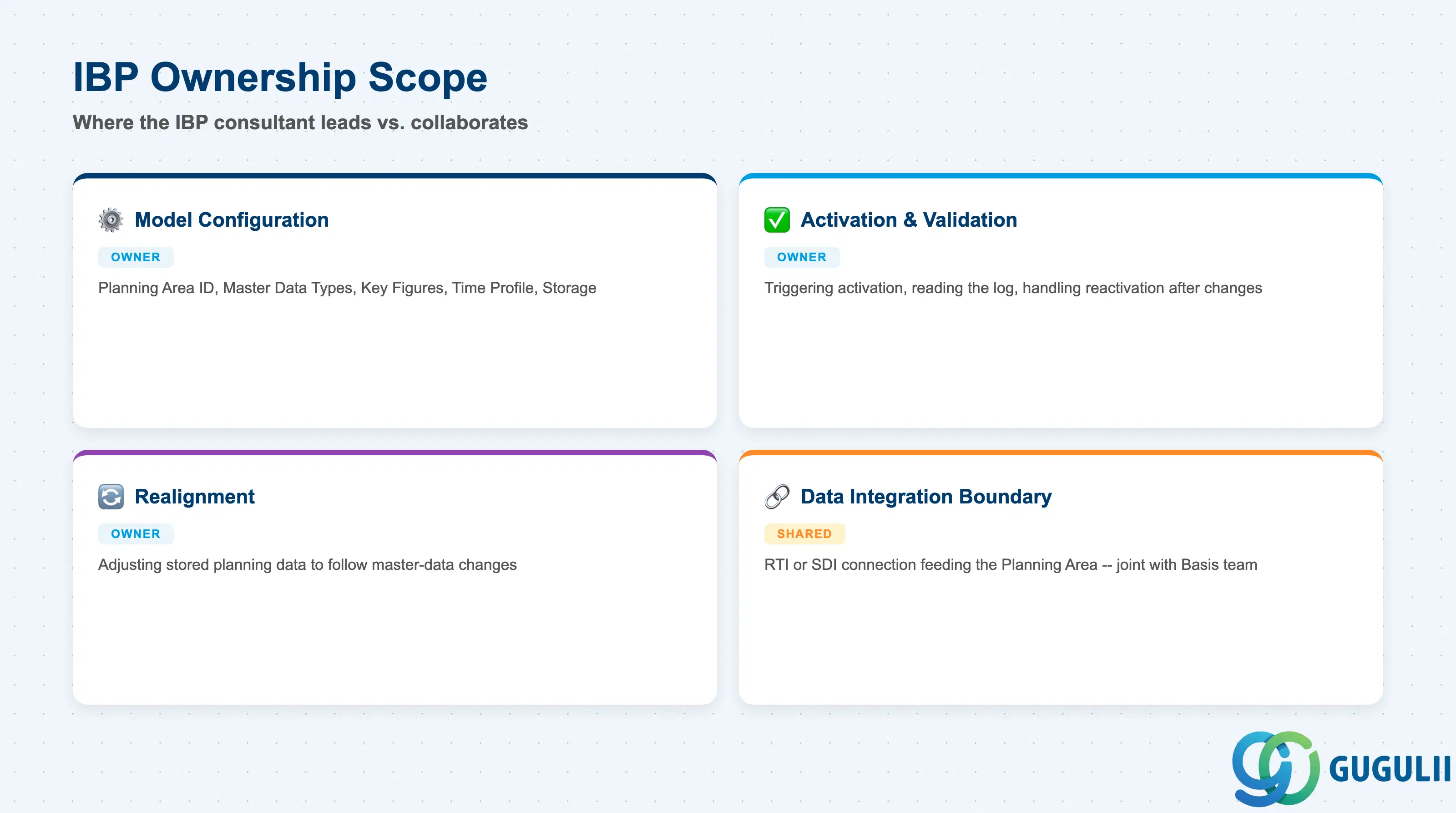
| Data Section | IBP Involvement | Notes |
|---|---|---|
| Model Configuration | ◎ Owner | Planning Area ID, Master Data Types, Key Figures, Time Profile, Storage — the definitional fields set when the Planning Area is built |
| Activation & Consistency Validation | ◎ Owner | Triggering activation, reading the activation log, and handling reactivation after structural changes |
| Realignment | ◎ Owner | Adjusting already-stored planning data to follow master-data changes, without touching the Planning Area’s structure |
| Data Integration Boundary | ○ Shared with Basis / Integration team | Choosing and maintaining the RTI or SDI connection that feeds the Planning Area — configuration lives on the IBP side, but the source-system connection is typically a joint effort |
Legend: ◎ = Owner / Critical, ○ = Direct involvement
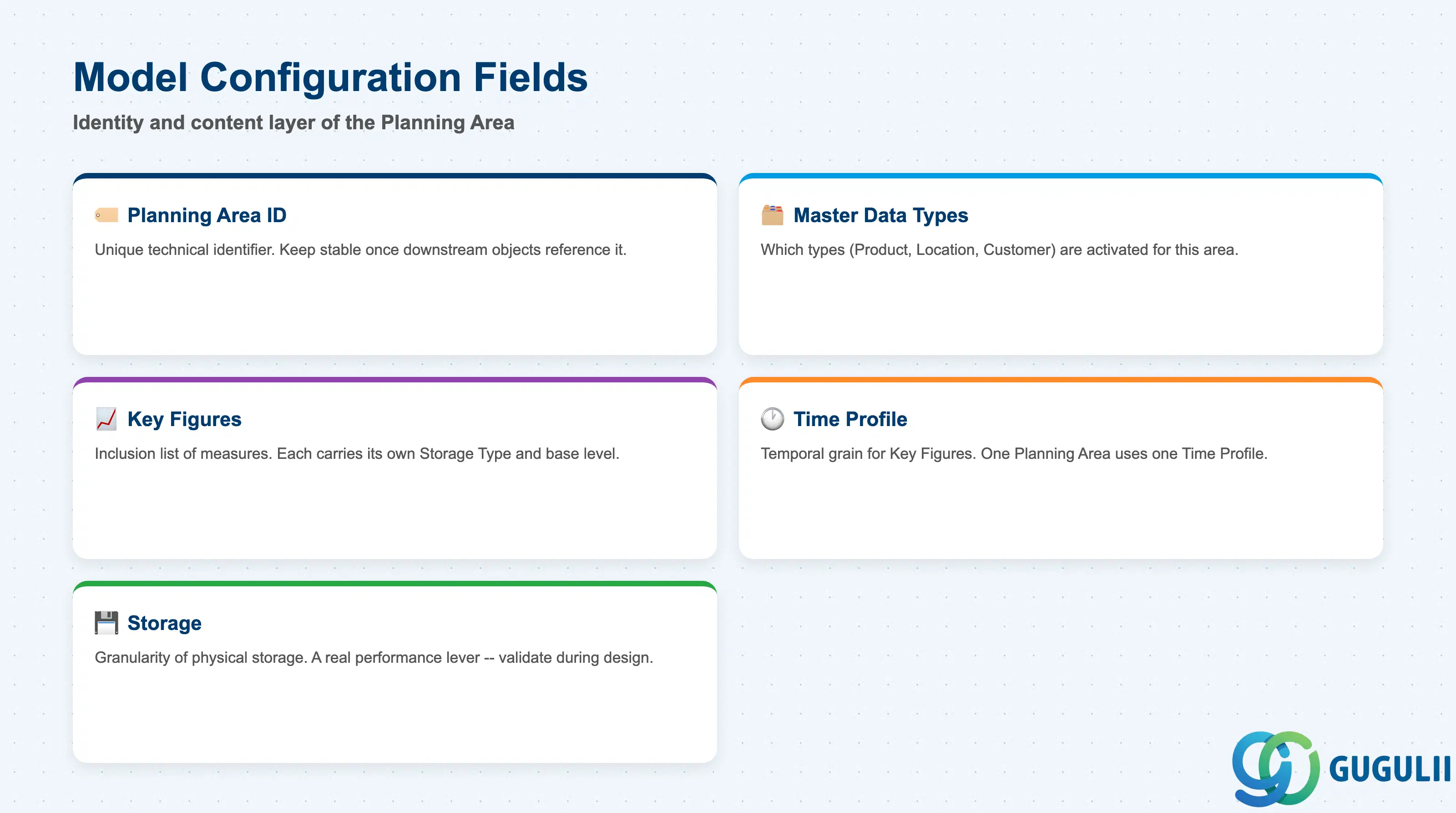
Model Configuration is the identity and content layer of the Planning Area — set inside the Planning Areas app when the model is first defined, and revisited any time the model’s scope changes.
| Field | Description | Practical Usage |
|---|---|---|
| Planning Area ID | Unique technical identifier for the Planning Area | Naming patterns commonly reflect the planning process the model supports — e.g. PA-DP01 for a Demand Planning area. Keep the ID stable once other objects (Versions, Planning Views, Integration Models) reference it. |
| Master Data Types | Which Master Data Types (Product, Location, Customer, etc.) are activated for use in this Planning Area | Only types selected here are available for Planning Levels built inside the Planning Area — see IBP-A02-01 for how the types themselves are defined. |
| Key Figures | Which Key Figures are included in the Planning Area’s model | Each included Key Figure carries its own Storage Type and base Planning Level settings, covered in full in IBP-A03-01 — this field is simply the inclusion list. |
| Time Profile | Which Time Profile supplies the temporal grain for the Planning Area’s Key Figures | One Planning Area uses one Time Profile; changing it after the model holds data is a structural change subject to the activation rules in Section 2.2. |
| Storage | Governs the granularity at which a Key Figure’s data is physically stored for this Planning Area (e.g. a coarser vs. finer time-bucket setting) | Coarser storage granularity generally performs better; the total number of stored planning points (Key Figures x Planning Level combinations x time buckets) is the primary sizing driver for a Planning Area. Treat this as a real performance lever, not a cosmetic setting — avoid changing it casually once the Planning Area is in productive use, and validate sizing during design rather than after go-live. |
Note: Planning Level is not a separate literal field in this table — it is composed in through the Master Data Types selected above and the Planning Levels built inside the Planning Area’s configuration (see Section 1.3).
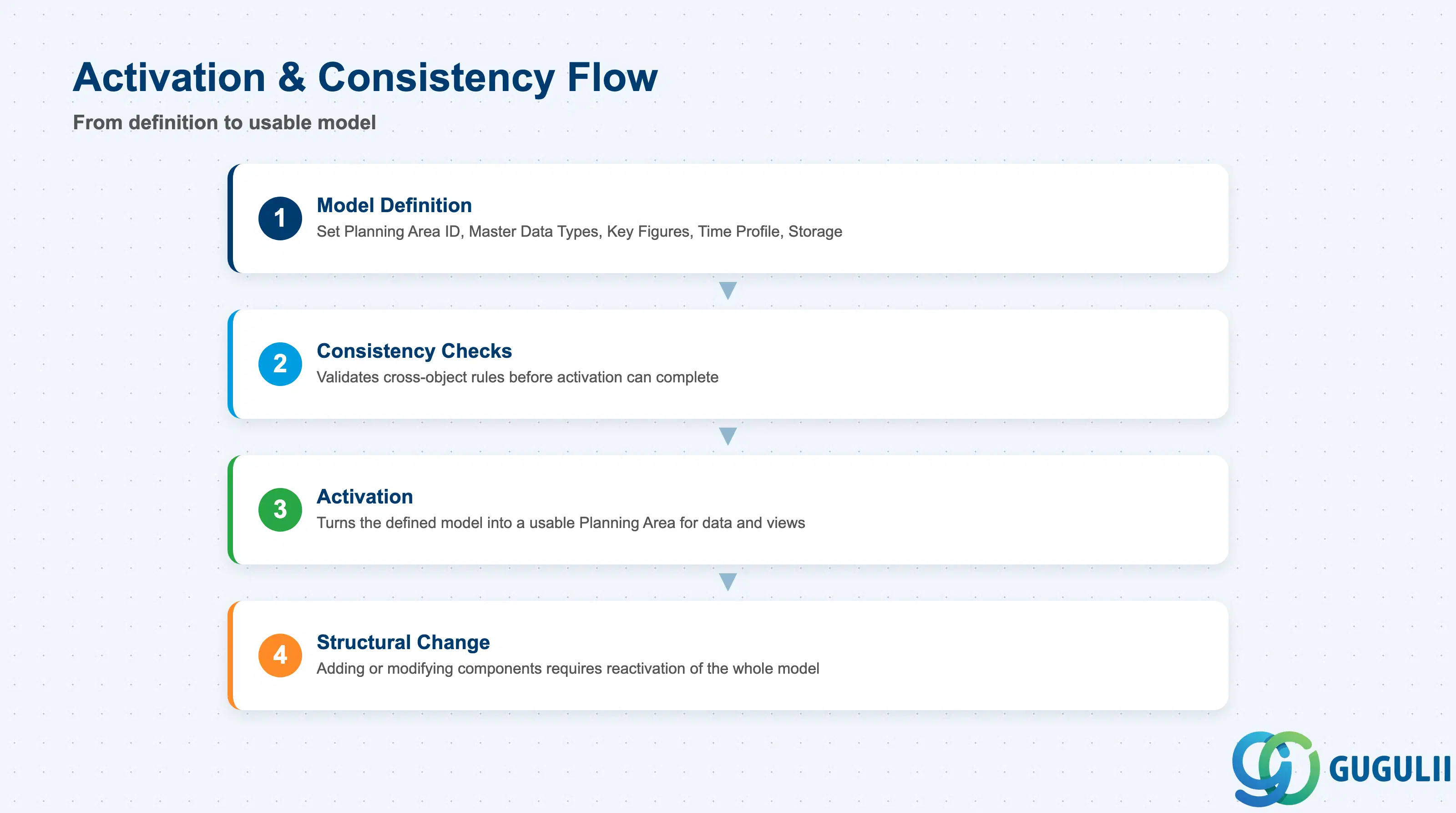
Activation is what turns a defined Planning Area into a usable one — and it is a whole-model consistency gate, not a simple status flag.
| Field / Concept | Description | Practical Usage |
|---|---|---|
| Activation | The action, triggered from the Planning Areas screen, that validates the entire model’s internal and cross-object consistency — the Planning Area itself, plus the Planning Levels, Key Figures, and Versions activated together with it | Only after activation succeeds does the Planning Area become usable for real planning (data can load, Planning Views can be built, Planning Operators can run). Treat activation as a distinct, sometimes time-consuming step in a build plan, not an instantaneous save. |
| Consistency checks | Validation rules the model must pass before activation completes — e.g. an Output Planning Level’s attributes must be a subset of the Input Planning Level’s attributes; two Planning Levels cannot both serve as base level for the same stored Key Figure | Design Planning Levels and Key Figure base-level assignments with these rules in mind up front (see IBP-A03-02, Section 2.3) — discovering a conflict only at activation time costs a rebuild cycle. |
| Activation Log (“Last Action Status”) | A downloadable log on the Planning Area screen recording the outcome of the most recent activation attempt, including specific failure reasons | Read this first whenever activation fails — it names the specific consistency violation rather than leaving the configurator to guess. |
| Structural changes require reactivation | Adding/removing/modifying Master Data Types, Key Figures, Planning Levels, or the Time Profile in ways that affect model consistency generally cannot be applied live | The change must be made in the (re-editable) Planning Area definition and activation re-run so the whole model re-validates. This is the concrete mechanism behind the general guidance that “Master Data Type changes after creation are restricted” — treat any structural change as a reactivation event to plan and communicate, not a quiet edit. Some cosmetic settings (attribute descriptions, business-meaning text, current-period pointer) are commonly treated as exceptions that do not require a full reactivation — validate this boundary case by case rather than assuming a setting is safe. |
| Restore Active Instance | An option to revert an in-progress edit back to the last successfully activated state, or to cancel an attempted deletion of an already-active Planning Area | Useful as a safety net during iterative configuration — a bad edit does not have to be manually undone field by field. |
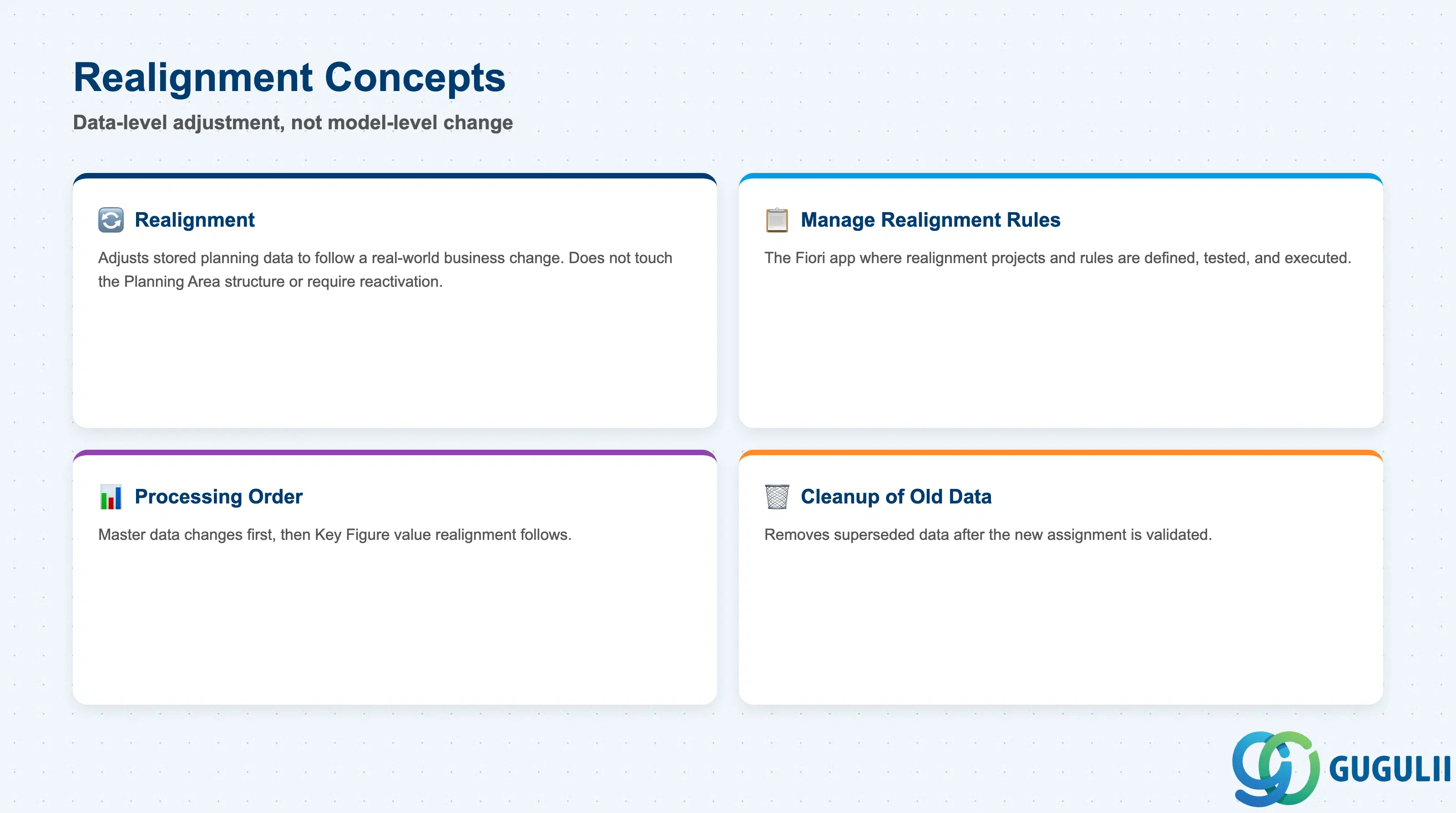
Realignment is a distinct concept from activation, and consultants frequently conflate the two — both concern “what happens after the model is built,” but at different layers.
| Field / Concept | Description | Practical Usage |
|---|---|---|
| Realignment (data-level, not model-level) | The process of adjusting already-stored planning data — master-data assignments and time-series Key Figure values — to follow a real-world business change (an org restructure, a discontinued product, a relocated distribution center) | Unlike activation, realignment does not touch the Planning Area’s structure and does not require reactivation. Reach for realignment when the model is still correct but the data needs to follow a master-data change; reach for activation only when the model itself must change. |
| Manage Realignment Rules app | The app where realignment projects and rules are defined and executed | Set up realignment rules ahead of a known business change (e.g. a planned plant consolidation) rather than reacting to it after the fact. |
| Processing order | When both master data and Key Figure values are realigned together, master data changes are processed first, then Key Figure value realignment follows | Sequence dependent changes accordingly when planning a realignment project with multiple moving pieces. |
| Cleanup of superseded data | Realignment supports removing old data once the new data has been successfully created | Confirm the new assignment is validated before triggering cleanup, to avoid losing data if a realignment step needs to be reversed. |
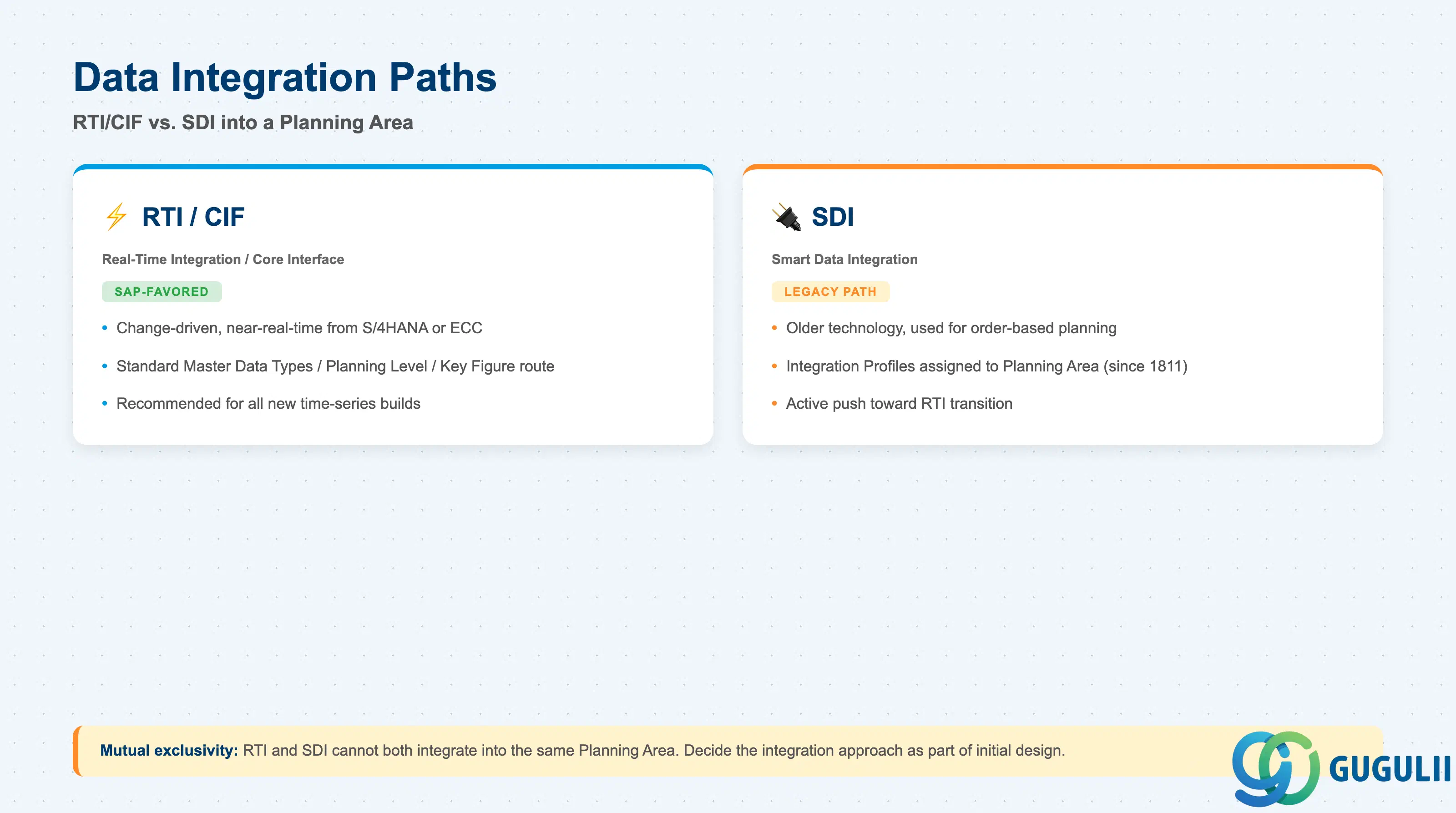
A Planning Area’s Master Data Types, Attributes, Key Figures, and Planning Levels define the exact shape any inbound integration must conform to — and a given Planning Area is committed to exactly one integration approach, not a mix of both.
| Field / Concept | Description | Practical Usage |
|---|---|---|
| Real-Time Integration (RTI) / Core Interface (CIF) | Change-driven, near-real-time integration of master data and transactional data from SAP S/4HANA or ECC into a Planning Area’s configured data model | The current, SAP-favored integration path for models built via the standard Master Data Types/Planning Level/Key Figure configuration route. |
| Smart Data Integration (SDI) | An older integration technology, used especially for order-based planning, integrating external master data via configured Integration Profiles | Still relevant for existing order-based (e.g. SAP7F-derived) implementations, but SAP’s published guidance signals an active push toward transitioning customers from SDI to RTI — factor this into any new-build decision even where an exact end-of-support date is not yet confirmed. |
| Mutual exclusivity | RTI and SDI cannot both integrate into the same Planning Area — each Planning Area is architecturally committed to one approach | Decide the integration approach as part of the initial Planning Area design, not as an afterthought once Key Figures and Planning Levels are already built — switching later is a re-architecture, not a configuration toggle. |
| Integration Profile assignment | Since release 1811, a Planning Area used with SDI-based integration must have an Integration Profile explicitly assigned | SAP’s documented guidance allows starting with a default profile and refining later, or building out individual integrations first and finalizing the profile assignment at the end — either sequencing is acceptable, but the assignment itself is mandatory. |
| Other data-loading channels | CI-DS, Excel Workbook/template upload, the Manage Master Data app, and the Data Integration app can all load data into an already-active Planning Area outside of RTI/SDI | All of these remain constrained by whatever Master Data Types, Attributes, Key Figures, and Planning Levels the target Planning Area has activated — they are additional entry points, not an exception to the model’s defined shape. |
| ID | Category | Title |
|---|---|---|
| ibp-001 | Overview | What is SAP IBP? |
| ID | Category | Title |
|---|---|---|
| ibp-a01 | Overview | SAP IBP Master Data: Overview, Hierarchy & Relationships |
| ibp-a02-01 | Master Data | SAP IBP Master Data Types |
| ibp-a02-02 | Master Data | SAP IBP Attribute |
| ibp-a02-03 | Master Data | SAP IBP Time Profile |
| ibp-a02-05 | Master Data | SAP IBP Location Master |
| ibp-a03-01 | Master Data | SAP IBP Key Figure |
| ibp-a03-02 | Master Data | SAP IBP Planning Level |
| ibp-a03-03 | Master Data | SAP IBP Planning Area 📍 |
| ibp-a03-04 | Master Data | SAP IBP Planning Version |
| ibp-a03-05 | Master Data | SAP IBP Planning View |
| ibp-a04-01 | Master Data | SAP IBP Integration Model |
| ibp-a05-01 | Master Data | SAP IBP Planning Operator |
| ID | Category | Title |
|---|---|---|
| ibp-b01 | Overview | SAP IBP Transactions: Process Flow, Hierarchy & Relationships |