Title here
Summary here

Permission Group is the master data object that defines a reusable population of SuccessFactors users — built either from live, rule-based criteria or from a hand-picked fixed list — for use throughout the Role-Based Permission (RBP) framework. It is the first object configured in Phase 2 (Permission & System Configuration): where Phase 1’s Legal Entity through Position chain establishes who works where, Permission Group establishes who can see or change what, by supplying the population that every Permission Role binds to as either its Granted-To population or its Target Population. This article covers what a Permission Group is, its Dynamic / Static / Everyone variants, how it sits alongside the parallel Time Configuration chains in the same landscape zone, and every field an Admin Center consultant configures for it.
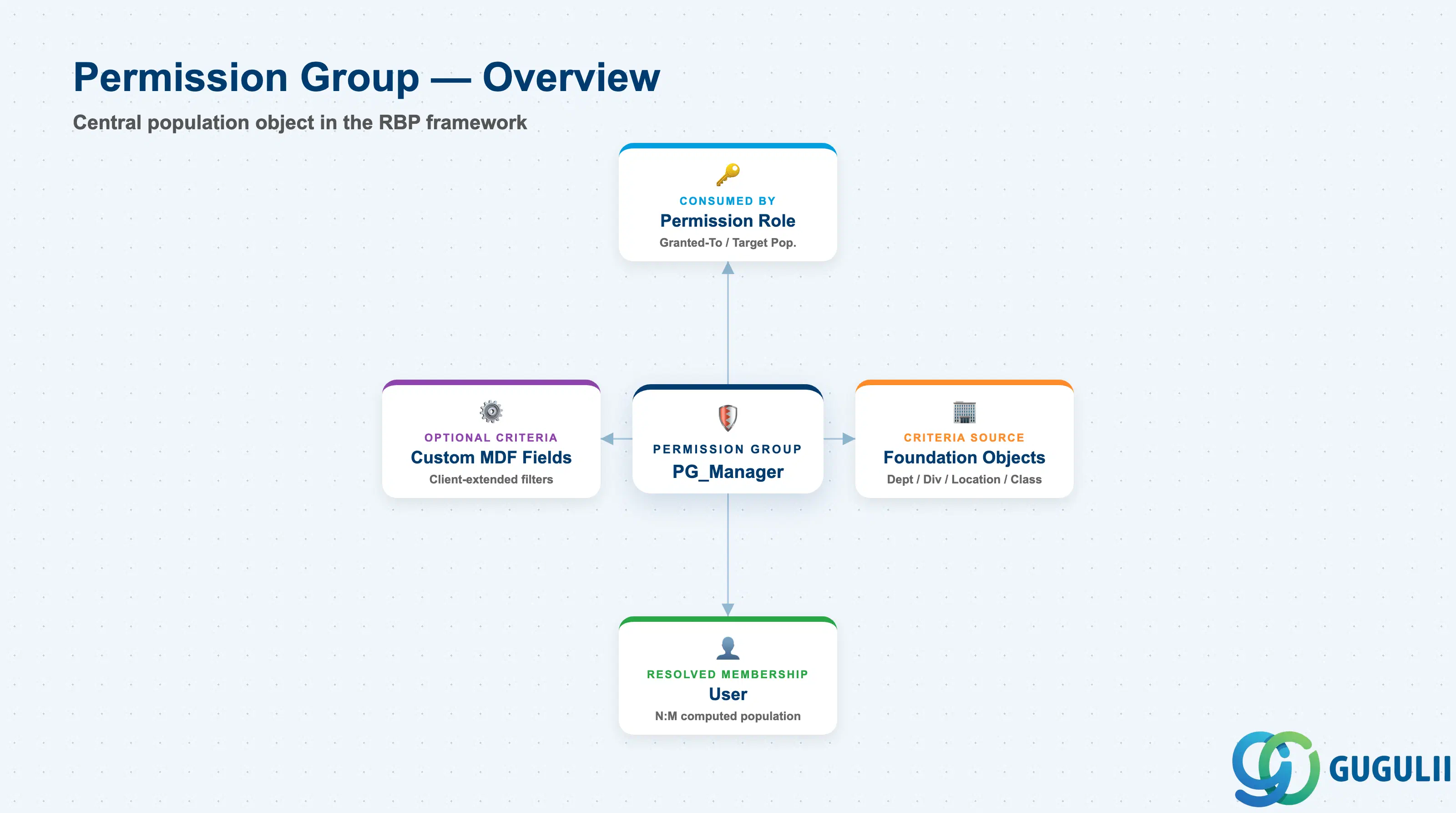
Permission Group is a client-level (tenant-level) foundation object that names a population of users without itself granting any permission. It carries no access logic of its own — access is entirely defined on the Permission Role side — but every Permission Role’s configuration is meaningless without a Permission Group telling it who receives the role and whose data the role can touch. In that sense Permission Group is the addressable “population” primitive that the entire RBP security model is built on top of.
| Aspect | Details |
|---|---|
| Role | Defines a reusable population of SuccessFactors users, referenced by Permission Role configuration as either the “Grant this role to” (Granted-To) population or the “Target population” — whose records granted users can act on |
| Modules using it | Platform-wide capability owned by Admin Center / RBP engine; every module that enforces access control — Employee Central (field- and record-level access), Recruiting, Onboarding, Performance & Goals, Compensation, Learning — resolves its “who can do what to whom” boundary through a Permission Role bound to one or more Permission Groups |
| Transactions | Admin Center → “Manage Permission Groups” (create/edit Dynamic and Static groups); “Manage Permission Roles” (bind a group as Granted-To population and/or Target population when configuring a role) |
| Key Tables | No classic ABAP table — SuccessFactors stores Permission Group definitions as internal Role-Based Permission (RBP) configuration objects. Unlike Foundation Objects such as Position or Department, Permission Groups are not exposed through the generic “Import and Export Data” tool; criteria and static membership are maintained directly inside “Manage Permission Groups,” not via CSV bulk load |
| S/4HANA note | No delivered synchronization exists between SuccessFactors Permission Group and any on-premise S/4HANA or classic HCM authorization construct. The loosest conceptual analogue is a structural-authorization profile or a SU01 user group in classic SAP security, but RBP is a cloud-native, SuccessFactors-only concept and the two are never systemically linked |
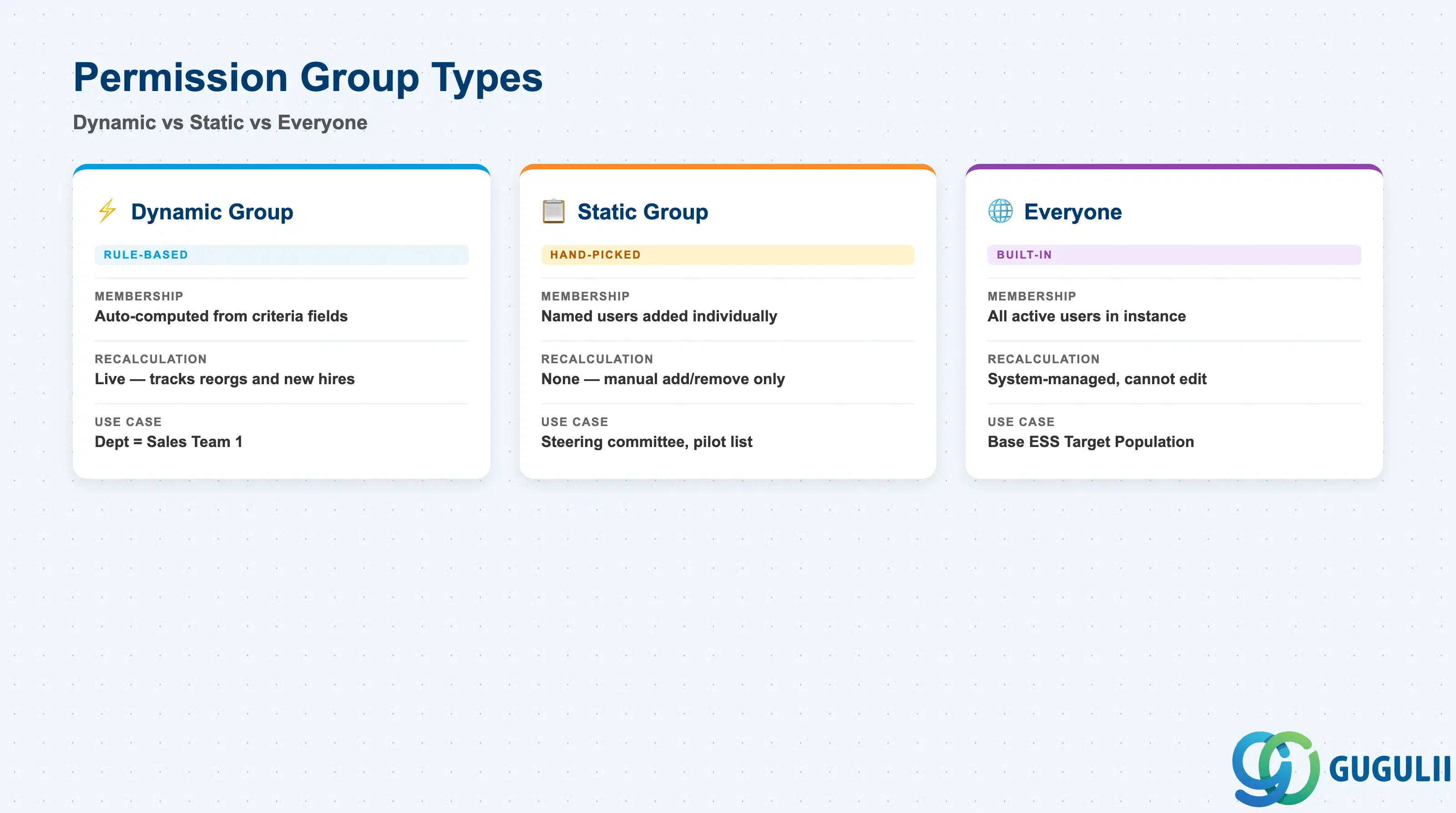
A Permission Group’s Group Type determines how its membership is computed, and getting it wrong is not a cosmetic choice — a Static Group used where a Dynamic Group was needed silently stops tracking reorgs and new hires, while an overly broad Dynamic Group (or the built-in Everyone group) attached to a sensitive role is a routine finding in access-control audits.
| Type | Code | Use Case | Key Behavior |
|---|---|---|---|
| Dynamic Group | Group Type = Dynamic Group | Population that should track live employee data — e.g. “everyone whose Department = Sales Team 1” | Membership is computed from one or more field-based criteria (Department, Division, Location, Employee Class, custom MDF fields) combined with AND/OR logic; recalculates automatically as employee data changes, no manual maintenance |
| Static Group | Group Type = Static Group | A specific, hand-picked set of named individuals — e.g. a named steering committee or a pilot-phase exception list | Members are added one by one by User ID inside “Manage Permission Groups”; does not change automatically when a member’s Department or Division changes — requires deliberate manual upkeep |
| Everyone | Built-in (no Group Type selection) | Broadest possible population — every active user in the instance | System-delivered special group; cannot be edited, renamed, or deleted. Commonly used as the Target Population for very broadly granted roles (e.g. base Employee Self-Service); using it as a Granted-To population for anything sensitive removes any population boundary entirely |
Design principle: a single Permission Group cannot mix Dynamic and Static logic — pick one Group Type per group. When a population genuinely needs both rule-based and hand-picked members, combine two separate groups (one Dynamic, one Static) at the Permission Role assignment level rather than trying to force both logics into one group.
Data hierarchy with a concrete example
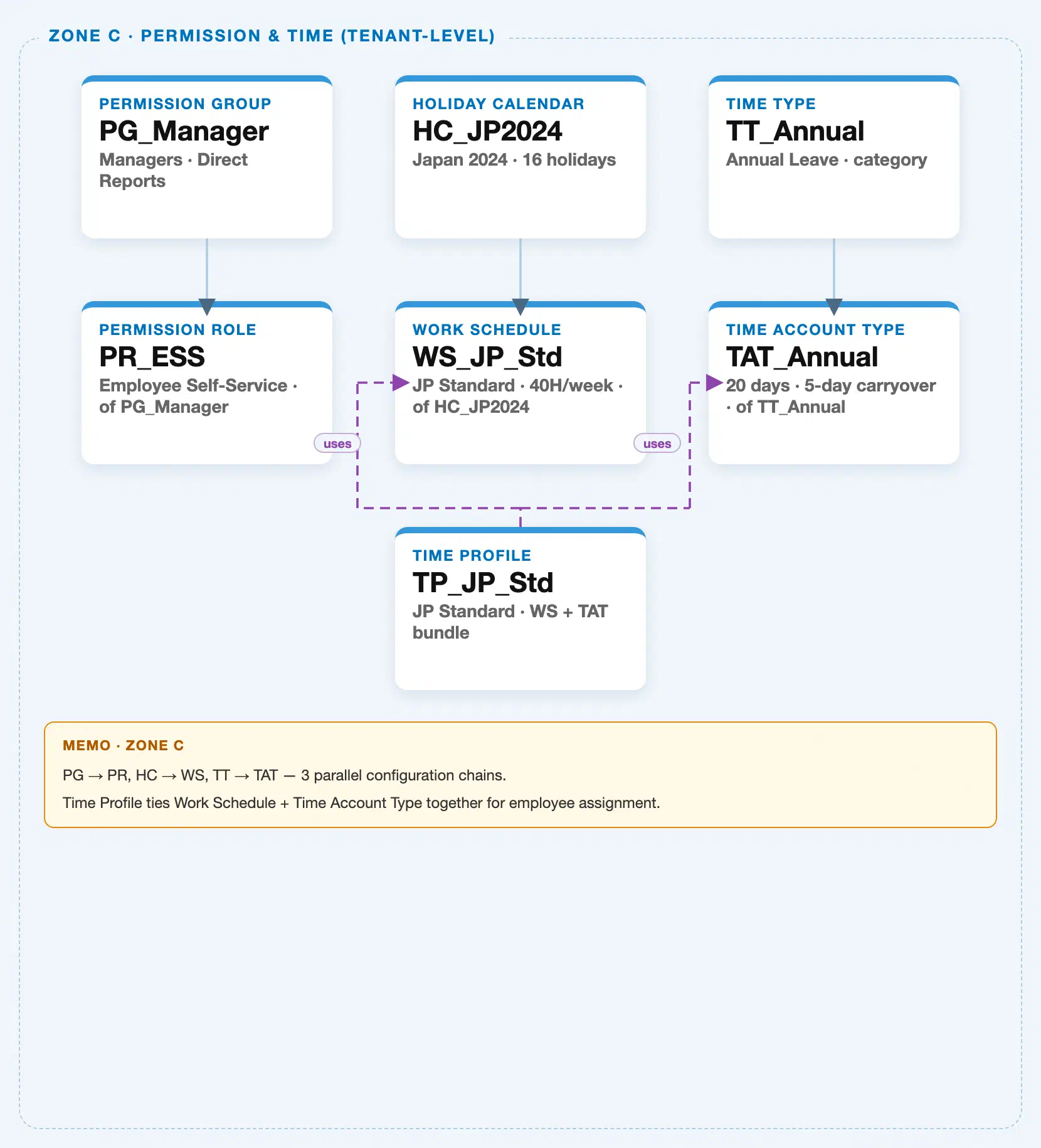
Permission Group sits in the tenant-level “Permission & Time” zone of the SuccessFactors Master Data Landscape — one of three parallel, independent client-level configuration chains bundled into that zone (Permission Management; Holiday Calendar → Work Schedule; Time Type → Time Account Type, tied together by Time Profile). This article’s own hierarchy is the first chain; the other two exist in the same landscape zone but belong to sibling articles (SF-A03-03 through SF-A03-06):
Client (SuccessFactors Instance)
   │
   ├── Permission Group "PG_Manager" — Managers, Direct Reports
   │      │
   │      └── Permission Role "PR_ESS" — Employee Self-Service, of PG_Manager
   │
   ├── Holiday Calendar "HC_JP2024" — Japan 2024, 16 holidays  (Time Configuration chain, see SF-A03-03/04)
   │      │
   │      └── Work Schedule "WS_JP_Std" — JP Standard, 40H/week, of HC_JP2024
   │
   └── Time Type "TT_Annual" — Annual Leave, category  (Time Configuration chain, see SF-A03-05/06)
          │
          └── Time Account Type "TAT_Annual" — 20 days, 5-day carryover, of TT_Annual

Time Profile "TP_JP_Std" — JP Standard, Work Schedule + Time Account Type bundle
   ├── assigned to ──> Work Schedule "WS_JP_Std"
   └── assigned to ──> Time Account Type "TAT_Annual"
MANDATORY landscape verification note: the module Master.md’s ER Diagram labels the Permission Group ↔ Permission Role relationship as “N:M.” The published SuccessFactors Master Data Landscape (
sf-a01/images/04-sf-a01-master-landscape.html, Zone C) draws this as a single solid parent-child connector —PG_Manager → PR_ESS— with the node-sub text “Employee Self-Service · of PG_Manager.” This is not a contradiction: the landscape’s solid line is a representative provenance chip for one Permission Role instance’s data, not a claim that a Permission Group owns exactly one Permission Role. In actual SuccessFactors configuration, a single Permission Group is routinely referenced as the Granted-To or Target Population of many unrelated Permission Role assignments, and a single Permission Role can, across different assignments, reference different Permission Groups — which is exactly the many-to-many cardinality the Master.md source describes. See Section 1.4 and 2.4 for how this reuse plays out in practice.
Design principle: because Permission Group carries no access logic of its own, its position in the hierarchy is intentionally shallow (client level, no sub-levels) — all of the real configuration complexity lives in how Permission Role assignments combine Permission Groups (Section 2.4), not in the group object itself.
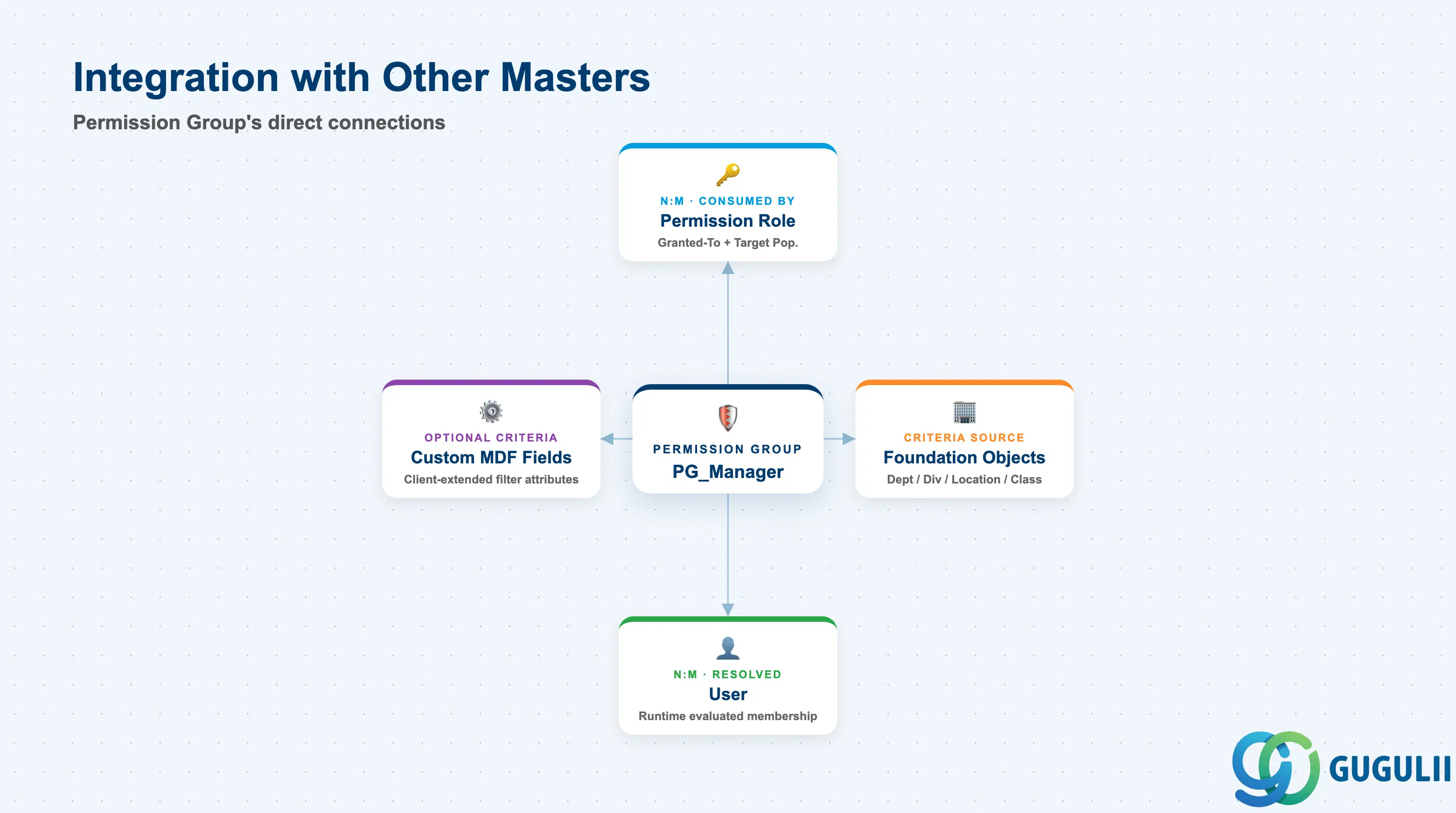
Permission Group does not stand alone in either direction: Dynamic Groups pull their criteria from other Foundation Objects, and every group’s resolved membership — Dynamic or Static — ultimately feeds into Permission Role assignments that other objects (and every logged-in user) depend on.
| Object | Relationship | Practical Notes |
|---|---|---|
| Permission Role | Consumed by (N:M in practice) — a Permission Role’s configuration references a Permission Group as its Granted-To population, its Target Population, or both | A single Permission Group is commonly reused across many different Permission Role assignments (e.g. “PG_Manager” as Target Population for both an ESS role and a Compensation Planning role) — this reuse is the practical expression of the “N:M” cardinality flagged in Section 1.3. |
| Department / Division / Location / Employee Class (Foundation Objects) | Referenced by (criteria source) — a Dynamic Group’s rule criteria are built from field values on these Foundation Objects | Changing an org-structure field on a Foundation Object (e.g. moving a Department under a different Division) can silently shift Dynamic Group membership, and through it, who holds access to what — a frequent, hard-to-trace root cause of unexpected permission changes right after a reorg. |
| Custom MDF Object Fields | Referenced by (optional criteria source) — Dynamic Groups can filter on custom Metadata Framework fields, not only standard Foundation Object fields | Enables business-specific criteria (e.g. “Cost Center Type = Shared Service”) once a client has extended Employee Central with custom fields exposed as filterable in the group-criteria rule builder. |
| User | Resolved membership (N:M, computed) — every Dynamic Group’s live member list, and every Static Group’s explicit member list, ultimately resolves to a set of User records | Resolved group membership is what the RBP engine evaluates at login/runtime to decide visible menus, editable fields, and accessible employee records for that user — see SF-A04-03 (User) for the record membership resolves against. |
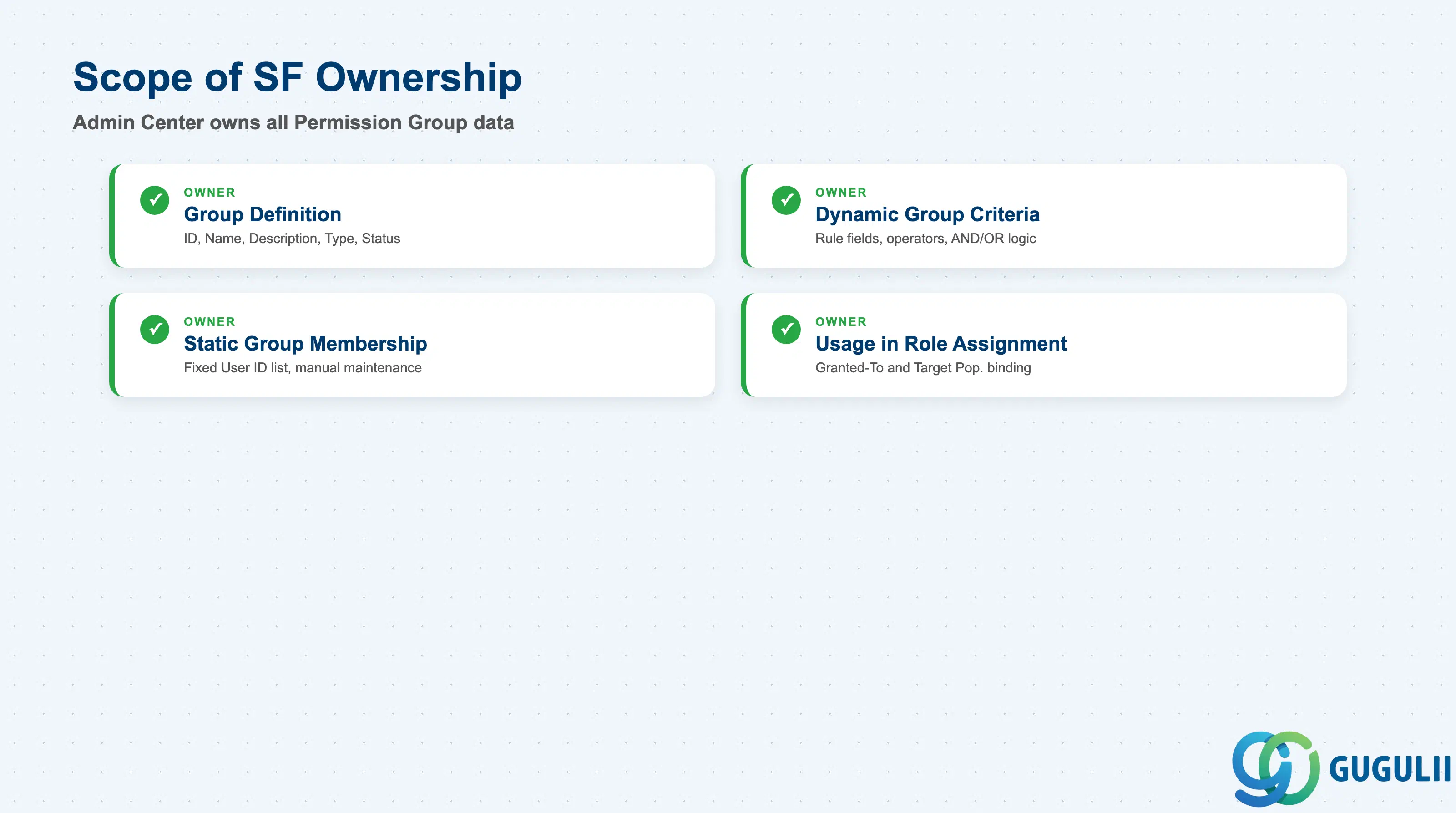
| Data Section | SF Involvement | Notes |
|---|---|---|
| Group Definition (Core Identification) | ◎ Owner | Group ID, Group Name, Description, Group Type, Status |
| Dynamic Group Criteria | ◎ Owner | Rule-based criteria fields, operators, AND/OR logic |
| Static Group Membership | ◎ Owner | Manually maintained fixed User ID list |
| Usage in Role Assignment | ◎ Owner | How the group is bound into a Permission Role’s Granted-To and Target Population settings |
Legend: ◎ = Owner / Critical, ○ = Direct involvement
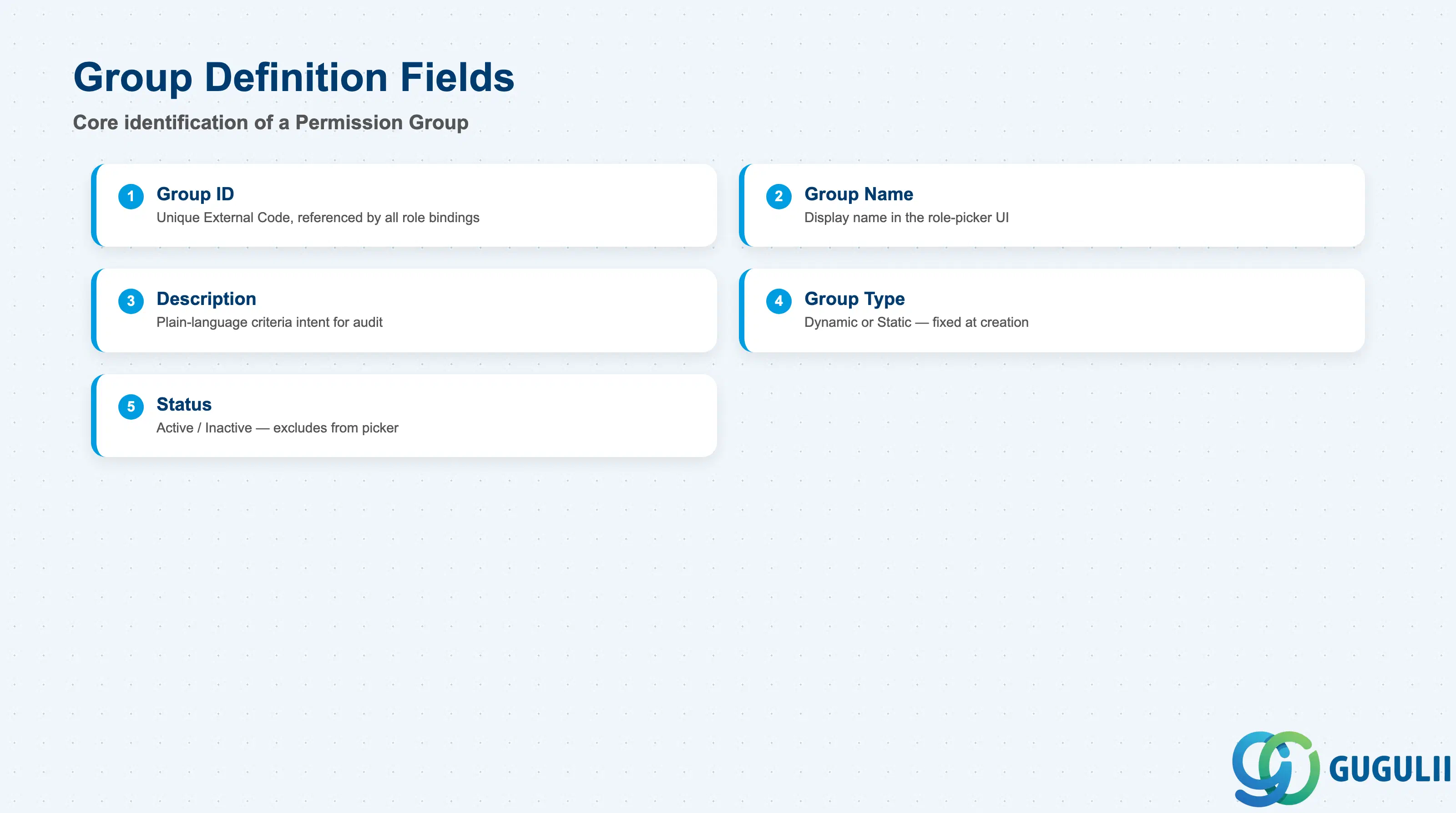
Group Definition is the minimum record a Permission Group needs to exist — it is what every Permission Role binding, and every group picker in Manage Permission Roles, resolves back to.
| Field | Description | Practical Usage |
|---|---|---|
| Group ID | Unique identifier (External Code) for the Permission Group | The key value every Permission Role’s Granted-To and Target Population binding references. Agree a naming convention (e.g. PG_ prefix plus purpose) before go-live — renaming after roles are bound to it requires re-checking every role assignment that references the old ID. |
| Group Name | Display name shown in the group picker inside Manage Permission Roles | Should describe the population itself, not the role it will first be used for (e.g. “PG_Manager,” not “PG_CompAccess”) — a single group is frequently reused across several unrelated role assignments later, so role-specific naming becomes misleading over time. |
| Description | Free-text explanation of who the group represents and why it exists | The only place criteria intent is documented in plain language; essential for access-review audits where a reviewer asks “why does this group exist and who approved its criteria.” |
| Group Type | Dynamic Group / Static Group (see 1.2) | Effectively fixed at creation — SuccessFactors does not support converting a Static Group into a Dynamic Group in place. Recreating the group under the other type and re-pointing every Permission Role that referenced the old group is the standard remediation. |
| Status | Active / Inactive | An Inactive group is excluded from the group picker for new role bindings, but does not automatically remove it from roles that already reference it — audit and manually unbind before deactivating a group still attached to live roles. |
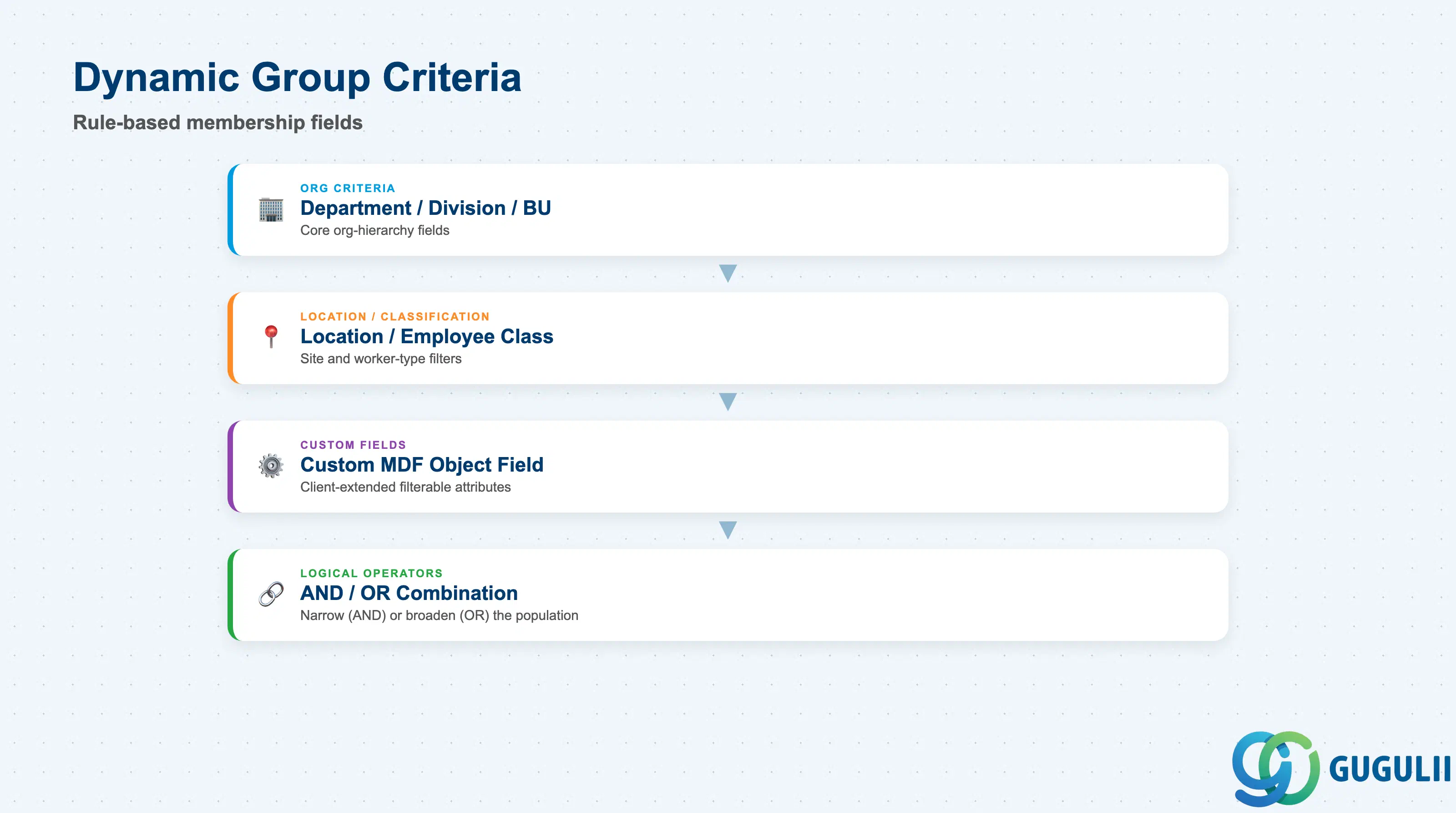
Dynamic Group Criteria is the rule definition that determines live membership. Because criteria are evaluated against real-time employee data, this is the section that turns a Permission Group from a static list into a self-maintaining population.
| Criteria Field | Description | Practical Usage |
|---|---|---|
| Department / Division / Business Unit | Organizational-hierarchy Foundation Object fields | Most common criteria basis for manager-type groups (e.g. “everyone in Department = DEPT_S01”); membership updates automatically the moment an employee’s Job Information Department changes — no manual re-add required. |
| Location | Physical work-location field | Used for site-specific access (e.g. a facilities-approval group scoped to one Location); combine with Department using AND logic to scope a group to one Department at one Location only. |
| Employee Class | Regular / Contingent / Intern classification field | Frequently used to exclude contingent workers from sensitive Compensation or Performance Target Populations without maintaining a separate manual exclusion list. |
| Custom MDF Object Field | Client-extended Metadata Framework field | Enables business-specific criteria (e.g. “Cost Center Type = Shared Service”) once a field is exposed as filterable; requires MDF configuration work beyond the group tool itself. |
| Logical Operator (AND / OR) | Combines multiple criteria rows into one rule | AND narrows the population (Department = X AND Location = Y); OR broadens it (Department = X OR Department = Z). Getting AND/OR wrong is the single most common cause of a Dynamic Group unexpectedly including — or excluding — the wrong employees. |
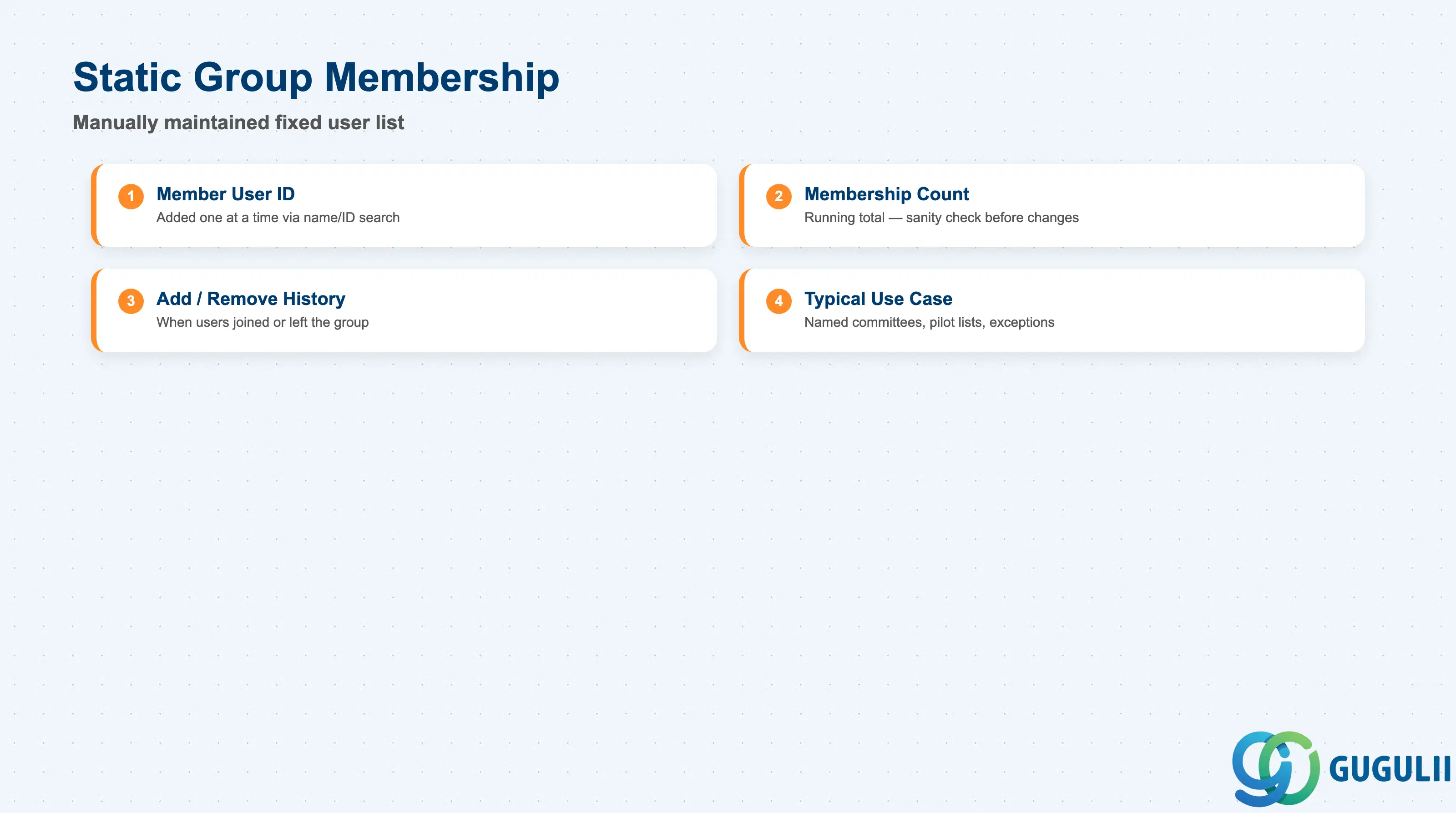
Static Group Membership is a deliberately manual mechanism, reserved for populations that are genuinely name-based rather than derivable from organizational data.
| Field | Description | Practical Usage |
|---|---|---|
| Member User ID | Individual user added to the fixed list | Selected one at a time via a name/ID search inside Manage Permission Groups — there is no bulk CSV import path for Static Group membership the way Foundation Objects support mass load. |
| Membership Count | Running total of users currently in the static list | Useful sanity check before publishing a role change — a Static Group that has silently grown far beyond its original committee size is a common access-review finding. |
| Add / Remove History | Effective record of when a user was added to or removed from the group | Static Group changes are not driven by employee data, so removing a departed or role-changed employee is a manual step owners must remember — unlike a Dynamic Group, nothing forces this cleanup automatically. |
| Typical Use Case | Named committees, pilot user lists, exception access grants | Reserve Static Groups for genuinely name-based populations (e.g. a specific steering committee); using a Static Group as a substitute for an org-based Dynamic Group creates a hidden manual-maintenance burden every time headcount changes. |
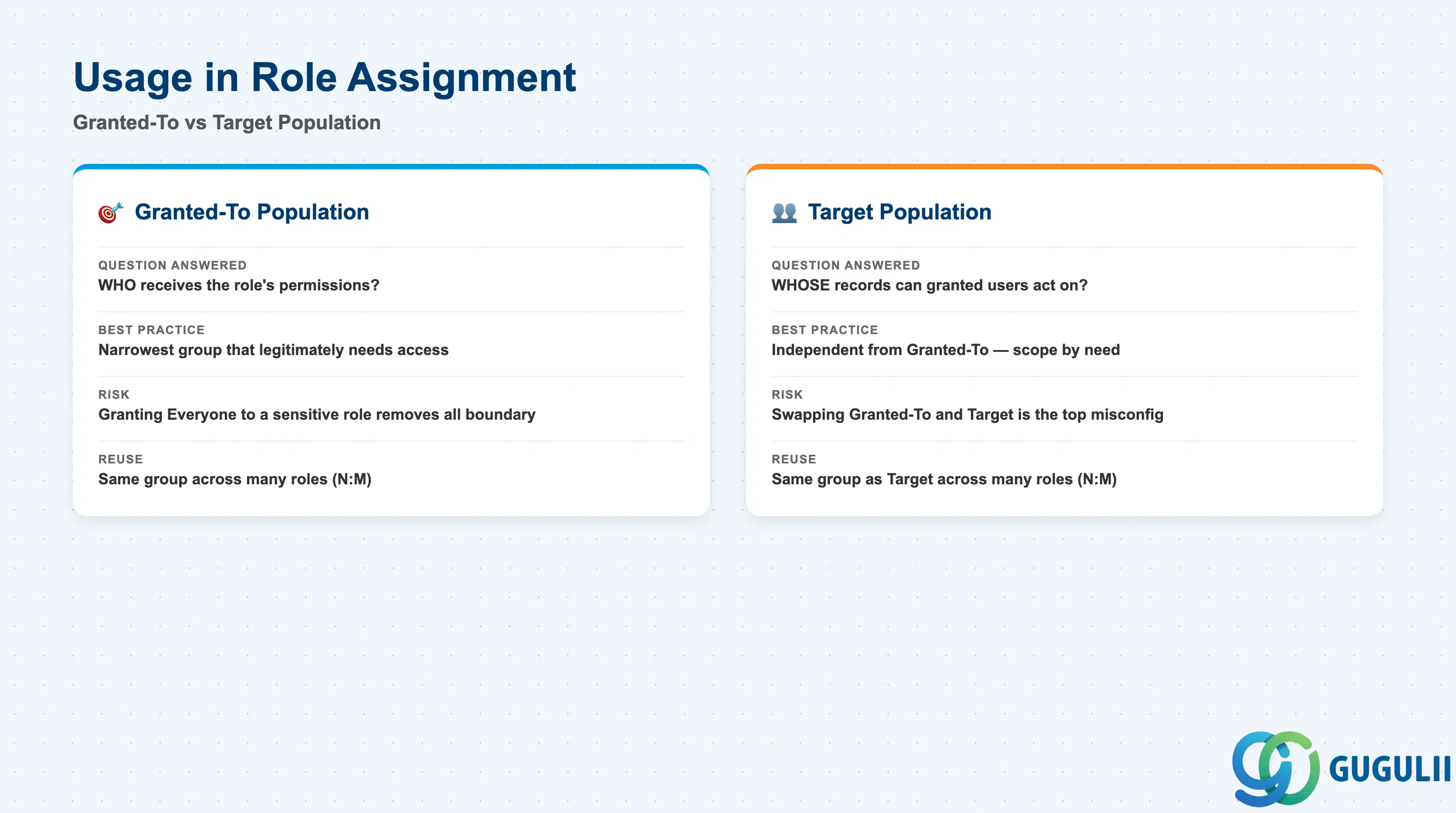
A Permission Group itself grants nothing — it only becomes meaningful once bound into a Permission Role assignment. This section covers how that binding works and where the most common misconfigurations occur.
| Usage | Description | Practical Usage |
|---|---|---|
| Granted-To Population | The Permission Group bound in a Permission Role’s “Grant this role to” setting — determines WHO receives the role’s permissions | Should almost always be the narrowest group that legitimately needs the access; granting broadly (e.g. Everyone) to a role with sensitive Target Population access is a frequent audit finding. |
| Target Population | The Permission Group bound in a Permission Role’s “Target population” setting — determines WHOSE records the granted users can act on | Independent from Granted-To: a role can grant broad access (many managers) scoped to a narrow Target (their own direct reports only), or grant narrow access (one HR team) scoped to a broad Target (the entire workforce). Swapping the two settings’ intended groups is one of the most common RBP misconfiguration patterns. |
| Multiple Group Combination | A single Permission Role assignment can reference more than one Permission Group for either Granted-To or Target Population | Groups combine with OR logic when stacked in the same role assignment (union of memberships); use separate role assignments — not a single combined group — when the required logic is genuinely AND (build that instead as one Dynamic Group with AND criteria, per 2.2). |
| Reuse Across Roles | The same Permission Group can be, and typically is, referenced by multiple, unrelated Permission Role assignments | This many-to-many reuse is the practical expression of the “Permission Group — N:M — Permission Role” cardinality flagged in Section 1.3. Before deleting or materially narrowing a group’s criteria, check every Permission Role that currently references it, not just the one prompting the change. |
| ID | Category | Title |
|---|---|---|
| sf-001 | Overview | What is SAP SuccessFactors? |
| ID | Category | Title |
|---|---|---|
| sf-b01 | Overview | SAP SuccessFactors Transactions: Process Flow, Hierarchy & Relationships |