Title here
Summary here

Permission Role is the master data object that bundles specific permission categories, types, and access levels into a single named grant, then binds that grant to a Granted-To population and a Target Population — turning the reusable population primitive defined by Permission Group into concrete, enforceable access control. It is the second object configured in Phase 2 (Permission & System Configuration): where Permission Group answers “who is in this population,” Permission Role answers “what can that population do, and to whose records.” This article covers what a Permission Role is, its common scoping patterns (Employee Self-Service, Manager Self-Service, HR/Admin, System), how it sits alongside the parallel Time Configuration chains in the same landscape zone, and every field an Admin Center consultant configures for it.
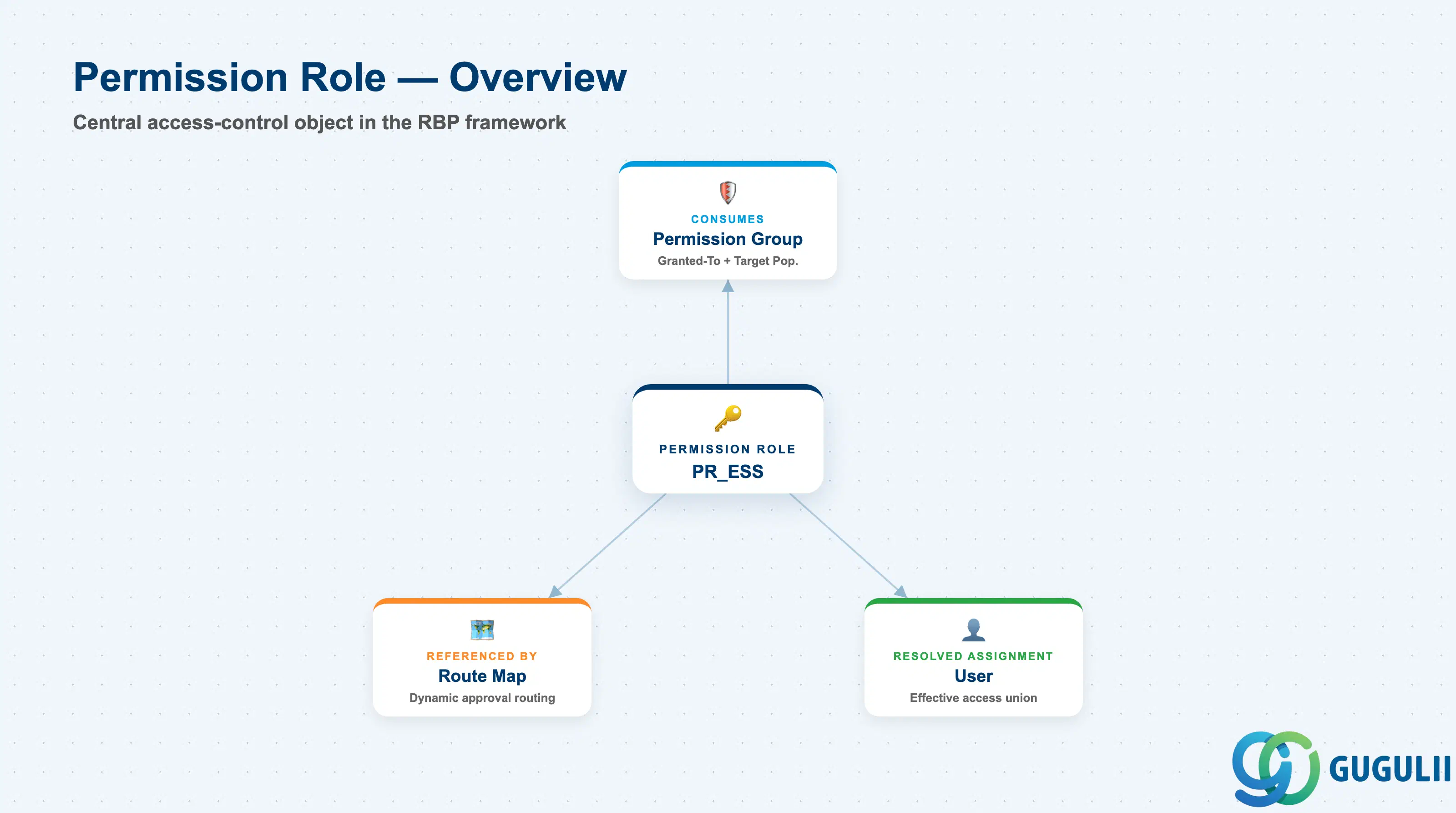
Permission Role is the object that actually performs access control: it is a named set of permission-category grants, each set at a specific access level, that only takes effect once a Granted-To population is told to receive it and a Target Population is told whose records it applies to. Where Permission Group is a reusable “who” primitive with no logic of its own, Permission Role is where that “who” is finally paired with a “what” — the point at which the entire Role-Based Permission (RBP) framework becomes operational.
| Aspect | Details |
|---|---|
| Role | Bundles specific permission categories/types with an access level (View / Edit / No Access / Enable), then binds that grant to a Granted-To population and a Target Population — the object that turns a Permission Group into functioning access control |
| Modules using it | Platform-wide capability owned by Admin Center / RBP engine; every module that enforces field- or record-level access control — Employee Central (field- and record-level access), Recruiting, Onboarding, Performance & Goals, Compensation, Learning — is exposed to users only through one or more Permission Roles configured against it |
| Transactions | Admin Center → “Manage Permission Roles” (create/edit roles, configure Permission Category / Type grants, bind Granted-To and Target Population); “Role-Based Permission Access” report for auditing effective access per user |
| Key Tables | No classic ABAP table — like Permission Group, roles are stored as internal RBP configuration objects, not exposed through the generic “Import and Export Data” tool. Role definitions are maintained directly inside “Manage Permission Roles”; export/import as an XML role file is supported for role-to-role copy, not as a generic CSV bulk load |
| S/4HANA note | No delivered synchronization exists between SuccessFactors Permission Role and any on-premise S/4HANA or classic HCM authorization construct. The loosest conceptual analogue is a PFCG role/authorization profile in classic ABAP security, but RBP’s category-plus-population model is structurally different and cloud-native; the two are never systemically linked |
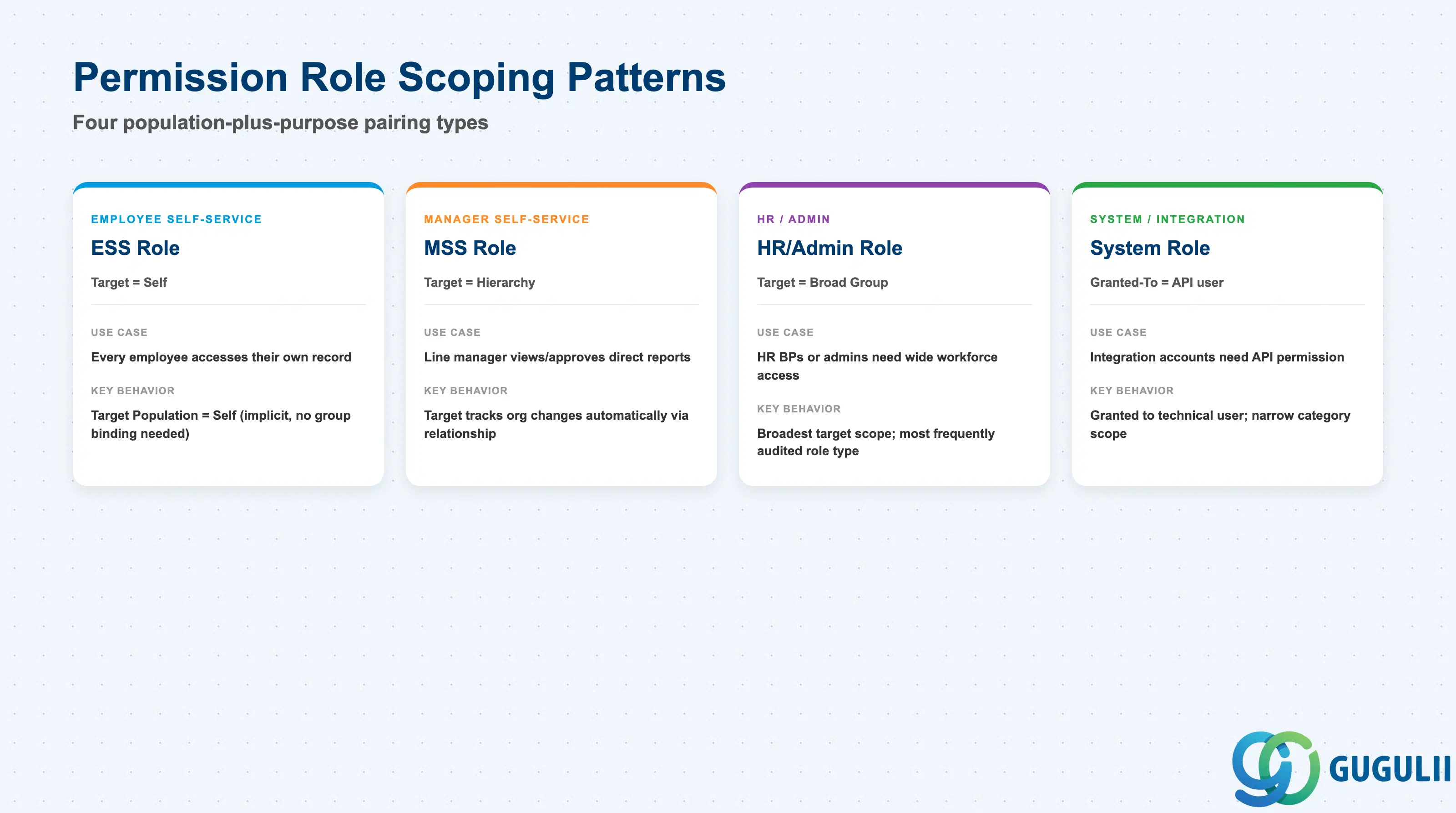
A Permission Role’s scoping pattern — how its Granted-To and Target Population are configured together — determines who ends up with access to whose data, and getting this pairing wrong is one of the most common findings in SuccessFactors access-control audits: a role built for one purpose but reused for a broader one silently over-grants access as the business scales.
| Scoping Pattern | Code | Use Case | Key Behavior |
|---|---|---|---|
| Employee Self-Service (ESS) Role | Target Population = Self | Every employee needs baseline access to their own record | Target Population is implicitly the same person as the Granted-To user; no separate group binding is required for the target half of the role |
| Manager Self-Service (MSS) Role | Target Population = Manager Hierarchy | A line manager needs to view/approve direct (or indirect) reports’ data | Target Population is set to a relationship-based value (e.g. “Target Population’s Manager”) rather than a fixed group, so the in-scope employee set tracks org changes automatically |
| HR / Admin Role | Target Population = broad Permission Group or Everyone | HR Business Partners or system administrators need wide access across the workforce | Broadest target scope of the four patterns; the most frequently reviewed role type in periodic access-control audits due to its breadth |
| System / Integration Role | Granted-To = technical/API user | Integration accounts, middleware, or OAuth clients need permission without a human end-user | Granted to a technical user rather than an interactive employee; typically scoped to a narrow set of Permission Categories limited to the specific APIs the integration calls |
Design principle: build Permission Roles around a narrow population-plus-purpose pairing — one role per clearly-scoped use case — rather than a small number of broad, all-purpose roles. Narrow roles are easier to audit and far less likely to over-grant access when the business reorganizes.
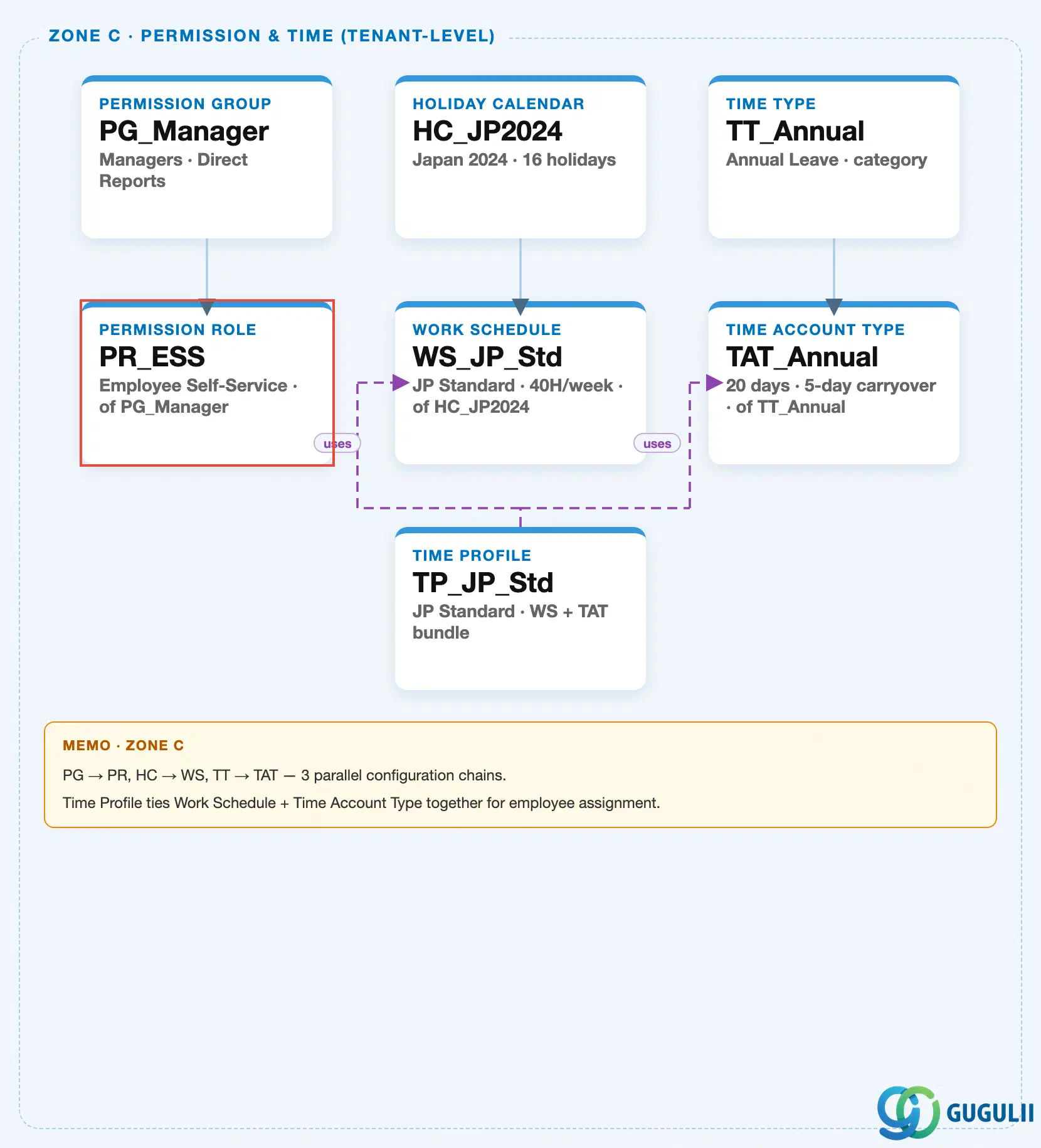
Data hierarchy with a concrete example
Permission Role sits in the same tenant-level “Permission & Time” zone of the SuccessFactors Master Data Landscape as Permission Group (SF-A03-01) — the first of three parallel, independent client-level configuration chains bundled into that zone (Permission Management; Holiday Calendar → Work Schedule; Time Type → Time Account Type, tied together by Time Profile). This article’s own object is the second node in the Permission Management chain; the other two chains exist in the same landscape zone but belong to sibling articles (SF-A03-03 through SF-A03-06):
Client (SuccessFactors Instance)
   │
   ├── Permission Group "PG_Manager" — Managers, Direct Reports  (see SF-A03-01)
   │      │
   │      └── Permission Role "PR_ESS" — Employee Self-Service, of PG_Manager
   │
   ├── Holiday Calendar "HC_JP2024" — Japan 2024, 16 holidays  (Time Configuration chain, see SF-A03-03/04)
   │      │
   │      └── Work Schedule "WS_JP_Std" — JP Standard, 40H/week, of HC_JP2024
   │
   └── Time Type "TT_Annual" — Annual Leave, category  (Time Configuration chain, see SF-A03-05/06)
          │
          └── Time Account Type "TAT_Annual" — 20 days, 5-day carryover, of TT_Annual

Time Profile "TP_JP_Std" — JP Standard, Work Schedule + Time Account Type bundle
   ├── assigned to ──> Work Schedule "WS_JP_Std"
   └── assigned to ──> Time Account Type "TAT_Annual"
MANDATORY landscape verification note: the module Master.md’s ER Diagram labels the Permission Group ↔ Permission Role relationship as “N:M,” and its data-flow table shows a single Permission Group (“PG_Manager”) linked to two example roles (“PR_ESS” and “PR_MSS”). The published SuccessFactors Master Data Landscape (
sf-a01/images/04-sf-a01-master-landscape.html, Zone C) draws this as one solid parent-child connector —PG_Manager → PR_ESS— representing a single instance of that relationship, not a claim that every Permission Group owns exactly one Permission Role. In real configuration, a Permission Role’s Granted-To and Target Population settings can each reference a different Permission Group, and a single Permission Group is routinely reused across many unrelated Permission Role assignments — the many-to-many cardinality the Master.md source describes. See Section 1.4 and 2.3/2.4 for how this reuse plays out in practice.
Design principle: Permission Role has no sub-levels of its own within the org hierarchy — it is a client-level configuration object like Permission Group. All of the structural complexity that matters for this object lives inside its own field configuration (Permission Category/Type grants, Granted Population, Target Population — Part 2), not in additional hierarchy nesting.
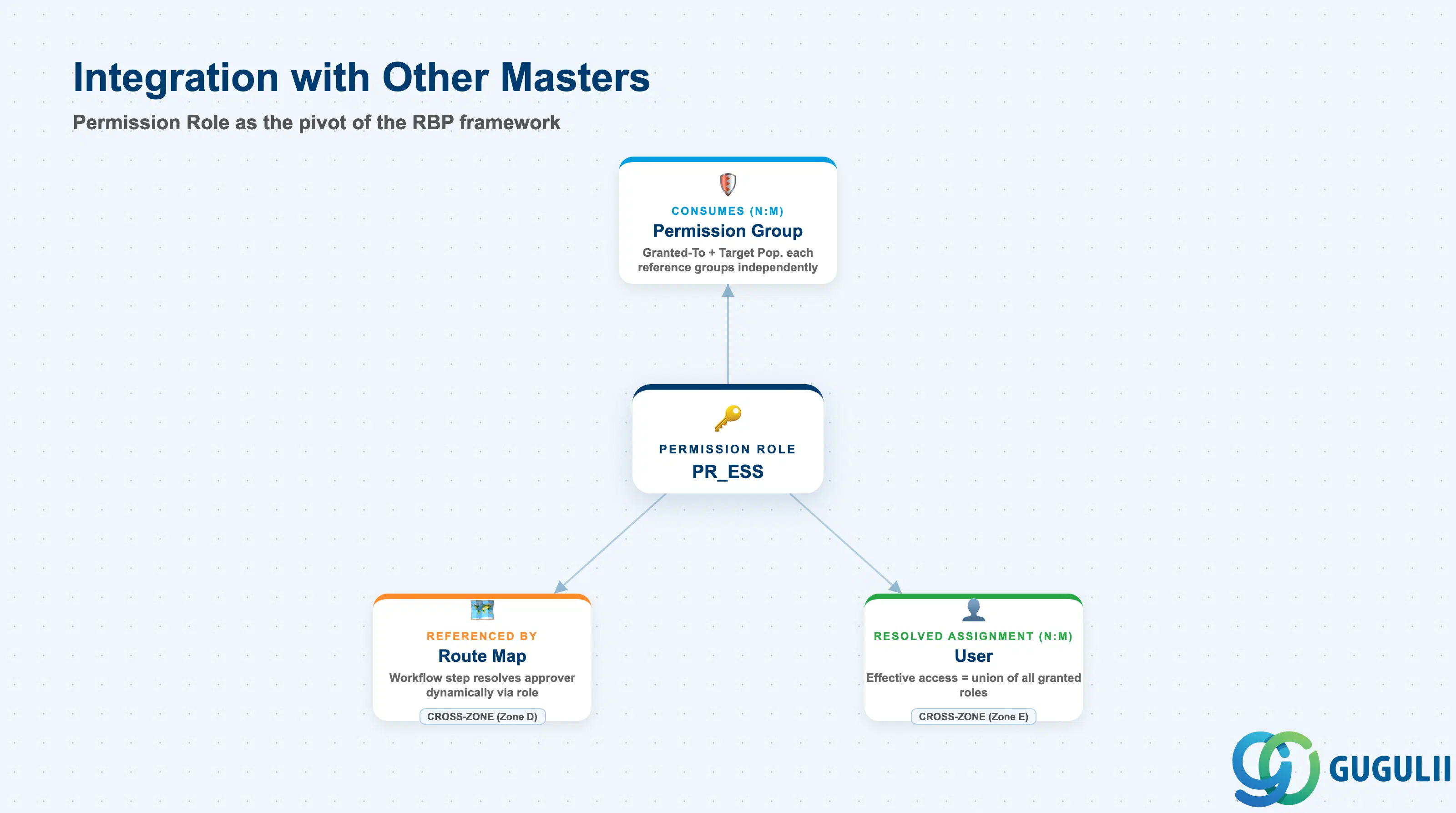
Permission Role is the pivot point of the RBP framework: it consumes Permission Group on the input side, and every other object that needs to check “is this user allowed” resolves back to it on the output side.
| Object | Relationship | Practical Notes |
|---|---|---|
| Permission Group | Consumes (N:M in practice) — a Permission Role’s Granted-To population and its Target Population each reference one or more Permission Groups, independently of each other | The two bindings are frequently confused during build: a role can grant broad access (many managers) scoped to a narrow target (their own direct reports), or grant narrow access (one HR team) scoped to a broad target (the entire workforce) — see SF-A03-01 for the Permission Group object itself. |
| Route Map | Referenced by (chip, cross-zone) — a Route Map workflow step can resolve its approver dynamically via a Permission Role rather than a fixed named person | Route Map steps commonly reference a role such as the employee’s manager-equivalent role for dynamic approval routing (e.g. “route to whoever holds Permission Role X for this employee”); see SF-A03-10 for Route Map field detail. |
| User | Resolved assignment (N:M, computed) — every logged-in User’s effective access is the union of every Permission Role currently granted to them | Troubleshooting “why can this user see (or not see) X” always starts by listing every Permission Role granted to that User, not just the one role initially suspected — a user is frequently granted several roles simultaneously (e.g. both an ESS and an MSS role). See SF-A04-03 (User) for the record this resolves against. |
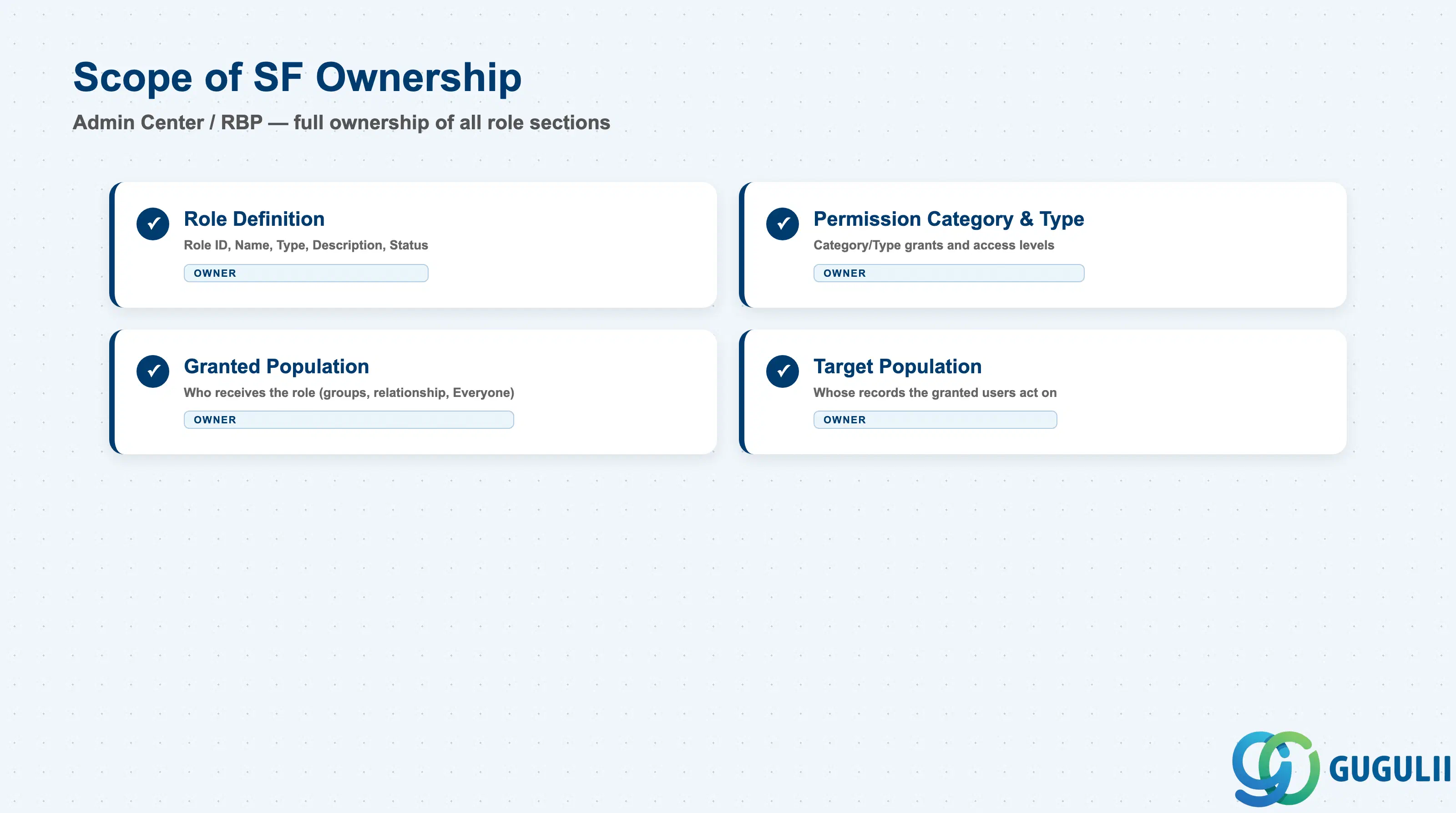
| Data Section | SF Involvement | Notes |
|---|---|---|
| Role Definition (Core Identification) | ◎ Owner | Role ID, Role Name, Role Type, Description, Status |
| Permission Category & Type Configuration | ◎ Owner | Category/Type grants and access levels across every RBP-enabled module |
| Granted Population (Grant This Role To) | ◎ Owner | Who receives the role — Permission Group(s), relationship-based grant, or Everyone |
| Target Population Assignment | ◎ Owner | Whose records the granted users can act on — Permission Group, hierarchy-based, or Self |
Legend: ◎ = Owner / Critical, ○ = Direct involvement
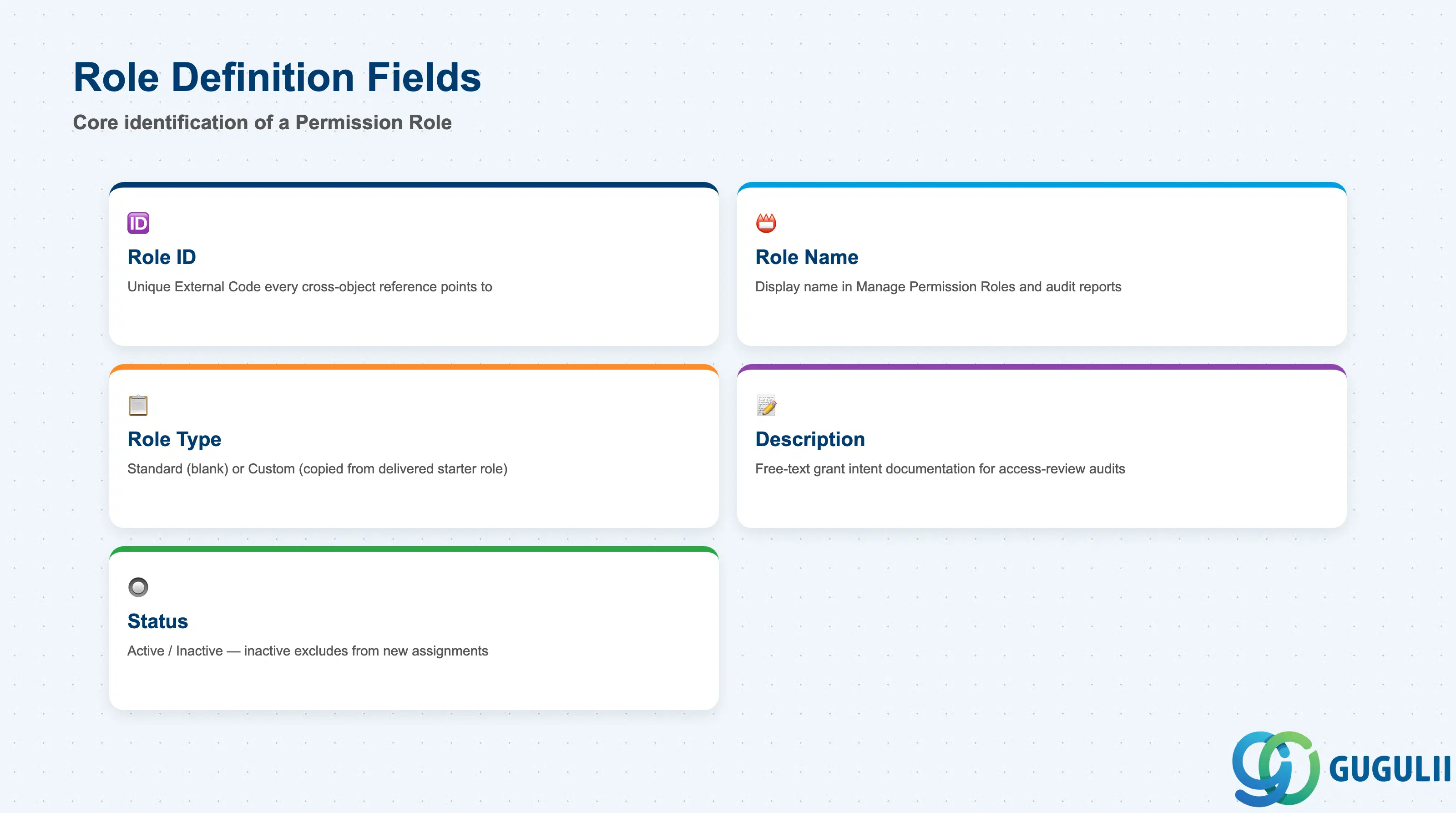
Role Definition is the minimum record a Permission Role needs to exist — it is what every Route Map ↗ role reference and every User’s assigned-role list resolves back to.
| Field | Description | Practical Usage |
|---|---|---|
| Role ID | Unique identifier (External Code) for the Permission Role | The key value every cross-object reference (Route Map step, User assignment list, audit report) points to. Agree a naming convention (e.g. PR_ prefix plus purpose) before go-live, since renaming after roles are widely granted requires re-checking every assignment and reference. |
| Role Name | Display name shown in the role list inside Manage Permission Roles and in the “Role-Based Permission Access” audit report | Should describe the role’s purpose and scope, not a single department (e.g. “PR_ESS,” not “PR_SalesESS”) — a well-scoped role is frequently reused across multiple organizational units later. |
| Role Type | Standard (built from scratch) / Custom (copied from a delivered starter role via “Import Role”) | Copying a delivered starter role via Import Role pre-populates a sensible baseline of Permission Category grants for a common use case (e.g. a manager starter role); starting from a blank Standard role requires walking every category manually — Import Role is the faster, less error-prone starting point for common patterns. |
| Description | Free-text explanation of what the role grants and why it exists | The only place grant intent is documented in plain language; essential for access-review audits where a reviewer asks “why does this role exist and who approved its scope.” |
| Status | Active / Inactive | An Inactive role is excluded from the Grant This Role To picker for new assignments, but does not automatically revoke it from users already granted it — audit and manually unassign before deactivating a role still held by active users. |
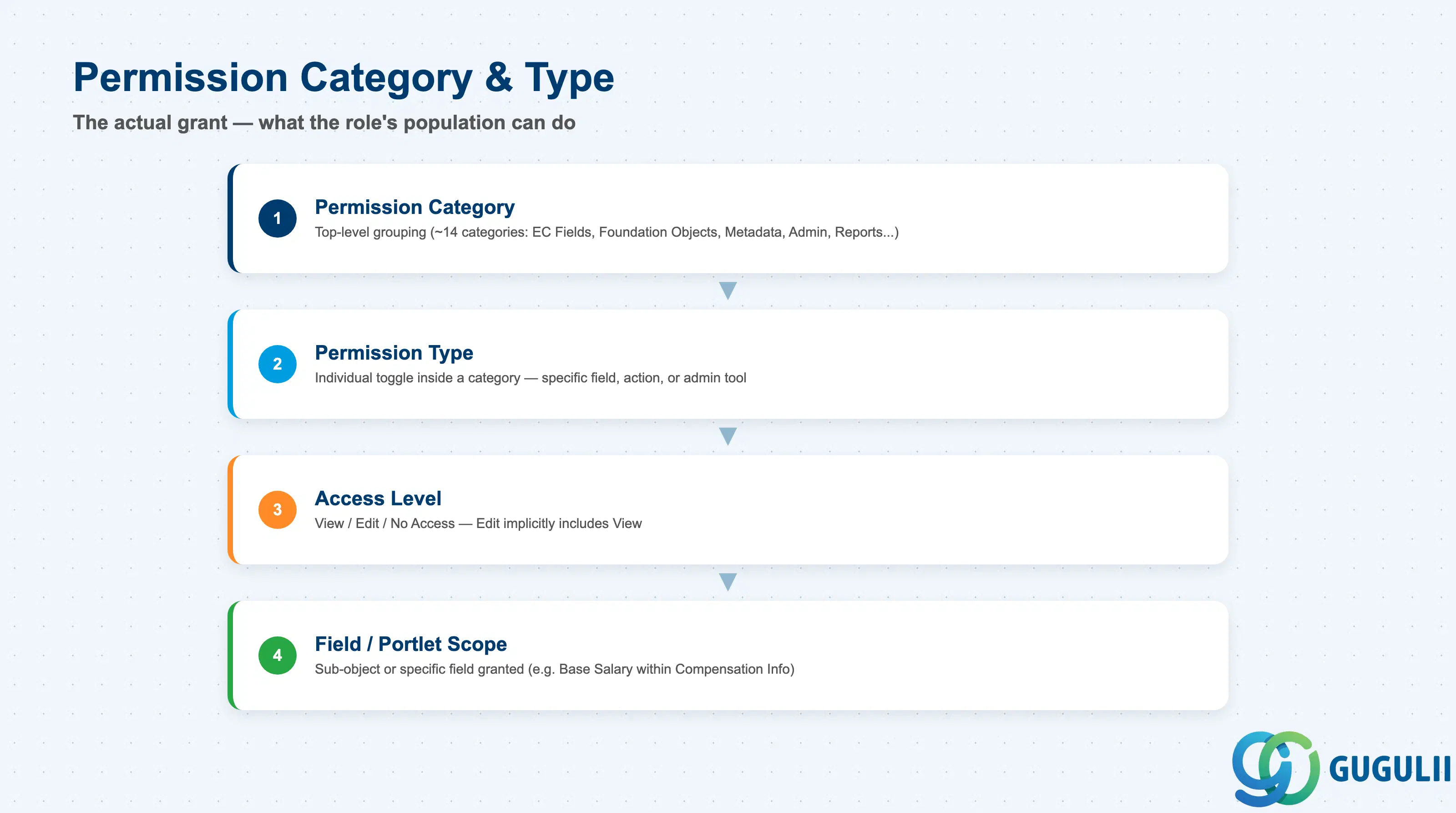
Permission Category & Type Configuration is the actual grant — the section that determines what the role’s population can see or do, field by field and feature by feature, across every RBP-enabled module.
| Field | Description | Practical Usage |
|---|---|---|
| Permission Category | Top-level grouping of related permissions (~14 categories: Employee Central Effective Dated Fields, Employee Central Foundation Objects, Metadata Framework, User Permissions, Administrator Permissions, Reports Permission, and others) | Consultants routinely miss lesser-used categories buried deep in the tree (e.g. “Manage Integration Tools”); a systematic category-by-category walkthrough during UAT, not a spot-check, is the standard way to catch these before go-live. |
| Permission Type | The individual checkbox/toggle inside a category — a specific field, action, or admin tool | Hundreds of permission types exist across all categories combined; exporting the role’s grant list to a comparison spreadsheet is the standard practice for reviewing or auditing granted types across several roles side by side. |
| Access Level (View / Edit / No Access) | The specific value set for a given field-level permission type under Employee Central-style categories | Edit implicitly includes View — granting Edit when only View was intended is a common over-grant mistake. Always confirm View alone is sufficient before setting Edit. |
| Field / Portlet Scope | For Effective Dated Field categories, the specific sub-object or field being granted (e.g. “Base Salary” within Compensation Information) | Field-level permission combined with the role’s Target Population is what actually determines visibility of a specific data point — missing either half (the field grant or the target scope) leaves what looks like zero access even though the other half is configured correctly. |
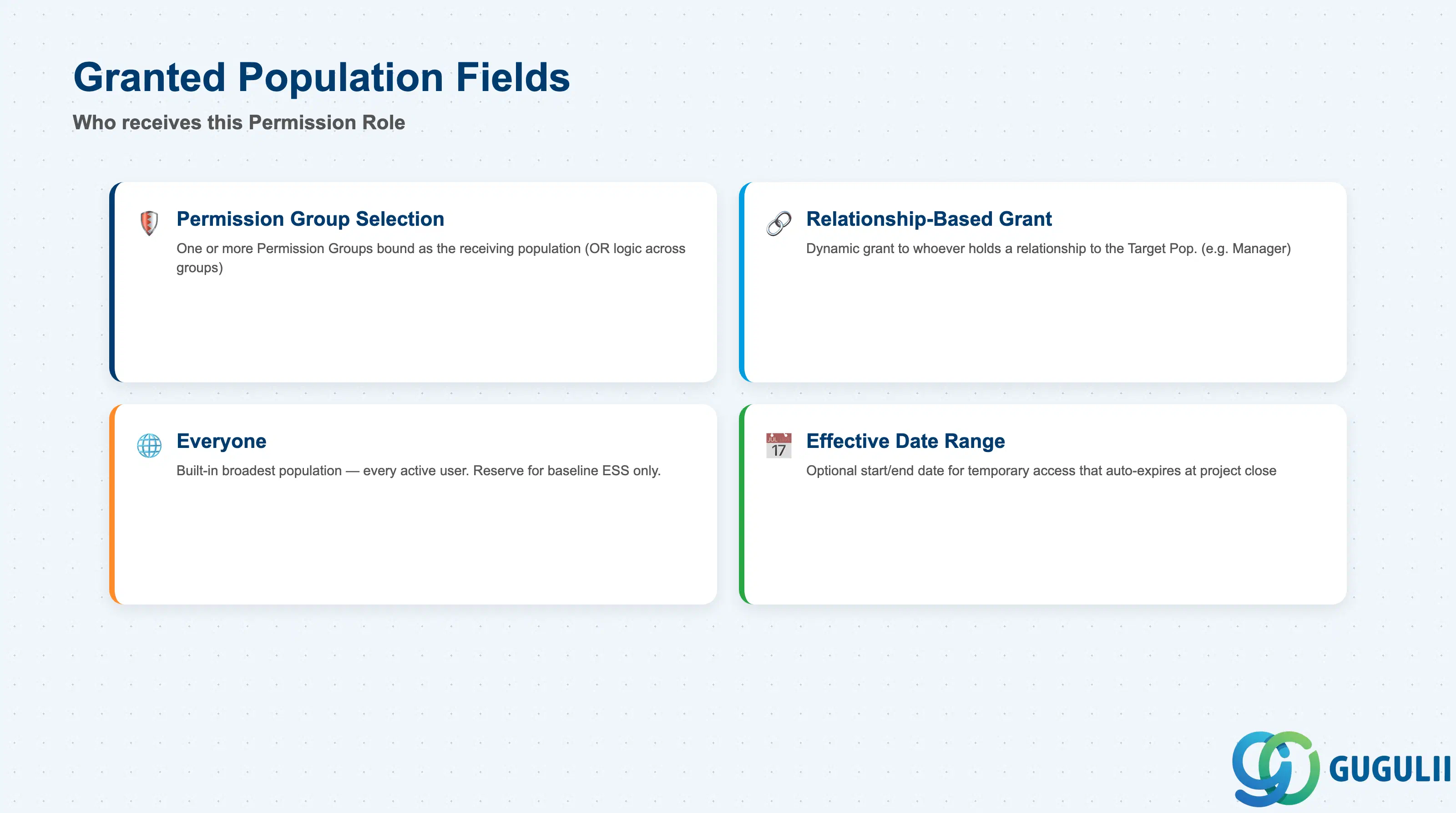
Granted Population answers “who receives this role.” A role can be granted through a fixed Permission Group binding, a dynamic relationship to the Target Population, or the built-in Everyone group.
| Field | Description | Practical Usage |
|---|---|---|
| Permission Group Selection | One or more Permission Groups bound as the population who receive this role | A role can grant to multiple groups simultaneously (OR logic across the selected groups) — the list tends to grow over time without cleanup, making it a standard checkpoint in periodic access reviews. |
| Relationship-Based Grant | Grants the role dynamically to whoever holds a specific relationship to the person in the Target Population (e.g. “Target Population’s Manager”), rather than to a fixed group | The standard pattern for MSS-style roles — as org changes move an employee under a new manager, the new manager automatically receives the role and the old manager automatically loses it, with no manual regrant needed. |
| Everyone | Built-in broadest population — every active user in the instance | Same caution as Permission Group’s Everyone entry (SF-A03-01, Section 1.2): reserve for baseline ESS-type roles only; using it for anything with sensitive Target Population access removes any population boundary entirely. |
| Effective Date Range | Optional start/end date scoping for when the role’s grant is active | Used for temporary access — e.g. a project-based role that should auto-expire at project close — reducing dependence on a manual deprovisioning follow-up step. |
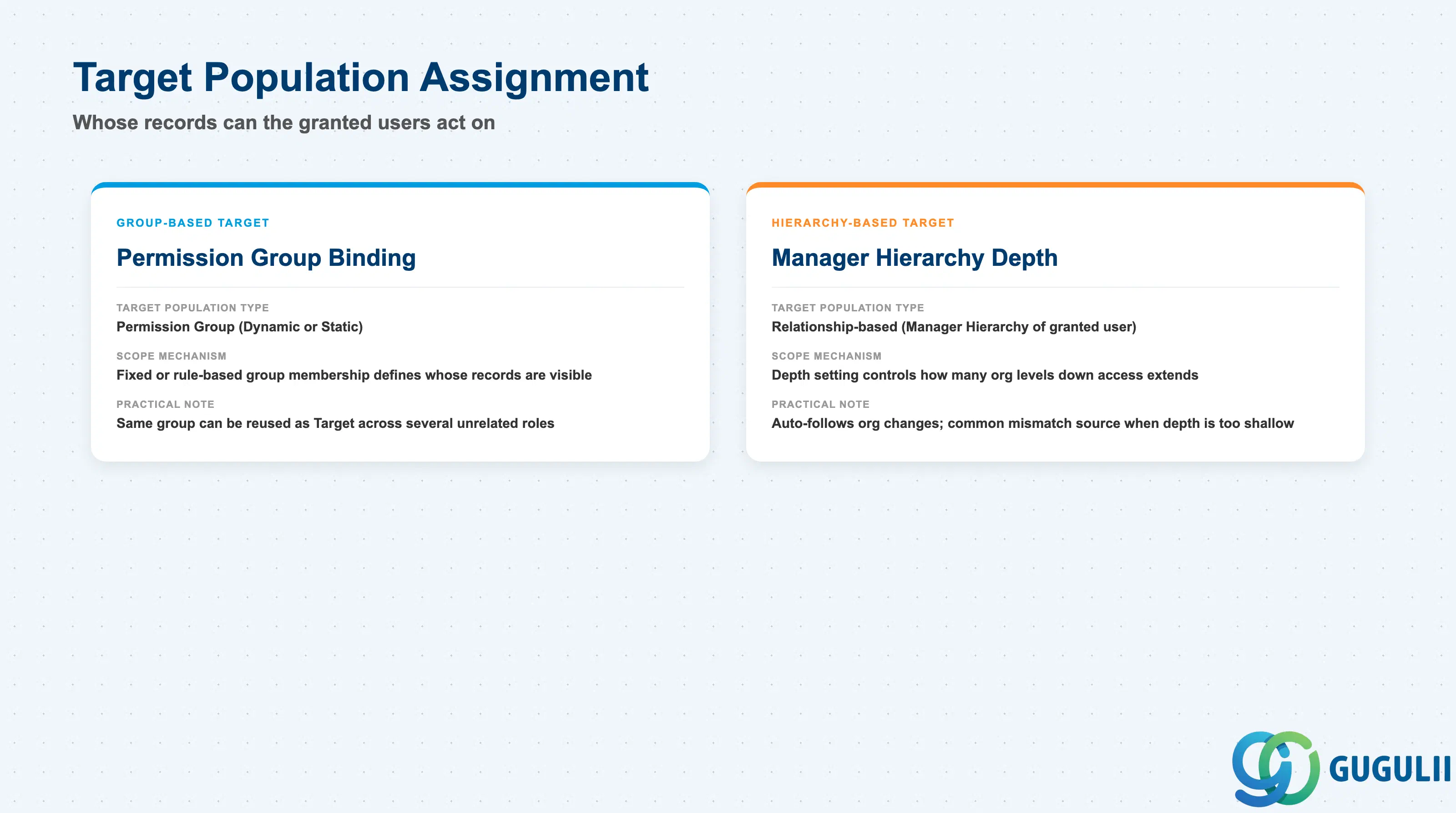
Target Population answers “whose records can the granted users act on.” This setting is configured independently of Granted Population, and mismatches between the two are among the most common RBP troubleshooting tickets.
| Field | Description | Practical Usage |
|---|---|---|
| Target Population Type | Options: Permission Group, relationship-based (“Manager Hierarchy” of the granted user), Everyone, or Self only | For ESS roles, Target = Self is effectively automatic and easy to overlook when building an MSS or HR role — forgetting to explicitly bind a Target Population for a non-ESS role produces a role with correct permission grants but no valid record scope, which reads to end users as “the role isn’t working.” |
| Manager Hierarchy Depth | How many organizational levels down a hierarchy-based target scope extends — direct reports only, or all subordinates through the full chain | A common source of tickets is a mismatch between this setting and the business requirement (e.g. a manager unable to see a subordinate’s subordinate) — set depth to match the actual approval or visibility requirement, not a default assumption. |
| Group-Based Target | Permission Group (Dynamic or Static, per SF-A03-01) bound as the fixed or dynamic target scope | Uses the identical Permission Group binding mechanism as Granted Population, but is configured as a conceptually separate setting on the same role — the same group can be, and often is, reused as the Target Population of several unrelated roles. |
| Combination with Granted Population | How the Granted-To and Target Population settings interact to determine effective access | Both settings must independently resolve to a non-empty population for the role to have any practical effect. The standard first troubleshooting step for “role isn’t working” is checking both halves — whether the user actually receives the role, and separately, whether anyone falls inside its Target Population — rather than assuming the fault lies in only one of the two. |
| ID | Category | Title |
|---|---|---|
| sf-001 | Overview | What is SAP SuccessFactors? |
| ID | Category | Title |
|---|---|---|
| sf-b01 | Overview | SAP SuccessFactors Transactions: Process Flow, Hierarchy & Relationships |